All-New Event Presentation Switching Solutions
User Manual
8 U5/U5 Pro Event Controllers
Import Still Images
Save the pictures to be imported into the smart touchscreen to the USB drive.
Insert the USB drive to the USB port on the side panel of the event controller.
On the main touchscreen, choose Settings > Event Controller, and select the Smart
Screen tab to enter the tab page.
In the Still Images area, click to add a pictures.
Select the inserted USB drive in the pop-up dialog box, select the necessary picture
files, and click Open to import the selected pictures to the smart touchscreen.
Up to 8 pictures in png, jpeg, jpg, and bmp formats can be imported into the smart
touchscreen.
View Images on Smart Touchscreen
On the smart touchscreen, click Still Images to enter the subpage.
Still images are displayed in full screen mode on the smart touchscreen by
default.
Swipe left or right to view the next or previous image. The images will cycle in a
continuous loop as long as you keep swapping.
After you turn on slideshow function, the images will automatically cycle in a
continuous loop as long as the slideshow function is turned on.
Pinch with two fingers to zoom in or out the still images.
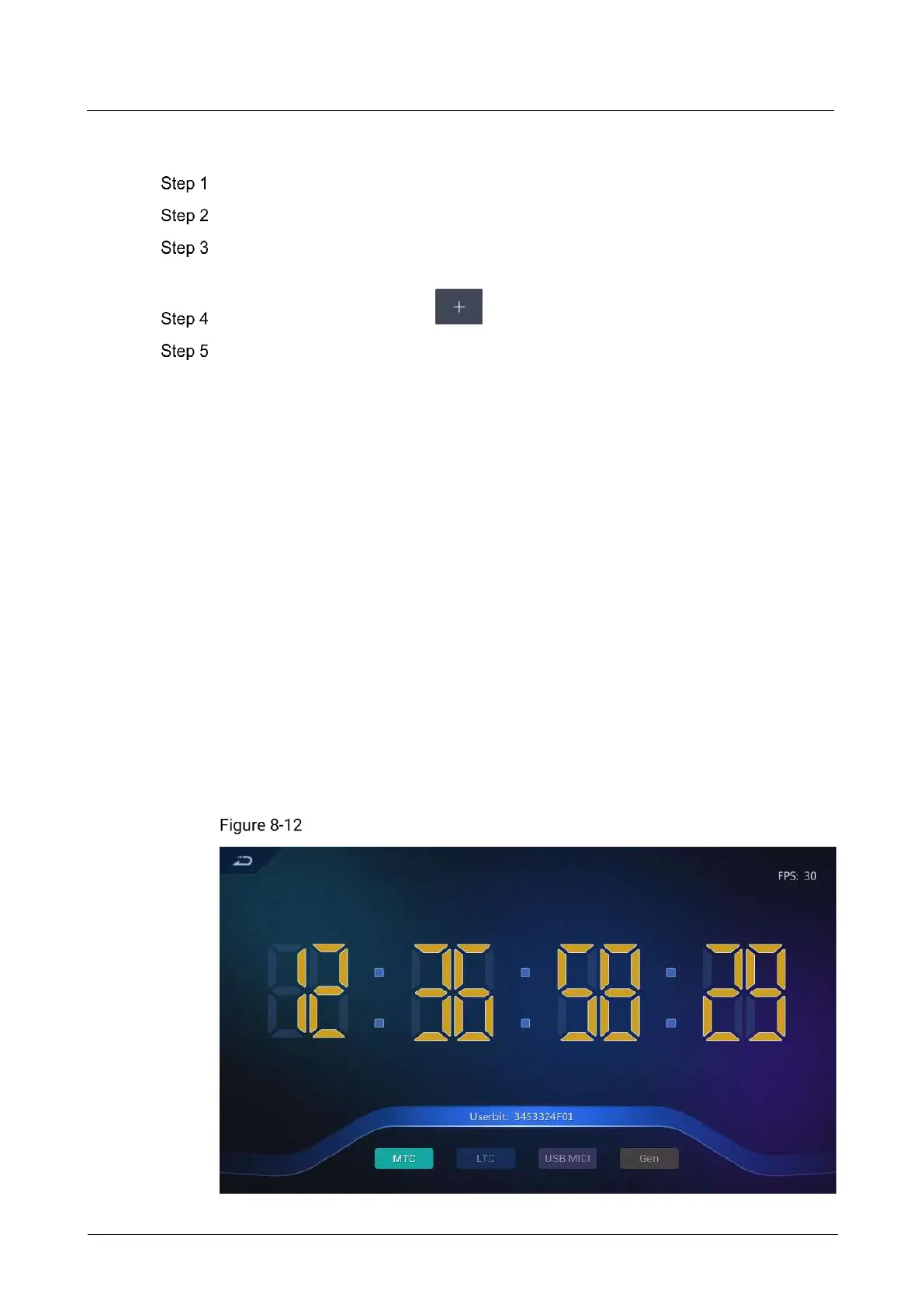
View Timecode
On the smart touchscreen, click Timecodes and view the timecode information of
output.
Timecode displayed



 To Next Page