FX-20
Servo test operation
Neutral Position “Neutral”
The transmitter will centre all channels. This is ideal to check
that servos and arms are in their neutral position when adju-
sting linkages.
Scroll the „CAP TOUCH SENSOR“ in Test mode from the
„OFF“ to ‘NEUTRAL’ field.
Automatic Servo test “MOVING”
This mode starts an automatic Servo test, which moves all
channels from one end point to the other. The Function is ideal
to test the Servos or their maximum control throw.
With the “CAP TOUCH SENSOR”, move the cursor to the [MO-
VING] button and press the RTN key to confirm.
Important note:
When usin gthe MOVING function, make sure that no
MOtor is connected during the test, since this can start
suddenly without warning and cause personal injury.
Note:
During the Tests, the servo throw limits will apply. All previous
settings of Dual-Rate, End Point etc. will also be applied to the
servo control.
10.2 MODEL SELECT
As well as selecting the model memory data, this menu will
also be used for the entire handling of model data, such as
creating, copying, deleting and renaming model memories.
A model memory occupies approximately 500 kB, and up to
20 Models can be stored internally, and on a 32 MB SD card-
approximately 60 Models. The transmitter can manage an SD-
card up to 2 GB; therefore approx. 3862 Models can be stored.
Note:
Make a safety back-up copy of your model memory before ma-
king any experiments with new settings. Turning off the trans-
mitter will automatically store all the current data in the model
memory.
CREATE MODEL MEMORY
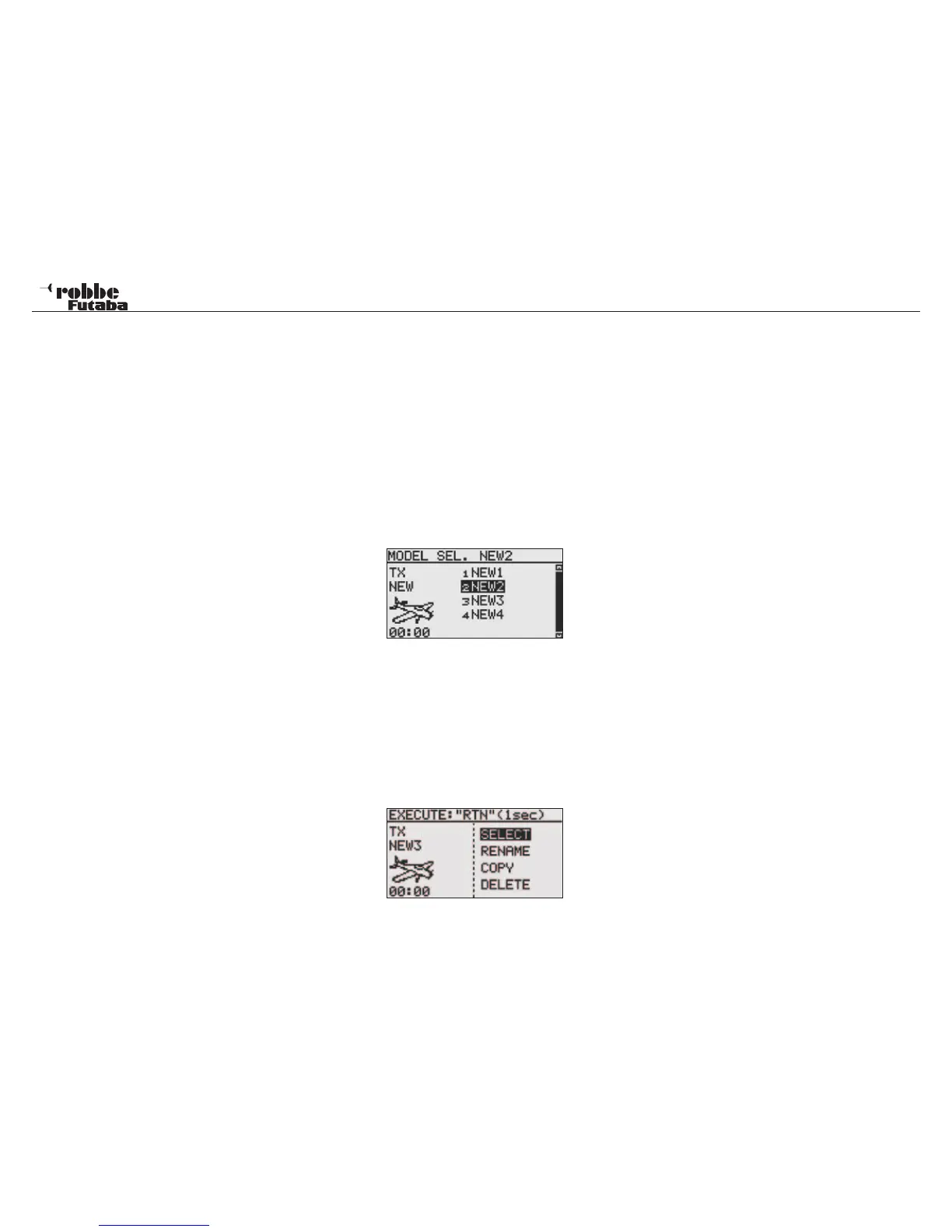
Select the „MODEL SELECT“ menu and choose the memory
medium with the „CAP TOUCH SENSOR” Either „TX“ for the
internal transmitter memory or „CARD“ for model memories
stored on the SD-card.
• The right hand field displays the list of models stored on
the media. Here all the occupied memory spaces with
model names will be listed. Select the required model with
the „CAP TOUCH SENSOR“ and confirm with the ‘RTN’-
key.
• Afterwards highlight „SELECT“ and confirm with „RTN“.
• A security question needs confirming by pressing RTN
again. Thereafter, the new model memory may be used.
• Thereafter, the new model memory may be used.
CREATE NEW MODEL MEMORY
• Highlight „NEW“ and activate. For safety reasons, the RF
transmission will be stopped. The model must be shut off.
• Confirm the following safety question by pressing the r
‘RTN’-key for 1 second.
• In the automatic Displays
- Model type select and confirm change (see Chapter 10.3)
- Modulation select
• Modulation change confirm.
• Thereafter, the new model memory is active.
The new model will be given the name “New” and stored with
the next available number and appear in the model list. Finally,
rename the model with the desired name.
MODEL MEMORY DELETE
For safety reasons, an active model cannot be deleted.
• To delete a model from the list, highlight and select with the
„CAP TOUCH SENSOR“ from the desired memory medium
and confirm with “RTN” .
• Thereafter, select „DELETE“and confirm with “RTN”
• S1 Taste halts the deletion process.
24
Linkage Menu


 To Next Page