FX-20
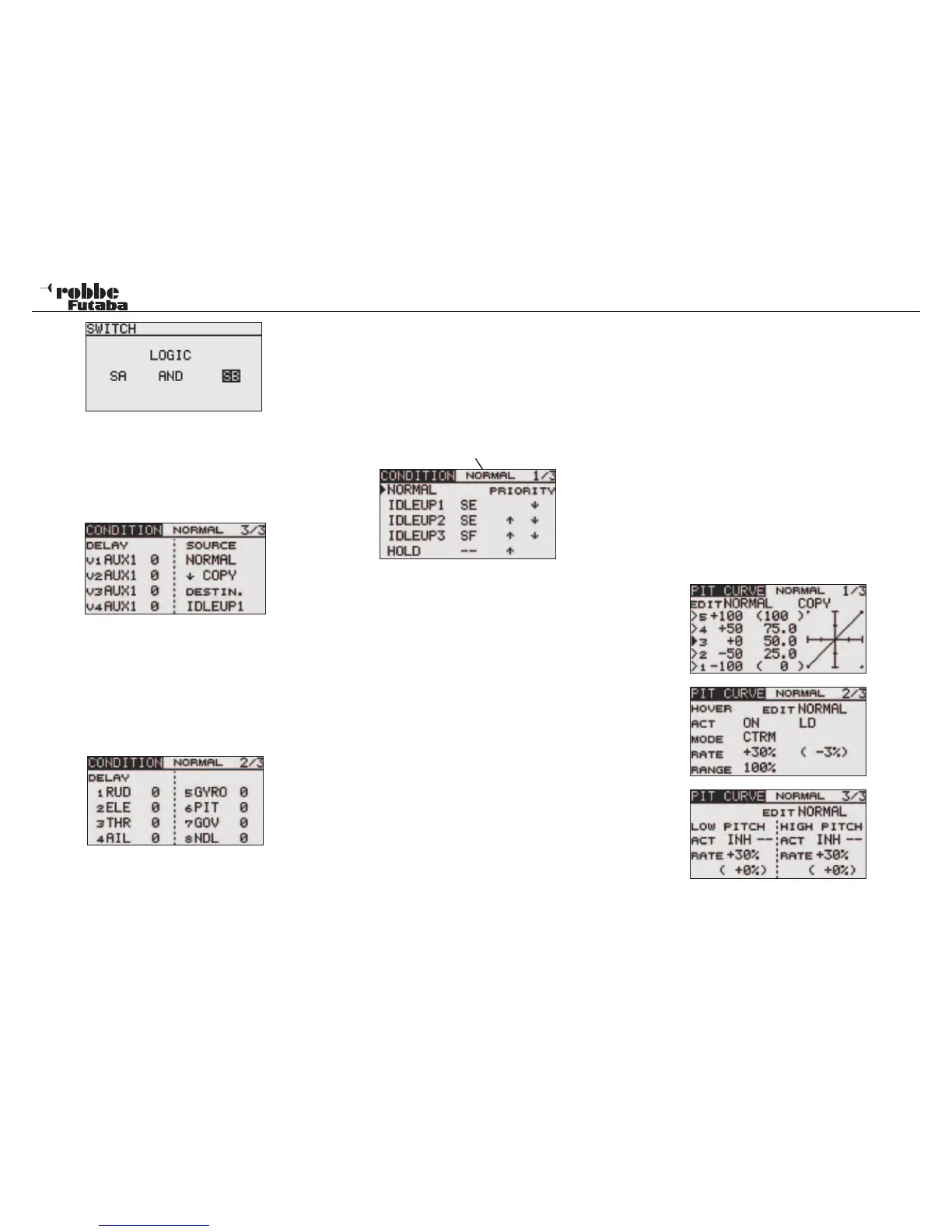
• COPY FLIGHT CONDITION
Select the source flight condition that is to be copied from.
Then highlight the target field, to which the source condition
should be copied. Now highlight “COPY“ and confirm with
touching ‘RTN’-key for 1 second. The Flight Condition set-
tings are now copied into the new one.
• SET CONDITION DELAY
Select the condition for which you want to set. Move the
cursor to the „DELAY“ item of the channel you want to set
and touch the RTN button to switch to the data input mode.
Adjust the delay amount by scrolling the touch sensor. The
Adjustment range is 0~27 (maximum delay) and the initial
pre-set value is 0 (no delay time programmed). Touch the
RTN button to end adjustment and return to the cursor
mode.
• PRIORITY CHANGE
Move the cursor to the priority up-arrow or down-arrow with
the “CAP TOUCH SENSOR” of the flight condition you want
to change and touch the RTN button. The priority of the cor-
responding condition is changed. The last condition line in
the Display becomes the highest priority and works across
all flight conditions! (Note: The normal condition cannot be
shifted. The priority is always the lowest)
activ condition
13.2 SET COLLECTIVE PITCH CURVES
Moving the Throttle/Pitch stick, not only moves the Collective
Pitch servo, but also the Throttle servo will be controlled. To
make independent adjustments to match both curves, the Coll-
ective Pitch function has a curve, with up to 5 programmable
points available, which can be coupled to the Throttle curve.
Note:
Before changing any pitch curve settings, ensure you
have the correct flight conditions and assigned all swit-
ches in the correct positions/priorities. It is also possible
to adjust the throttle curve of another flight condition, wi-
thout changing flight condition. Select the required flight
condition in the „EDIT“ field.
Highlight “PIT CURVE” with the “CAP TOUCH SENSOR“ in the
Helicopter Model-Menu and confirm with “RTN”.
The Display has three pages/sub menus, which are as follows:
Model menu helicopter
53


 To Next Page