FX-20
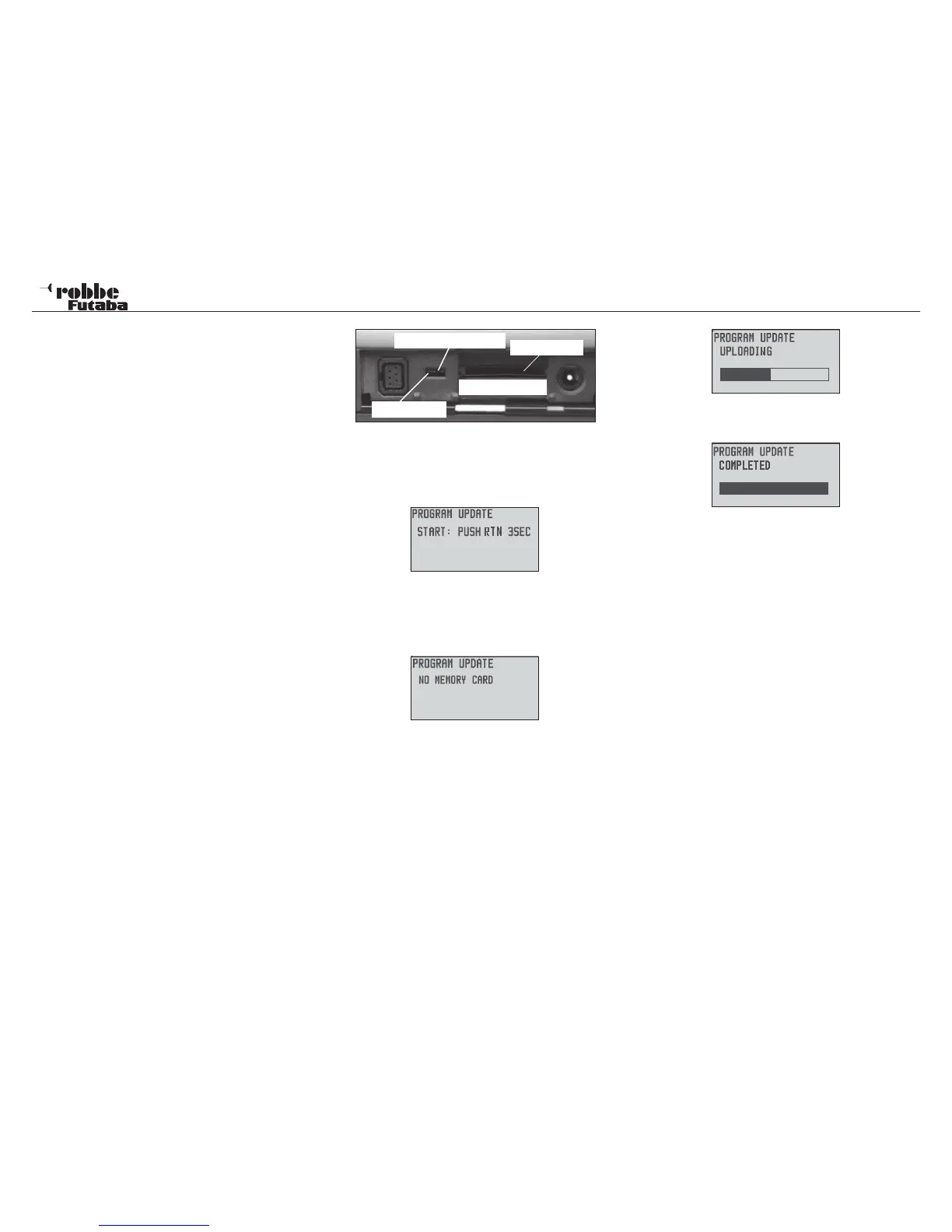
10) Slide the ‘Update’-switch to the Update-position. Use a
jeweller’s screwdriver for this.
11) Turn the Tx on. After approx. 10 seconds, the following
message will be displayed.
Follow the on-screen instructions and touch the ‘RTN’-key for
at least 3 seconds.
When no card is present or one without or corrupt data is in-
serted, the following message will appear:
Turn the Tx off and check the card and the data.
12) After touching the ‘RTN’-key, the data transfer will com-
mence.
13) As soon as the data transfer has successfully taken place,
the Display will be:
14) Turn the Tx off and move the Update-switch to its normal
position.
Note:
Take care that battery doesn’t slide out of its compartment
during the update! This will cause a complete Software
crash! To prevent this happening, secure the battery by
replacing the cover.
82
Software Update
15. TRANSMITTER SOFTWARE UPDATE
The FX-20 Software can be updated by the user to the latest
version. The Update data is available to download from the
robbe-Homepage. We recommend that you register at http://
support.robbe.com, so that you can receive any new Updates
by E-Mail Newsletter and be able to access the protected Sup-
port areas of the website.
This data must be copied to a Card Read/writer to copy the
data to an SD-card. The upload of the new Software into the
Tx memory is as follows.
SOFTWARE UPDATE:
1) Download compressed Software data from robbe Support
Server http:// www.robbe.com/rsc.
2) Unzip data.
3) A folder name of “FX-20 update” will be created.
4) Open folder and double click FX-20 update.exe.
5) The “Futaba File System Utility” will open.
6) Select the SD Card drive and click “OK”.
7) A question follows:
“Data Copy on the SD-card. OK?”
Click OK
8) The following message will appear:
“The copy to the SD-card ended normally”
9) Place the SD card into the Transmitter:
I nsert the SD card with the Update-data in to the receptacle
in the battery compartment of Tx
Software update switch
Update position
SD-cart tunnel
SD-cart tunnelling


 To Next Page