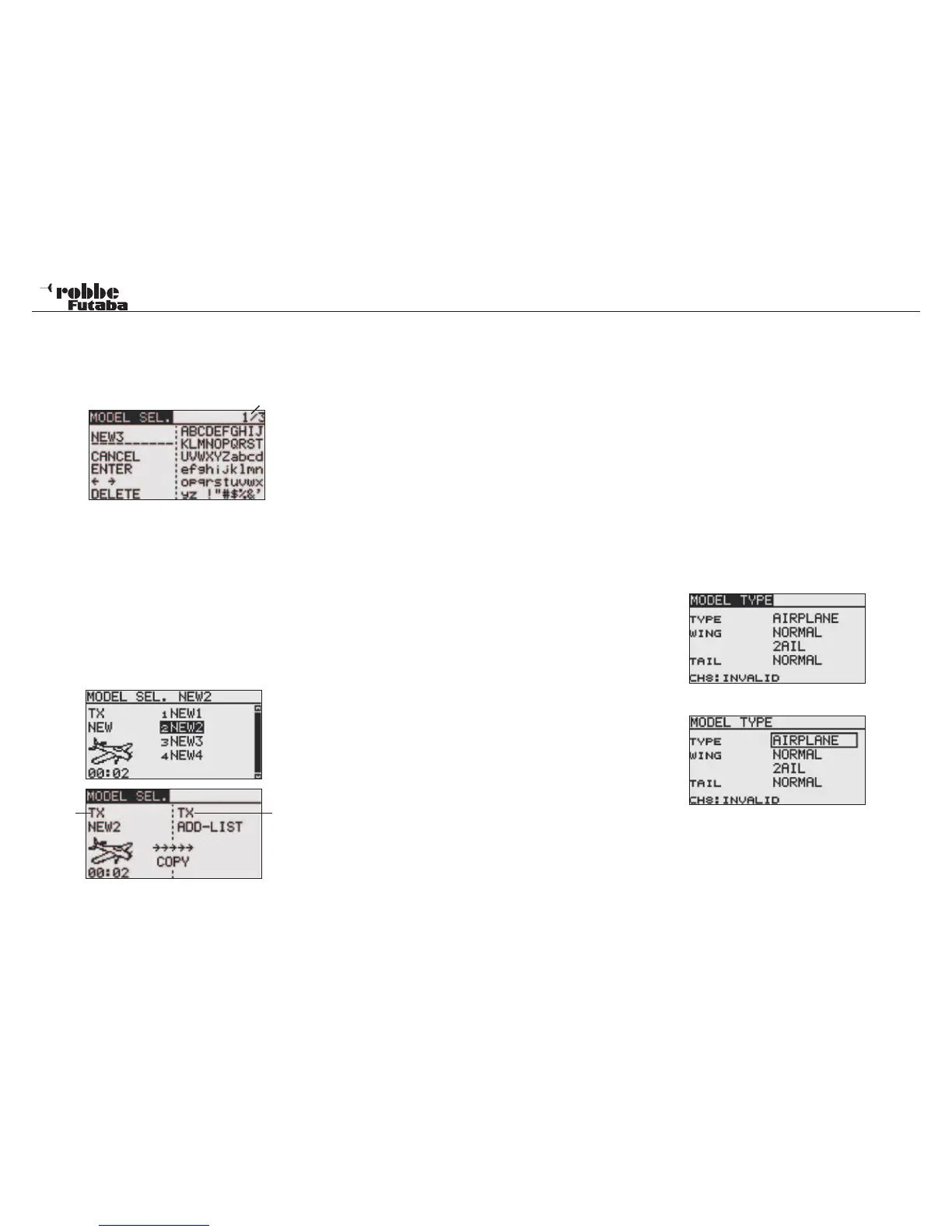
MODEL MEMORY RENAME
• If requiring to rename a model, select from the list in the
memory medium (TX/CARD) and confirm with “RTN”.
• Highlight ‘RENAME’ and confirm with “RTN”. A new display
appears with all available alphanumeric characters.
S1= binder
Data entry is made using the alphabetic characters and
numbers and may be up to 10 characters long (including
spaces).
MODEL MEMORY COPY
You may copy a model memory within the same memory
medium, or copy to another medium.
1) Firstly, the memory destination and the model to be copy
must be defined.
- TX or
- CARD.
Select the relevant item and using the „CAP TOUCH SEN-
SOR“, choose the required memory medium.
FX-20
2) Thereafter, the memory place and the target file must be
selected and confirmed with the ‘RTN’-Key.
- TX or
- CARD.
3) Finally, the ‘COPY’-command must be highlighted with the
cursor and confirmed by pressing ‘RTN’-key for 1 second.
Rotating the “Cap Touch Sensors” interrupts the process.
Additionally, using “ADD-LIST” can overwrite an existing
model memory.
When copying and overwriting, an automatic indexing num-
ber -1, -2 etc. will be allocated to the model name. If the
model name for an additional Index is too long, the two last
characters will be deleted.
10.3 MODEL TYPE
In this menu, the wing and tail types will be selected. With heli
models, the swashplate mixing appropriate to the model type
selection will be displayed.
This reduces the display to an absolute minimum and helps as
an overview.
Note:
The model- and wing type selection must be made before the
model adjustment menu, because a change of the model and
wing type will delete all previous settings!
Highlight with the „CAP TOUCH SENSOR“ the ‘MODEL TYPE’
selection in Linkage Menu and confirm with “RTN”. The follow-
ing Display will appear, dependent on model type, there will be
minor differences.
The display „Ch8 invalid“ appears when the Tx is in 7 channel
FASST mode.
Highlight with the Cursor, TYPE and press “RTN”.
Within the three categories, mark the desired model type (Air-
plane, Glider or Heli) and confirm with “RTN”.
Confirm the following safety question with „RTN“. Following the
selection, the associated wing, tail or swashplate types will au-
tomatically be available to use.
25
Linkage Menu
Source
Destination


 To Next Page