PASCA_TOUCHIT_EN
V02 | 07.2013
145
www.schaerer.comTroubleshooting
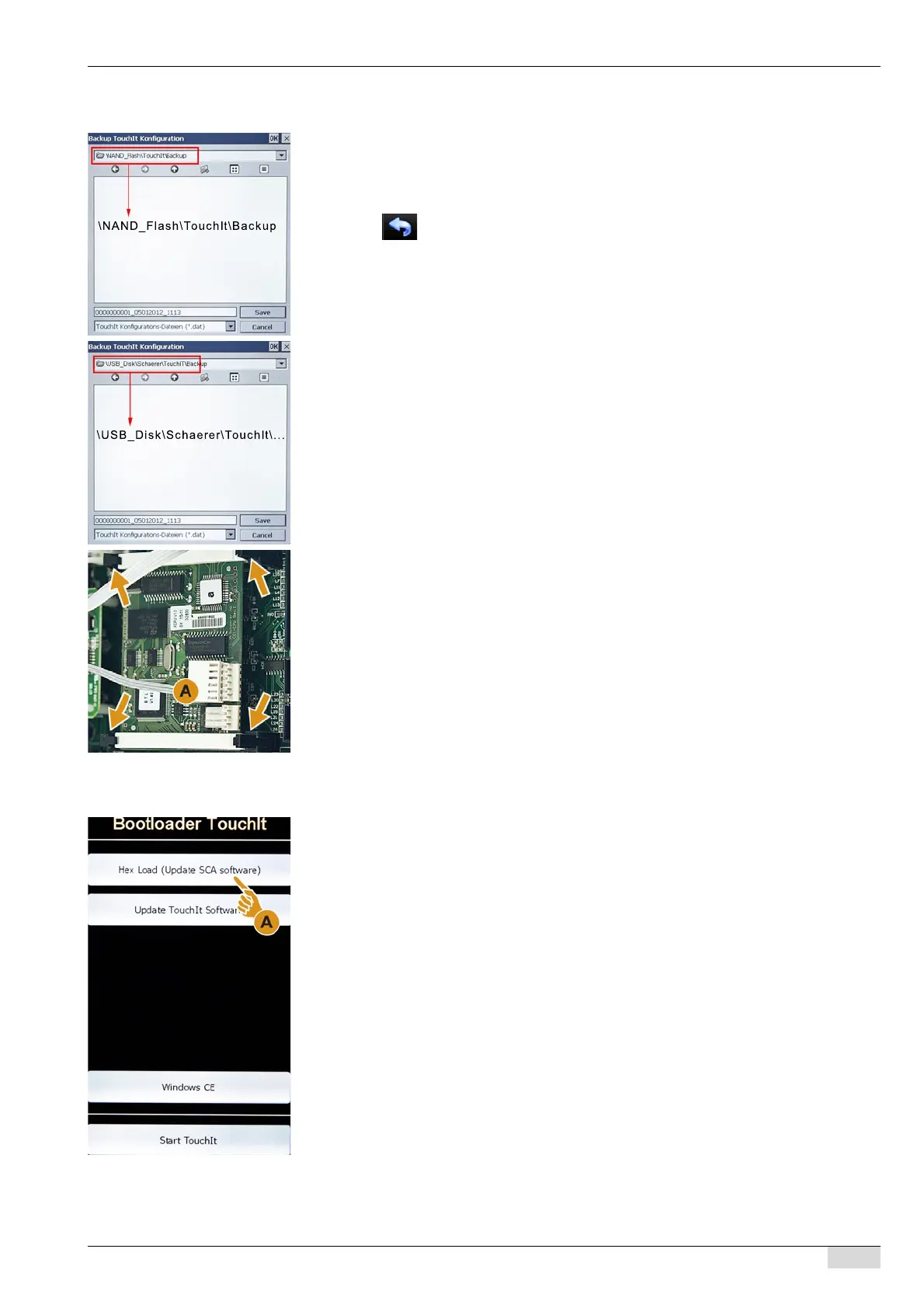
► Select the additional "Backup" submenu.
The window opens with the correct storage folder on the TouchIT.
► Select the [SAVE] field in the window.
The data have been stored on the TouchIT.
The backup file is named with the current date and a consecutive number.
2a.) Execute a backup on the flash drive.
► Use the field to return to the "System" menu.
► Insert the flash drive under the TouchIT.
► Select the "Restore / Backup" submenu.
► Select the additional "Backup" submenu.
The window opens with the correct storage folder on the flash drive.
► Select the [SAVE] field in the window.
The data have been stored on the flash drive.
The backup file is named with the current date and a consecutive number.
3.) Install the new CPU.
(Caution! It is imperative that you follow the precautions against electrostatic discharge
(ESD)).
► Switch off the machine and disconnect the power plug of the machine from the power sup-
ply.
► Remove the left side panel from the machine.
► Detach the ribbon cable connector (A) from the CPU.
► Release the old CPU at the four fasteners and remove it.
► Insert the new CPU and close the four fasteners again.
► Reconnect the ribbon cable connector (A).
► Mount the side panel again.
► Reconnect the power plug to the power supply.
4.) Load the SCA software from the flash drive to the CPU.
► Insert the flash drive under the TouchIT.
► Switch on the machine.
The machine starts and immediately goes into the "Bootloader TouchIT" mode.
► Select the [Hex Load (Update SCA Software)] (A) field.



 To Next Page