12-42
Troubleshoot a problem
12
Action Yes No
Step 1
1)Dependingonyouroperatingsystem,specifythepaper
type from the Printing Preferences or Print dialog.
Note
-
Make sure that the setting matches the paper loaded.
-
You can also change the setting on the printer control
panel.Navigateto
Settings→Paper→TrayConfiguration
→PaperSize/Type
2)Printthedocument.
Do vertical white lines appear on prints?
Go to step 2. The problem is
solved.
Step 2
Check if you are using the recommended paper type.
1)Loadthepapersourcewiththerecommendedpapertype.
2)Printthedocument.
Do vertical white lines appear on prints?
Go to step 3. The problem is
solved.
Step 3
1)Openthefrontdoor,andthenfirmlypushitdown.
2)Pullouttheprintcartridgetray.
3)Remove,andtheninserttheprintcartridges.
4)Inserttheprintcartridgetray,andthenclosethedoor.
5)Printthedocument.
Do vertical white lines appear on prints?
Contact customer
support.
The problem is
solved.
❖
Repeating defects
Note
-
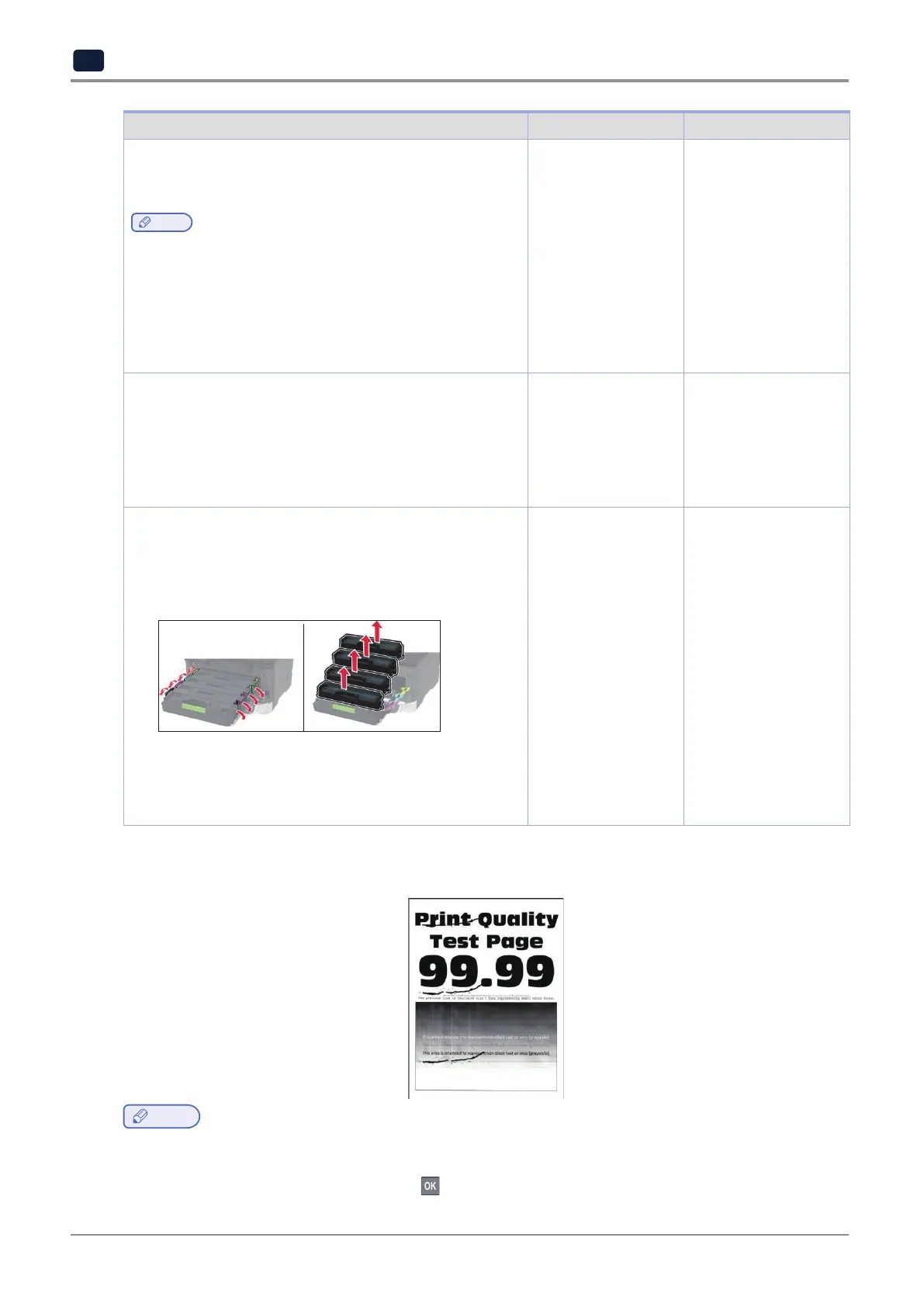
Beforesolvingtheproblem,printthePrintQualityTestPages.Fromthecontrolpanel,navigateto
Settings
→
Troubleshooting
→
Print Quality Test Pages.
For non-touch-screen printer models, press
to navigate through the settings.



 To Next Page