13.
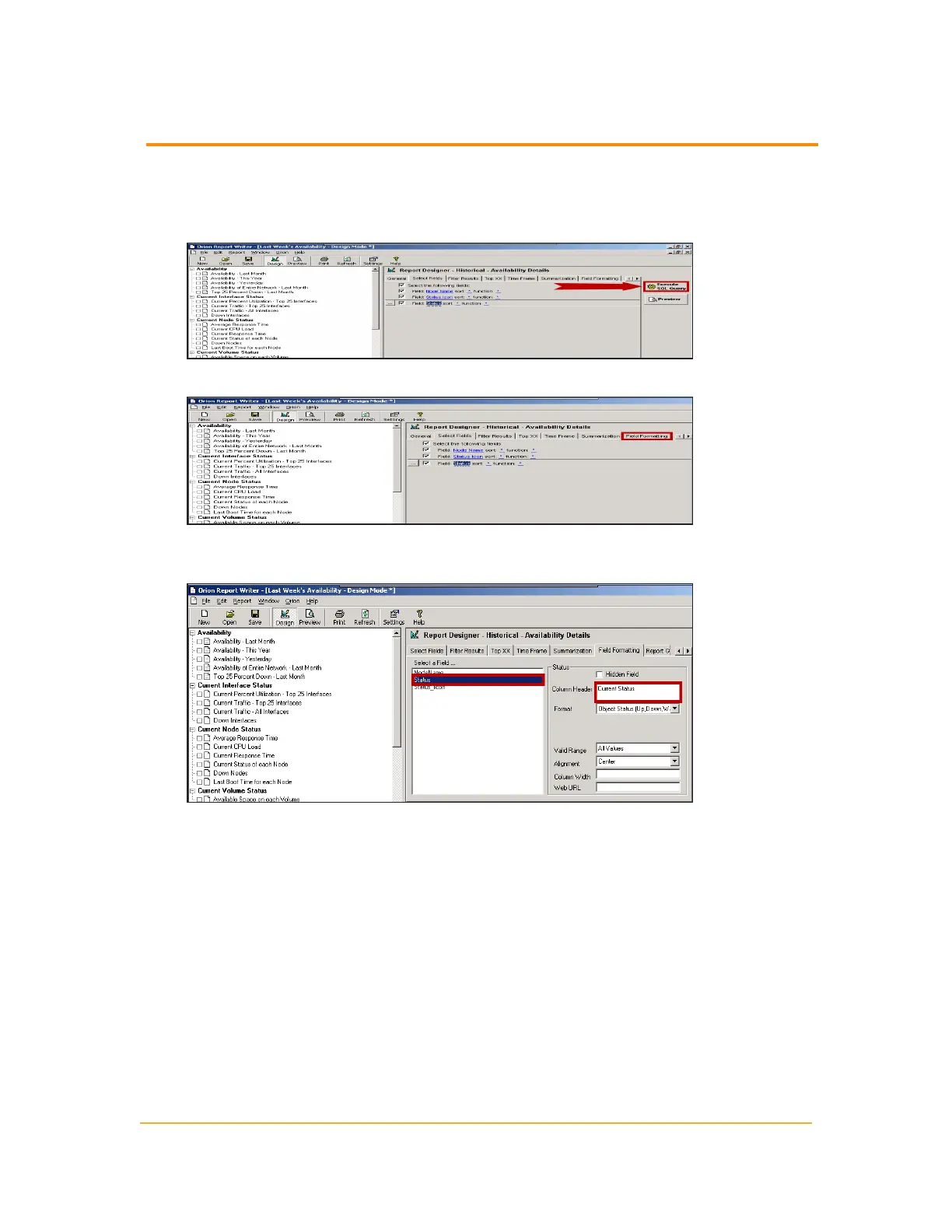
Click Execute SQL Query to view the report data in the preview window.
Note: The report preview should show information about both current and
historical status. Current status entries must be relabeled to avoid confusion.
14.
Click Field Formatting.
15.
Click Status in the Select a Field list, and then change the Column Header entry
to Current Status.
16. Click Status_Icon in the Select a Field list, and then change the Column Header
entry to Current Status.
17.
Click Execute SQL Query.
Note: Column widths are adjustable. To change a column width, place your
cursor on the column divider and drag it to a different position.
18.
Click Select Fields.
276
Example Device Availability Report



 To Next Page