Element of the
home screen
Function For more information, see...
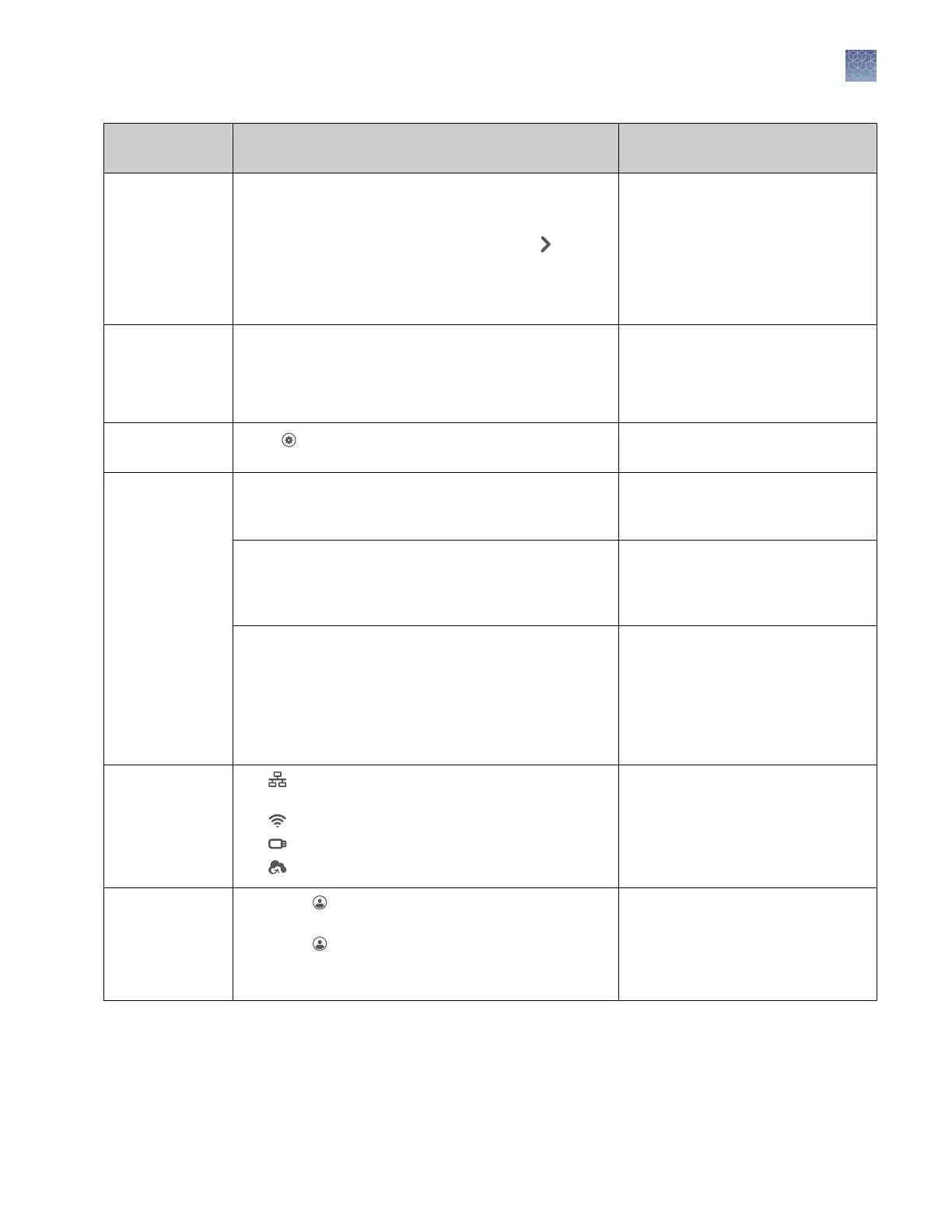
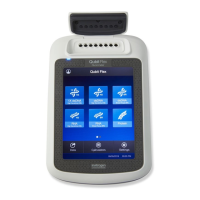
Status dial
• When the instrument is in use — Displays the
sample block temperature, the elapsed run time,
and the run status.
You can swipe the dial to the left or touch to
access real-time views of the run.
• When the instrument is not in use — Displays Set up
run. You can start a run by touching the status dial.
—
Current user
name and block
type
Displays the user name of the current signed-in user and
the instrument block type.
Note: If no user is signed-in, the instrument defaults to
the Guest profile.
—
Settings button Touch Settings to configure, calibrate, or learn about
the instrument.
Chapter 3, “Configure the instrument
and manage instrument profiles“.
Buttons for
accessing
experiment and
template files
Load Experiment — Touch to open a user-created EDT
file from a Cloud account, USB, instrument folder, or
network drive.
“Run an experiment from a saved
file“ on page 40 .
Open Template — Touch to open a system EDT template
file.
“Create and run an experiment from
a template“ on page 40“Run an
experiment from a saved file“ on
page 40 .
Run Last — Touch to open the last EDT file run on the
instrument.
• If you are signed-in, the file opened will be the last
file you ran when signed-in.
• If you are not signed-in, the file opened will be the
last file the guest profile ran.
“Repeat the last instrument run“ on
page 41.
Connectivity icons
• — The instrument is connected to a wired
network.
• — The instrument is wirelessly connected.
• — A USB drive is plugged into the instrument.
• — The instrument is linked to a Cloud account.
—
Sign In button
(My Profile button
when a user is
signed in)
• Touch Sign In to sign into an instrument profile
and link to a Cloud account.
• Touch My Profile to change instrument profile
settings, link to a Cloud account, or lock the
instrument during a run.
“Sign in“ on page 21.
Chapter 1 Product information
Instrument hardware description
1
QuantStudio
™
1 Real-Time PCR System Installation, Use, and Maintenance Guide
13




 To Next Page