IMPORTANT! Back up the instrument before restoring factory defaults (see “Backup
or restore the instrument“ on page 70).
1.
In the home screen, touch Seings4Instrument Seings4Restore Factory
Defaults.
2.
Touch Restore Factory Defaults.
3.
Power O, then power On the instrument to apply the change.
• Instrument proles and les stored on the instrument are deleted, including
all EDS les and any custom dye calibrations.
• The most recent valid ROI/Uniformity, Background, and system dye
calibrations are not deleted.
After restoring factory defaults, perform initial start-up tasks. See “Initial start-up“ on
page 25.
1.
In the home screen, touch Seings4Instrument Seings4Language.
2.
Touch the desired language selection.
3.
Touch OK.
Learn about the instrument
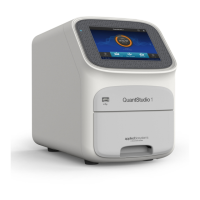
In the home screen, touch Seings4About Instrument to access the following
information.
“View instrument specications“ on page 34
“View and export the License Agreement“ on page 35
In the home screen, touch Seings4About Instrument4About Instrument to
access the following information.
• Model Name
• Wired IP Address
• Wireless IP Address
• Instrument Serial Number
• Block Serial Number
• UUID
• Firmware Version
• Thermal Block Controller
• Instrument Server
• User Interface
Restore factory
defaults
Select a language
View instrument
specifications
Chapter 3 Configure the instrument and manage instrument profiles
Learn about the instrument
3
34
QuantStudio
™
1 Real-Time PCR System Installation, Use, and Maintenance Guide




 To Next Page