5.
When the run is complete and the screen displays Calibration Complete, touch
View Results to check the calibration status.
Calibration status Action
Passed Touch Next to proceed to the next required calibration.
Failed See “Troubleshoot calibration failure“ on page 55.
Note: You can view the calibration images only after the ROI/Uniformity and
Background calibrations pass.
6.
Unload the plate from the instrument.
CAUTION! PHYSICAL INJURY HAZARD. During instrument operation,
the plate temperature can reach 100°C. Allow it to cool to room
temperature before handling.
7.
Return the plate to its original packaging.
Note: Each calibration plate can be used up to 3 times if the following conditions
are met:
·
The plate is stored in its packing sleeve at –15 to –25°C.
·
The plate is used within 6 months after opening.
·
The plate is used before the plate expiry date
The instrument performs the ROI, Uniformity, and Background calibrations in
sequence. You can view the calibration images after the Background calibration is
complete.
1.
In the Calibration Status screen, touch Details.
2.
In the Details screen, touch a calibration type to view its images and plots.
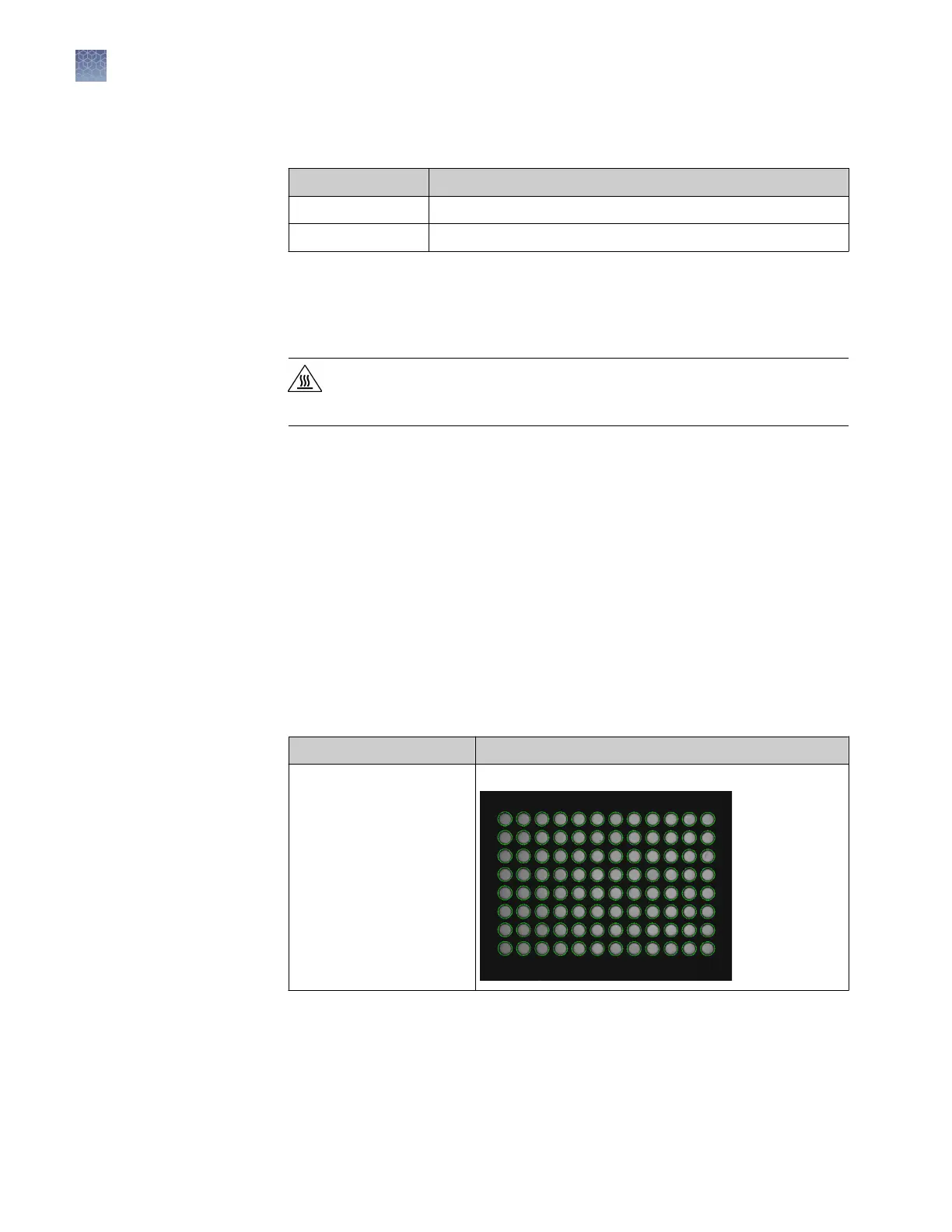
Calibration Example results indicating successful calibration
ROI
Note: Select the desired
filter combination from the
Filter Set dropdown list.
Green circles around all wells and bright well centers.
View calibration
images and
transfer results to
USB
Chapter 5 Calibrate and verify instrument performance
Perform ROI/uniformity, background, and dye calibrations
5
54
QuantStudio
™
1 Real-Time PCR System Installation, Use, and Maintenance Guide




 To Next Page