1.
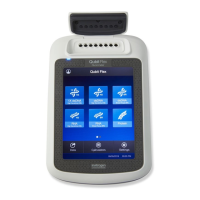
In the instrument home screen, during an instrument run, touch or swipe left
twice to view real-time data and plots.
2.
Touch Zoom.
3.
Touch
or to zoom in or out.
4.
Touch the arrows to pan left, right, up, or down on the graph.
5.
Touch Close to return to the default view.
1.
In the home screen, during an instrument run, touch
or swipe left once to view
real-time run method information.
2.
Stop or pause the run.
• Touch Stop Run.
• Touch Pause, then enter a pause temperature.
3.
(Optional) After pausing a run, touch Edit to change the number of cycles.
4.
(Optional) After pausing a run, touch Unlock drawer to access the plate.
CAUTION! PHYSICAL INJURY HAZARD. During instrument operation,
the plate temperature can reach 100°C. If you want to access the plate
during a run pause, enter room temperature as the pause temperature and
allow the plate to cool to room temperature before handling.
After you have started a run, you can lock the touchscreen so that other users cannot
interfere with instrument operation.
Note: You must be signed-in to use this feature.
1.
Lock the touchscreen.
a.
In the home screen, touch My Prole.
b.
Touch Lock Screen, then touch Lock.
2.
Unlock the touchscreen.
a.
Touch anywhere on the touchscreen.
b.
Touch the PIN Code eld, then enter your PIN.
Note: The touchscreen automatically unlocks when the run is complete.
Adjust the display
of real-time plots
on the instrument
touchscreen
Pause or stop an
instrument run
Lock the
touchscreen
during a run
Chapter 4 Create and run experiments on the instrument
View, pause, or stop a run
4
QuantStudio
™
1 Real-Time PCR System Installation, Use, and Maintenance Guide
47




 To Next Page