CFM-BL10Pro General instruction manual
49 / 87
5.4.1. Saving data to USB memory
Insert USB memory to the USB port on the bottom side.
・ USB memory can be inserted anytime. However, do not insert USB to the CFM while
a press machine is running, because CFM is in the middle of the judgement.
・ If CFM cannot recognize USB memory, pull it out and insert it again.
Even if you try to it several times and CFM does not recognize it, there is
probably something wrong with the USB memory.
In this case, check if data in the USB memory is broken using your windows PC.
And if the data seems to be broken, initialize the memory and try to insert again.
CFM cannot save any data without recognizing USB memory.
・ Its data size is about 1 KB for 1 file. In other words, crimping data for 1000 pieces is
about 1 MB. Prepare a USB with enough capacity. There is no limitation for the
number of saving.
USB removal
・ Press a USB icon and the icon will be disappeared. After confirming that the icon is
disappeared, remove the USB. If you remove it while the icon is displayed, the saved
data may be damaged.
・ If you would like CFM to recognize a USB memory, insert it again to the USB
port.
5.4.2. Checking saved data
To look at the saved data in USB memory, you need a special PC software”
ProMaster Premium”. The data saved in the USB will be automatically named as
“YYYYmmDDhhMMss.dat”. “YYYYmmDDhhMMss.dat” is a time stamp when CFM
starts saving data on.
Refer to “6.5.2 Load Data for the details.
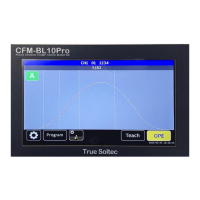
Insert USB memory to the USB port on the bottom side. When CFM
correctly recognizes the USB, the icon on the left side will displayed at
the lower center of the OPE and Teach screen. While this icon is
displayed, CFM saves all the force curve data, judgment result values,
tolerance values and so on to USB.


 To Next Page