CFM-BL10Pro General instruction manual
34 / 87
5.2. Program edit
5.2.1. Program edit screen
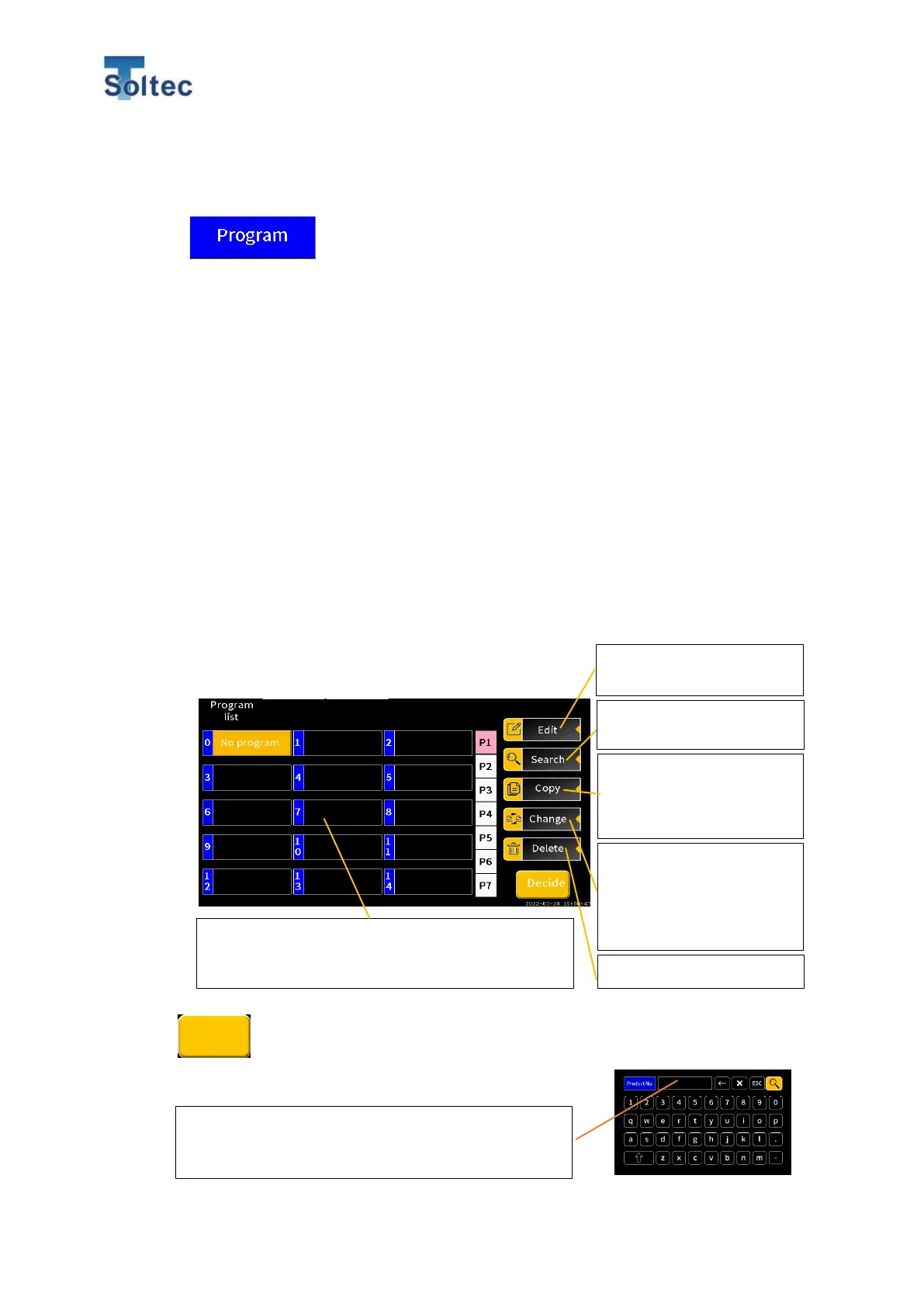
From Program button on the main screen, Program edit screen is opened. In
System setting (Refer to the 5.3.1 System setting 1), depending on whether
Program is enabled or not, the different screen is displayed. The setting for
capturing force curve and dividing T1(S1) to T3(S3) area, or when Program is ON
information on a product, terminal, wire, applicator and so on can be saved in this
display.
1) When Program is enabled (Initial settings)
*When Program is disabled, this screen is not displayed.
Program List display is displayed. No.0 No program is selected in the initial
state. By pressing “Edit” button, Program edit screen is opened.
To register a new program, press an empty frame except for No.0 No Program
and press Edit button. Or, to edit a program which is already saved, select the
program and press Edit button.
When Program select, edit and so on are finished,
press Decide button. CFM goes to OPE or
Teach screen. When a program is changed,
Teaching is required.
Open Edit screen of selected
program in Program List.
Copy a saved program.
Select an original program,
press copy button and select
a copy destination.
Delete a selected program.
Product name of saved item is displayed.
Program can be saved from 1 to 99.
”No program“ cannot be exchanged and deleted.
Type a word in the search box and press Search
button. The item which partially has a corresponding
word with product number is displayed.
Open keyboard screen and
search a program.
Exchange a number of a
saved program with another
saved one. This function is
useful for arranging a
program highly used in
production.


 To Next Page