CFM-BL10Pro General instruction manual
53 / 87
6.2. Main screen
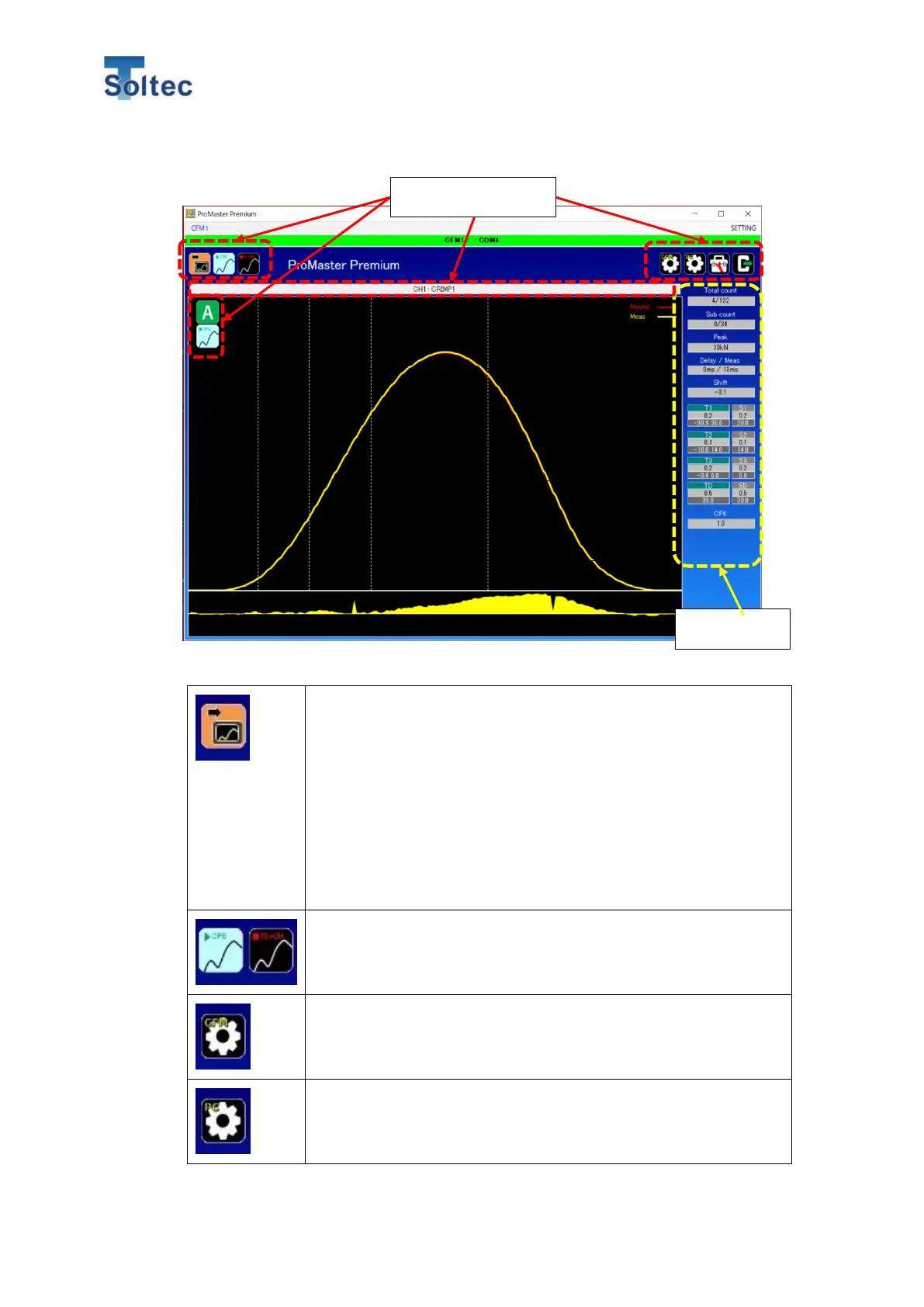
6.2.1. Icon description
Click this button to start connecting CFM which is connected to a
decided COM port. The color of the button changes depending
on its state. Refer to the explanation below.
Orange: CFM is connecting.
Black: CFM is not connecting.
Error message” Connection failed”: CFM cannot be connected
because COM port setting has not been done. Refer to the 6.2.6
COM port setting for the error message.
Click this button to switch the mode of CFM.
When you want to turn CFM to Teach mode, click Teach button.
Click this button to open the System setting.
Initial setting, program registration, program selection and so on
can be done from this button.
Click this button to open the Config setting.
Settings that are related to PC software such as a Language can
be set.
Force curve area
Referenced curve=Red
Measured curve=Yellow


 To Next Page