Configuration
LITECOM, Commissioning and maintenance instructions 17.0 | 04.2024 | en 129
10.10.1 Overview of the “User management” app
The following contains an overview of the general functions in the User management app.
Note
Only the administrator can access the User management app.
Path: App overview > User management
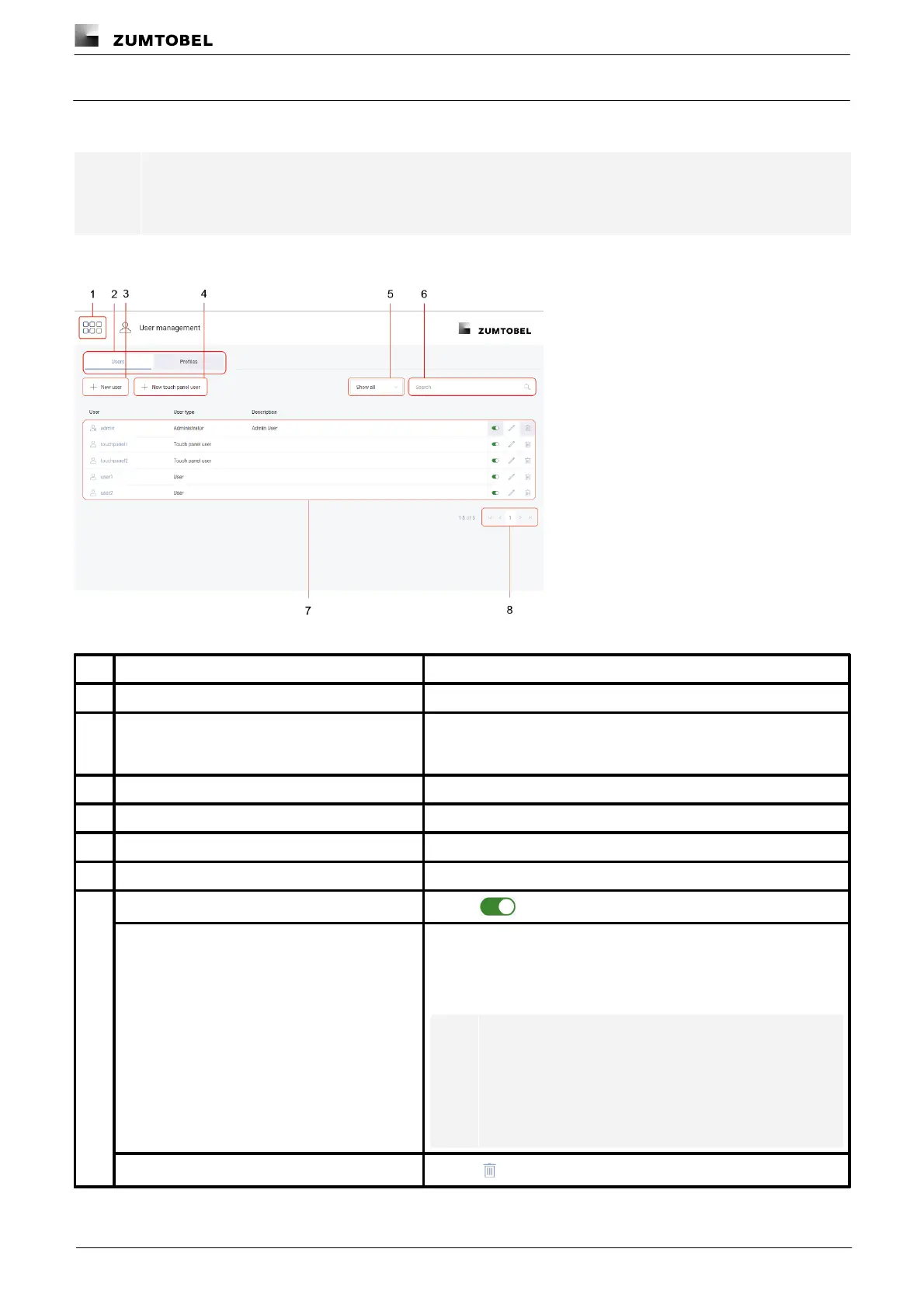
Figure 44:View of the “User management” app
The app overview can be accessed via this button.
Select the Users/Profiles view
Use the tabs to switch between the Users and Profiles views.
Create and edit users/touch panel users in the Users view. Create
and edit profiles in the Profiles view.
Tap this button to create a new user.
Tap this button to create a new touch panel user.
Tap the arrow to view the filter options.
Enter the user name in the search field to search for the user.
Tap the button to enable or disable the user.
Tap the pencil icon to access the Edit user view. You can edit the
selected user/touch panel user here. You can change the name or
description of the user/touch panel user, reset the password or
change the assignment of rooms/groups/zones, or change profiles.
Note
· With touch panel users, the password is changed in
the Edit user view and not reset.
· If the user is logged in, they need to log out and then
log in again to see the changes.
Tap the icon to delete the user.



 To Next Page