Maintenance
LITECOM, Commissioning and maintenance instructions 17.0 | 04.2024 | en 163
11.4 Software versions
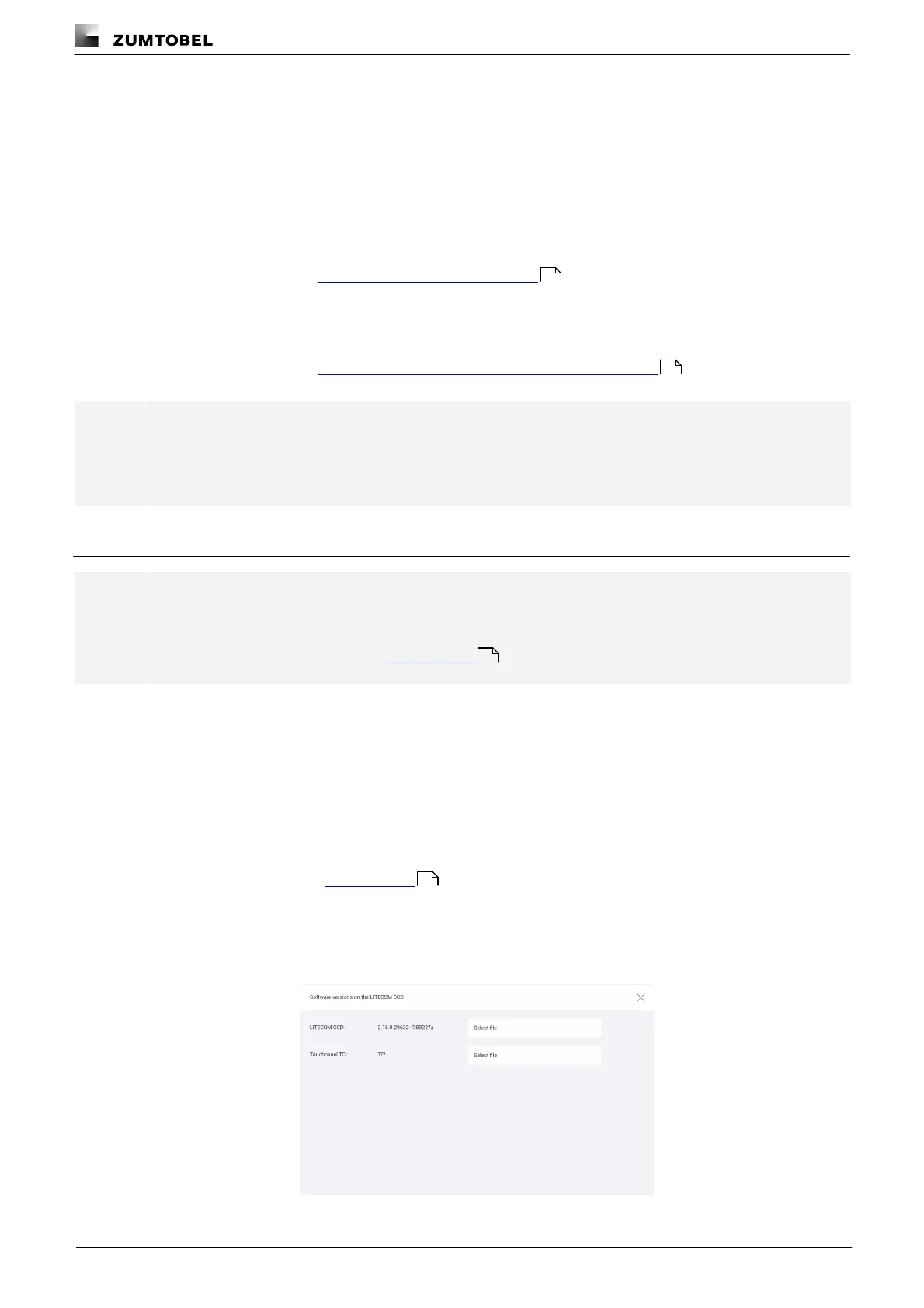
The LITECOM CCD control device contains the following software versions:
· Software version of the LITECOM CCD control device:
you can use a LFF file (LITECOM Firmware File) to update the software version of the LITECOM CCD control
device. After updating the software, the LITECOM system will be restarted.
you can use a PFF file (Platform Firmware File) to update the platform version of the LITECOM CCD control
device. After the update the LITECOM system will be restarted.
Path: App overview > Basic settings > Software versions > LITECOM
For more information see Section LITECOM CCD software update
· Software version of the LITECOM-Touchpanel TCI: you can also update the software of the LITECOM-
Touchpanel TCI using a TFF file (Touchpanel Firmware File).
Path: App overview > Basic settings > Software versions > Touchpanel TCI
For more information see Section Software update of the LITECOM touch panel TCI
Note
· These functions are not supported by display devices with iOS operating systems.
· Downgrading to an older software version is not permitted during a software update.
11.4.1 LITECOM CCD software update
Note
We recommend creating a complete data backup before every software update. In the event of the
loss of any data, this can be used to restore your LITECOM system data.
For more information see Section Data backup
Updating the LITECOM CCD control device software
Requirements:
— LITECOM CCD control device and computer are connected via an Ethernet cable.
— A new LFF file has been saved on this computer.
— A complete data backup has been created.
Path: App overview > Data backup > Complete data backup > Save backup
For more information see Section Data backup
Path: App overview > Basic settings > Software versions
1. Navigate to the correct page as indicated in the path.
ÜThe Software versions on the LITECOM CCD view is displayed.
2. Tap the Select file button.
163
165
169
169



 To Next Page