Configuration
LITECOM, Commissioning and maintenance instructions 17.0 | 04.2024 | en 100
10.4.4 Managing pictures
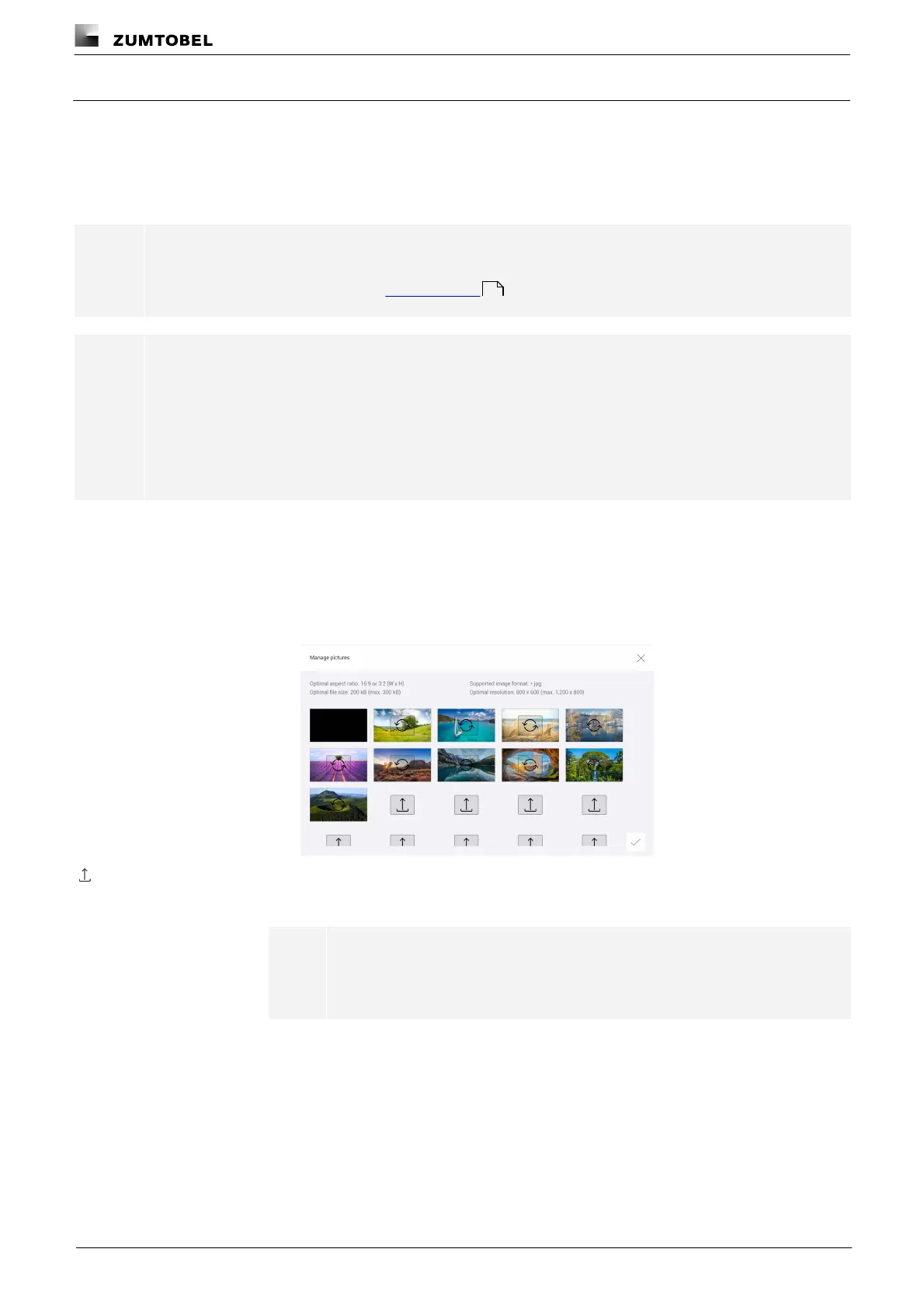
The Manage pictures button can be used to edit and add images, which can then be assigned to a scene. A
maximum of 20 images can be stored. By default there are 11 images (including the dark screen for when the
absence scene is active), but these can also be replaced by user-defined images.
Path: App overview > Scenes > Manage pictures
Note
Scene images are only displayed when the Pix is used.
For more information see Section Pix start page
Note
Only images in JPG format are supported. The following image specifications apply:
· Aspect ratio: 16 : 9 or 3 : 2 (W × H)
· File size: 200 kB (optimal), 300 kB (maximum)
· Resolution: 800 × 600 px (optimal), 1,200 × 800 px (maximum)
Uploading a new image
Path: App overview > Scenes > Manage pictures
1. Navigate to the path.
ÜThe Manage pictures view is displayed.
2. Tap the icon to upload a new image.
ÜThe pop-up window for file selection opens.
Note
You can upload a maximum of 9 additional images. If there is no space
for more images, you can replace existing images.
3. Navigate to the save location of the image file and select the image file.
ÜA compatibility check is performed.
ÜIf the image meets the specifications, the file is uploaded.
19



 To Next Page