Configuration
LITECOM, Commissioning and maintenance instructions 17.0 | 04.2024 | en 118
10.7.2 Configuration options
Path: App overview > Presence linking > Change settings
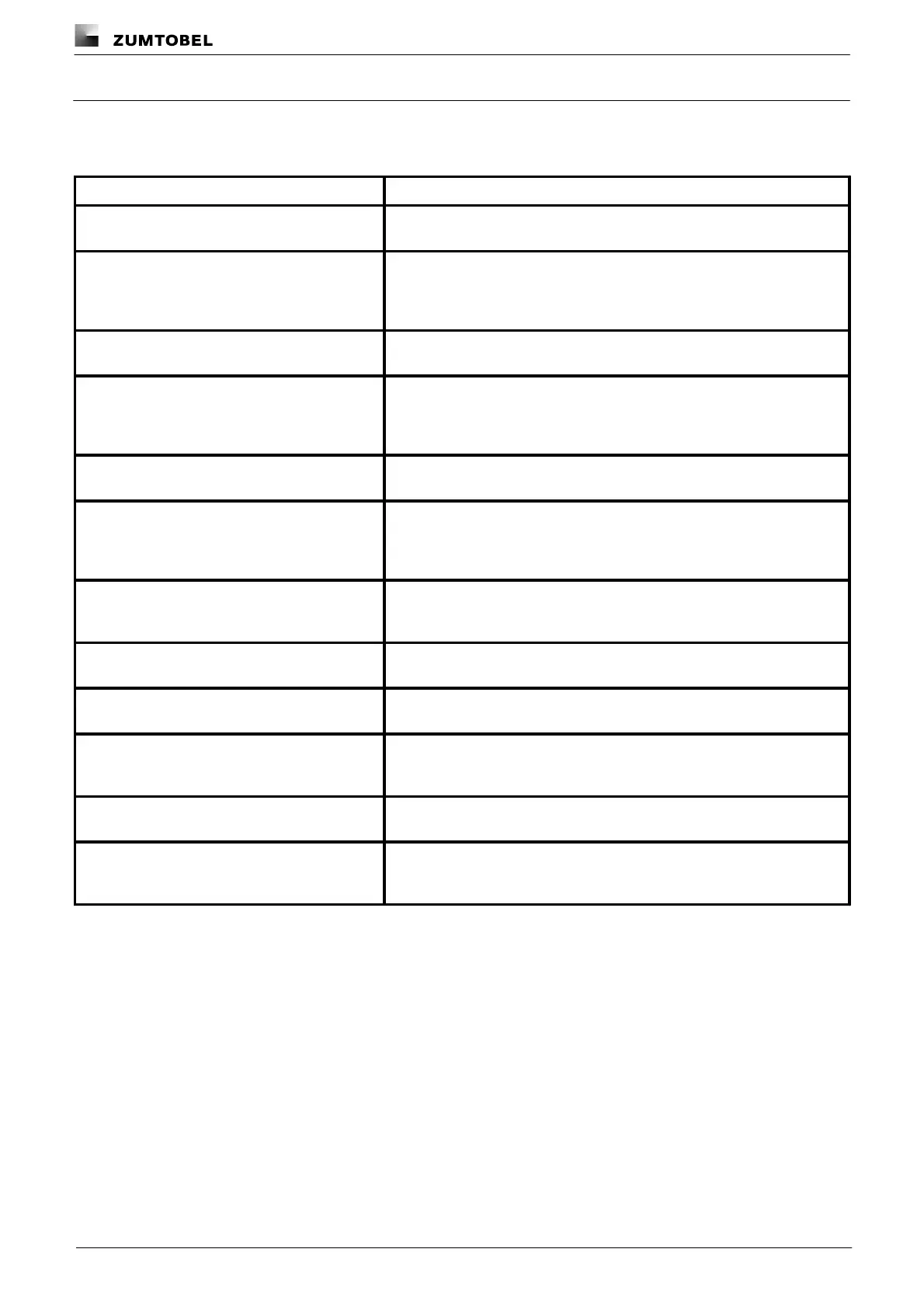
The following table provides a description of the individual configuration options:
Enable this tick mark so that the presence detector detects the presence of
moving people.
Scene
(type Presence only)
Scene recalled in the effective range for presence linking, if the presence
detector determines that moving people are present. When the presence
linking is created, the Working scene is automatically stored as the default
scene.
Enable this tick mark so that the presence detector detects the absence of
moving people.
Scene recalled in the effective range for presence linking, if the presence
detector determines that moving people are absent. When the presence
linking is created, the Absence scene is automatically stored as the default
scene.
Fade time
(type Absence only)
The time it takes to change from one value (scene, presence value) to the
absence scene.
Time that starts after a presence detector detects the absence of people
and after which an action is triggered (e.g. fade time starts, absence scene
is recalled). If the presence detector detects the presence of people during
the run-on time, this time starts again.
Time that starts when an absence scene is manually recalled. During this
time, a presence scene cannot be recalled if a presence detector indicates
that someone is present.
If this condition is enabled, presence linking is always enabled within the
set action timeframe.
Not enabled if following scene is enabled
If this condition is enabled, presence linking is not enabled within the set
action timeframe if a certain scene is enabled.
Scene
(condition only Not enabled if following scene is
enabled)
If this scene is enabled within the set action timeframe, presence linking is
disabled.
Enabled only if following scene is enabled
If this condition is enabled, presence linking is only enabled within the set
action timeframe if a certain scene is enabled.
Scene
(condition Enabled only if following scene is
enabled)
Only if this scene is enabled within the set action timeframe is presence
linking enabled.
Table 68: Configuration options – presence linking



 To Next Page