Maintenance
LITECOM, Commissioning and maintenance instructions 17.0 | 04.2024 | en 159
11 Maintenance
This section contains the following information:
· Device replacement
· Lock function
· Installation test
· Software update
· Log
· Faults
· Data backup
11.1 Device replacement
Faulty devices can be replaced with new devices directly via the System image app.
Requirements:
— The device to be replaced and the new device are the same type.
— Both devices are connected to the same control device.
— The new device has not been addressed yet.
Path: App overview > System image
1. Navigate to the path.
ÜThe System image view is displayed.
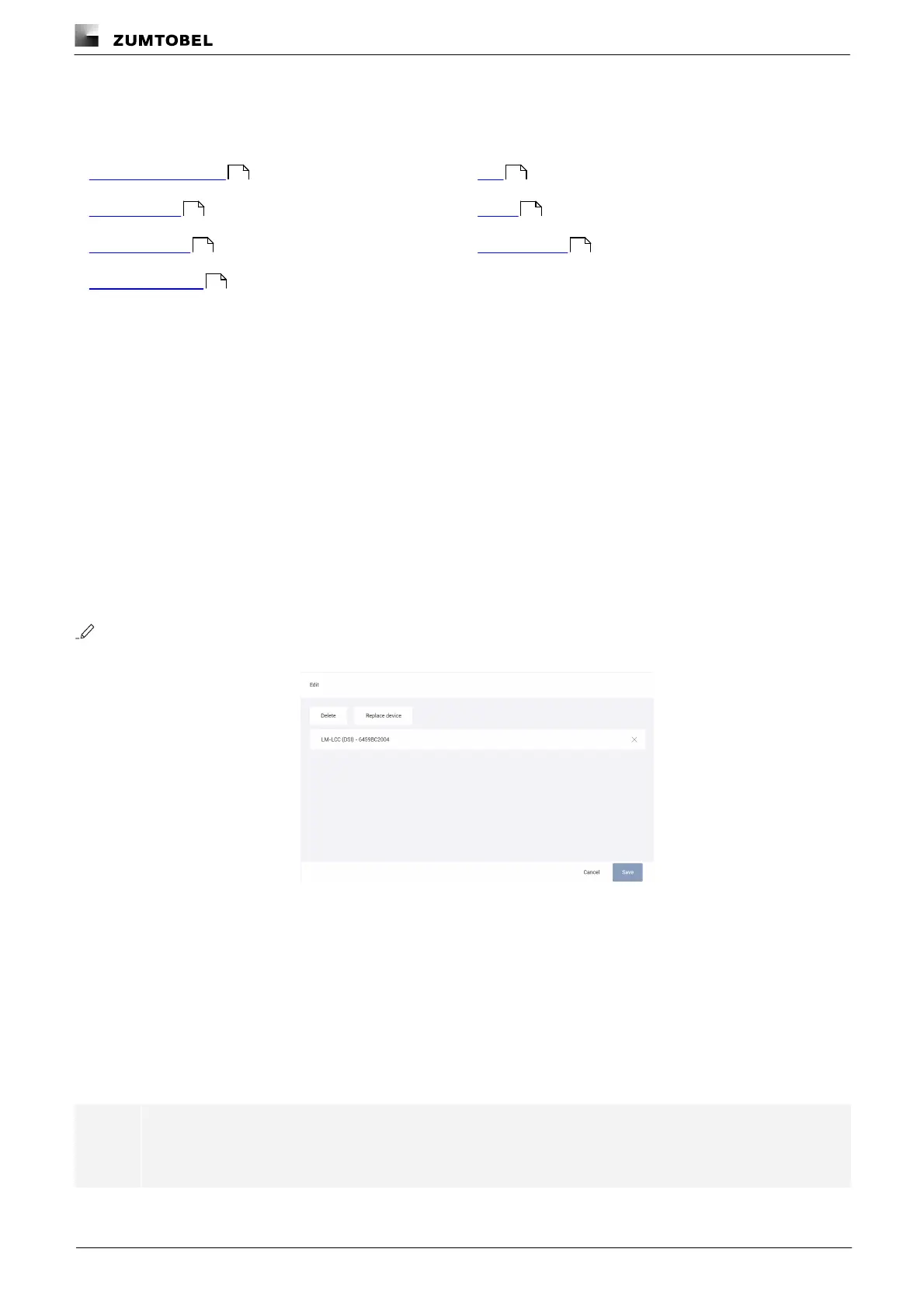
2. Tap pencil button.
ÜThe Edit view is displayed.
3. Tap the Replace device button.
ÜA search for unaddressed luminaires is performed.
ÜThe Locate luminaires view is displayed.
4. Select the new device using visual location.
ÜThe System image view is displayed.
ÜThe device has been successfully replaced.
ÜThe new device adopts the configurations (e.g. name, RGA address, scenes) of
the old device.
Note
Only luminaires can be replaced using the Replace device function.
159
160
162
163
167
168
169



 To Next Page