Configuration
LITECOM, Commissioning and maintenance instructions 17.0 | 04.2024 | en 126
10.9.1 Overview of the “Zones” app
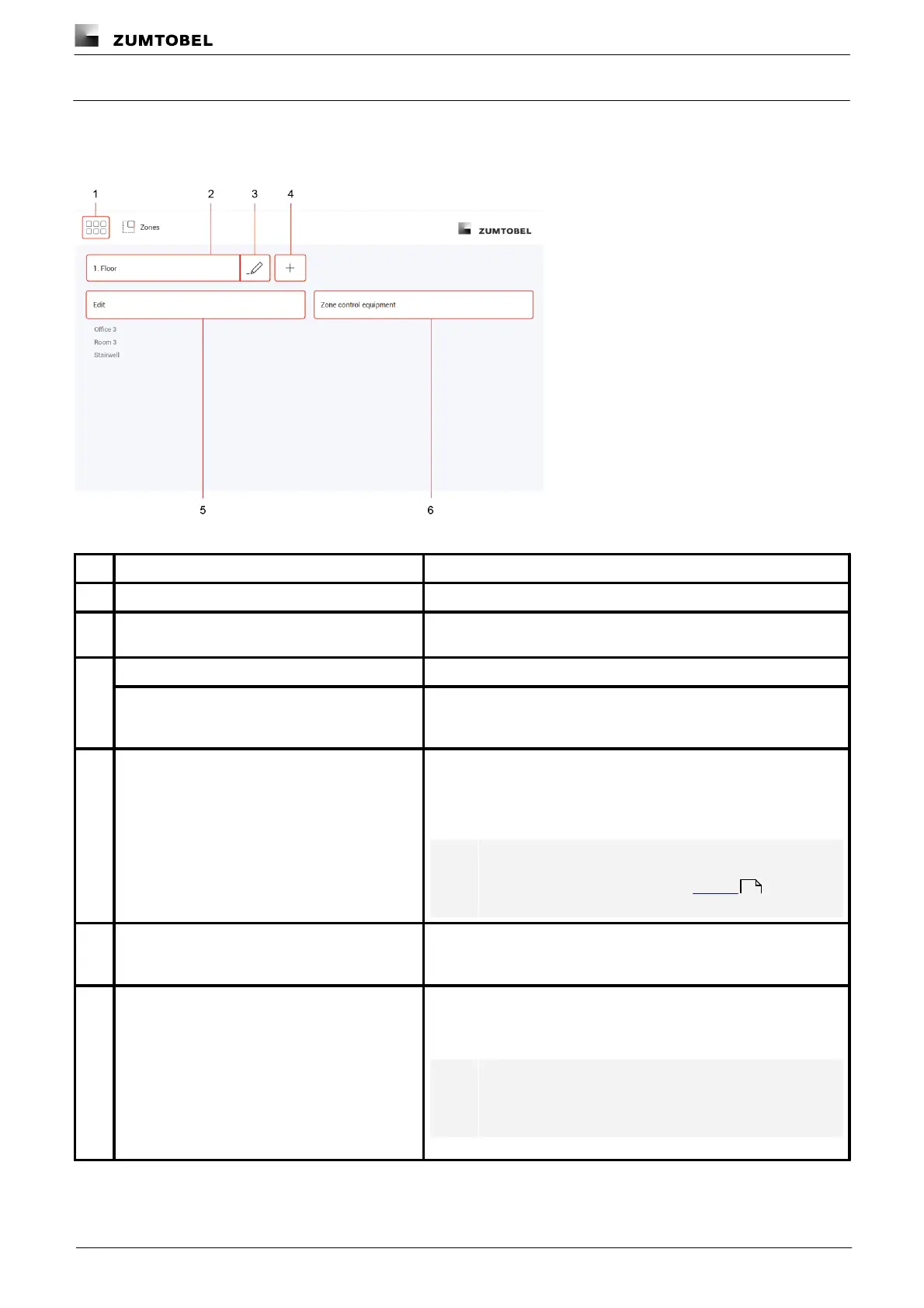
The following contains an overview of the functions in the Zones app.
Path: App overview > Zones
Figure 43: “Zones” app view
The app overview can be accessed via this button.
Select an existing zone in order to change the assigned rooms
and/or groups.
Change the name of an existing zone.
When a zone is deleted all settings for the zone are deleted. If this
zone is already used as the effective range for a function (e.g.
conditional scene recall), this assignment is also deleted.
Create a new zone. Name the zone as required (e.g. Façade). As
soon as a zone is created in your LITECOM system, five standard
scenes are enabled in the zone. You can configure the standard
scene later in the Scenes app.
Note
For more information see Section Scenes
Assign rooms and/or groups
Select the rooms and/or groups to be assigned to the zone. The
assignment can be changed at any time. Rooms and groups can be
assigned to multiple zones.
Address control equipment
Address the control equipment (e.g. momentary-action switch,
standard switch) you wish to use to control the zone directly in the
app.
Note
Zones cannot be controlled using the following devices:
LM-CIRIA, LM-EG.
89



 To Next Page