Configuration
LITECOM, Commissioning and maintenance instructions 17.0 | 04.2024 | en 147
10.11.3 Managing linked devices
Once a LITECOM CCD has been added to the link, the devices of the LITECOM CCD must be linked by
assigning a room and group to them.
Path: App overview > Control device linking
Linking a device
1. Navigate to the path.
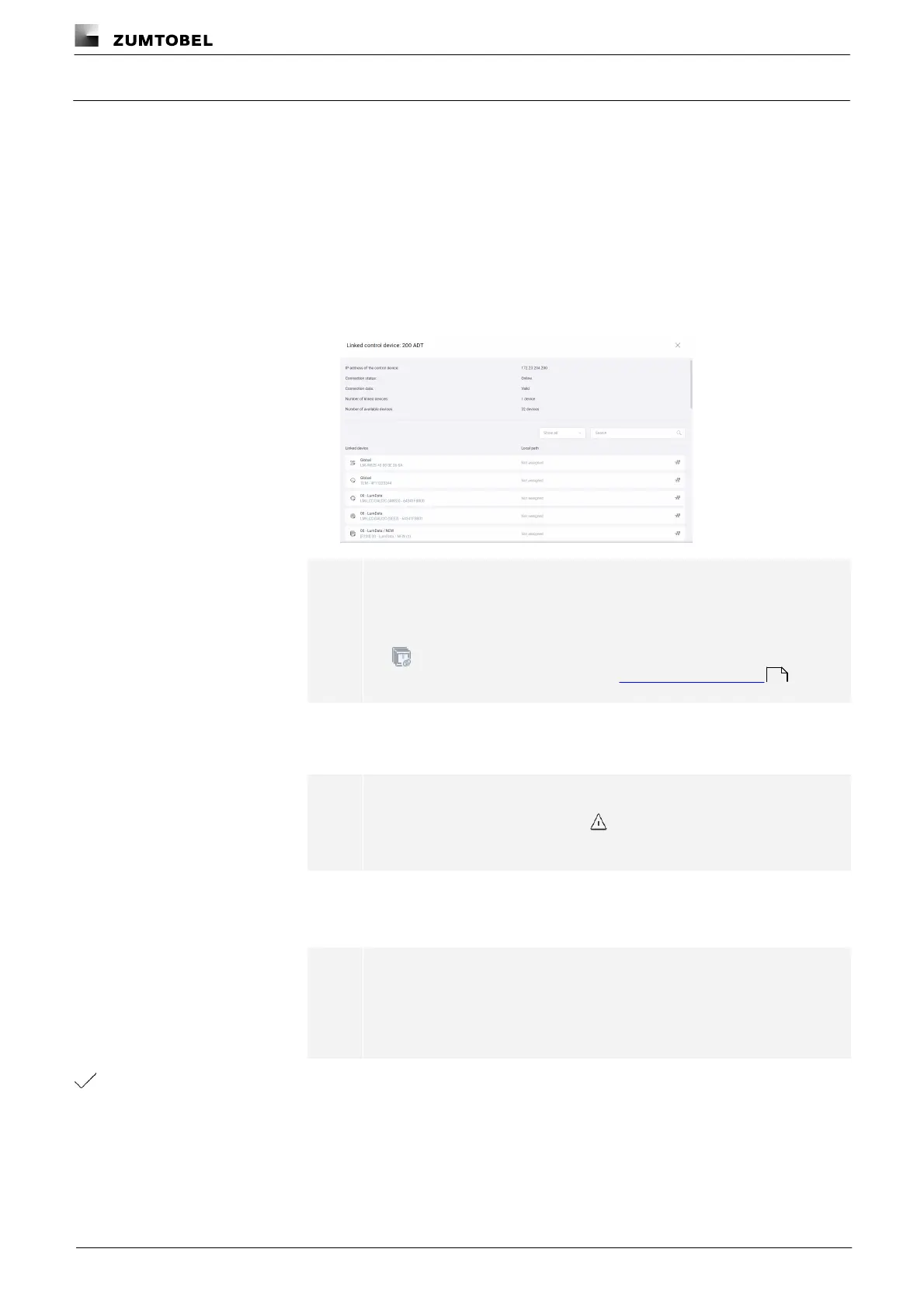
2. Tap the LITECOM CCD.
ÜThe Linked control device: [xy] view is displayed.
Note
· [xy] stands for the name of the LITECOM CCD.
· Aggregated control equipment is marked with the following icon:
For more information see Section Control device linking
3. Tap the device to which a room and group are to be assigned.
ÜThe Assign view is displayed.
Note
If there is an exclamation mark to the right of the device name, a
fault has occurred with this device.
4. Assign a room and a group to the device.
5. Change the local device name if desired.
Note
The device name on the original LITECOM CCD is retained. The
original device name is also still displayed in the Linked control
device: [xy] view.
6. Tap the tick mark.
ÜThe device is linked.
ÜThe Linked control device: [xy] view is displayed.
143



 To Next Page