Maintenance
LITECOM, Commissioning and maintenance instructions 17.0 | 04.2024 | en 161
Locking the start page permanently
Path: App overview > Lock function
1. Navigate to the correct page as indicated in the path.
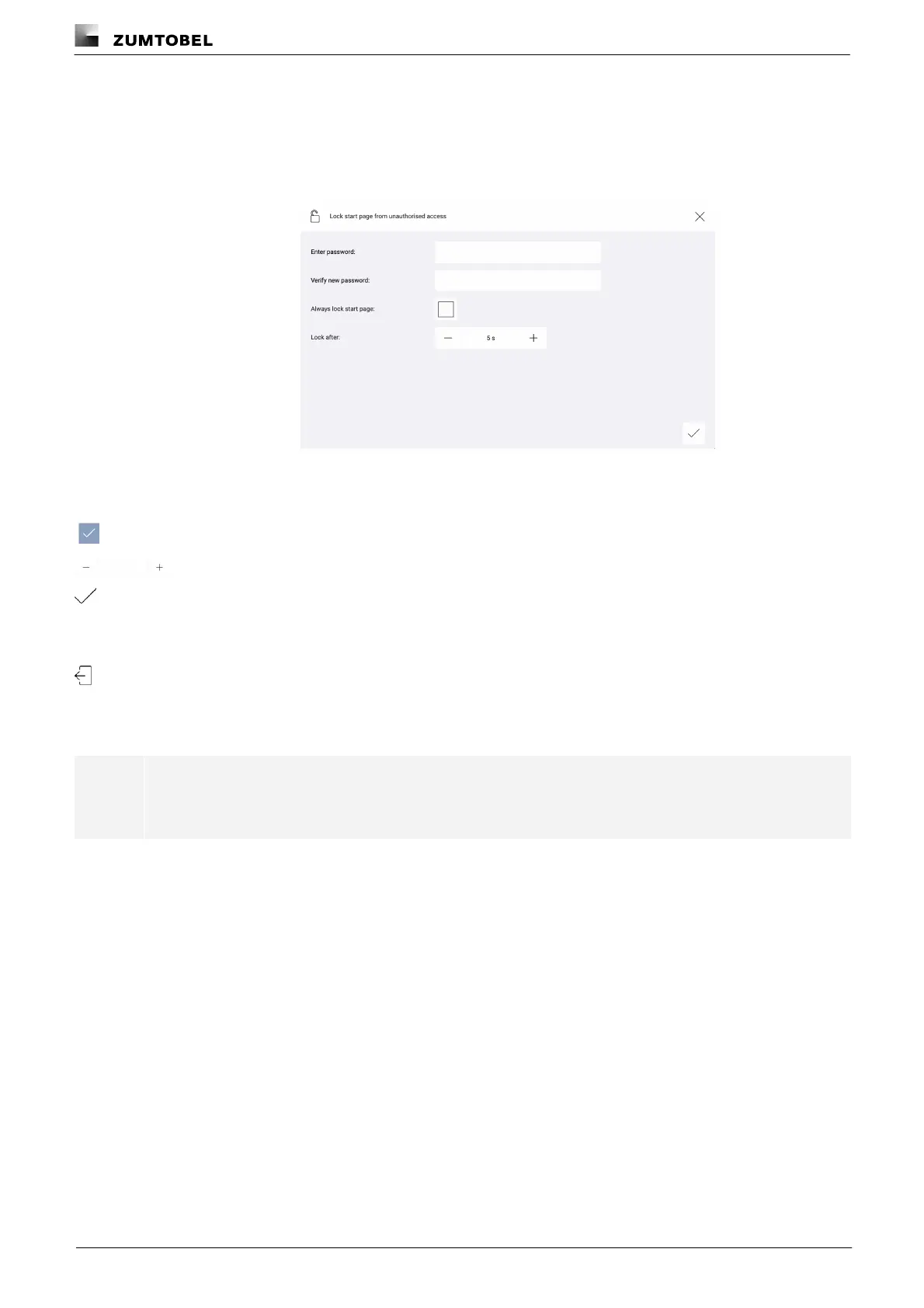
ÜThe Lock start page from unauthorised access view is displayed.
2. Enter the password.
3. Enter the password again in order to verify it.
4. Enable the Always lock start page tick mark.
5. Enter the desired value after which the start page is always locked.
6. Tap the tick mark.
ÜThe password is saved.
ÜThe app overview appears.
7. To enable the lock function, tap the Log out button.
ÜThe start page is locked for a defined time.
ÜOperation is only possible once the password has been entered.
Note
To unlock the system, go to the Lock function app and disable the Always lock start page option.



 To Next Page