Maintenance
LITECOM, Commissioning and maintenance instructions 17.0 | 04.2024 | en 174
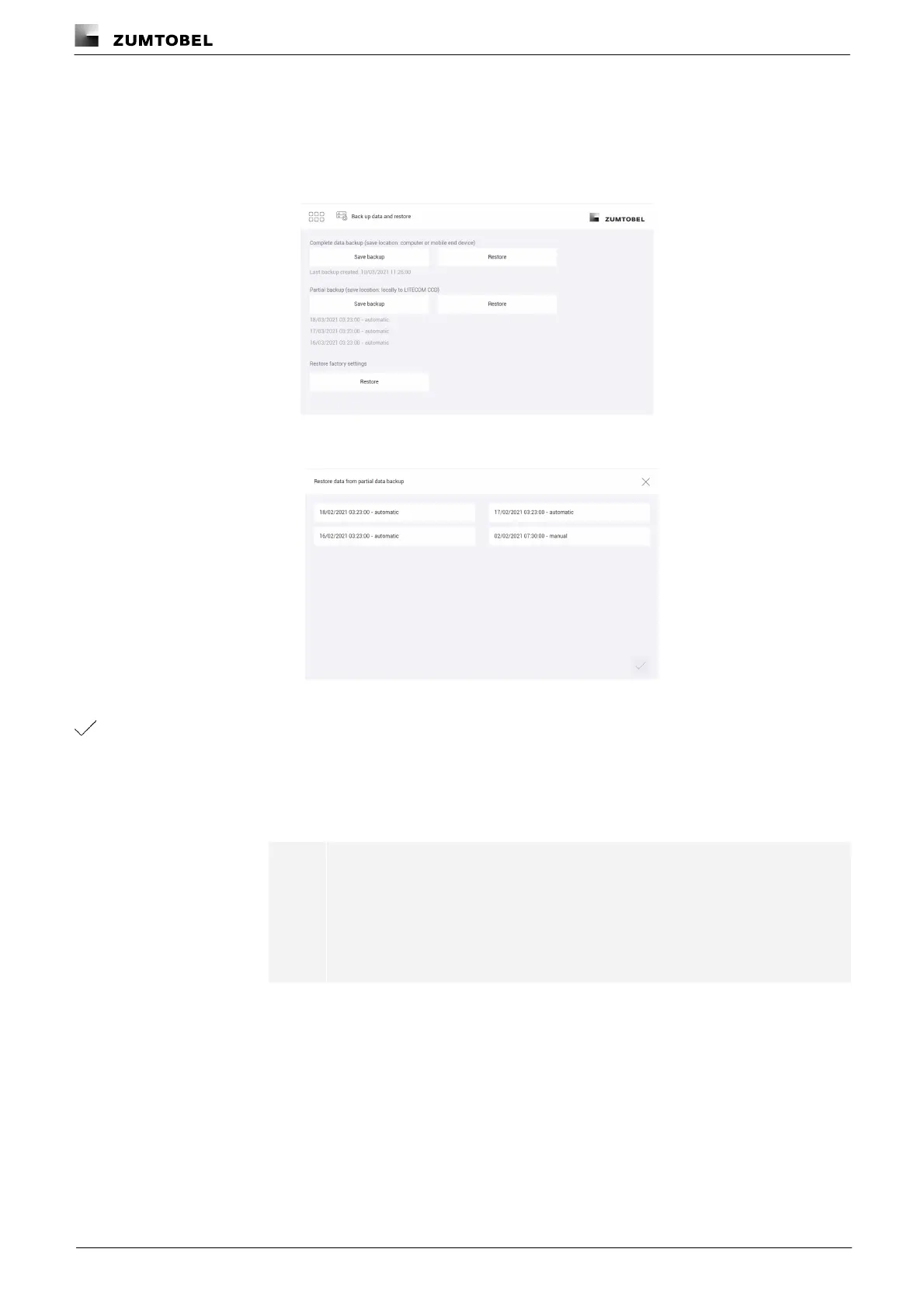
Restoring data from a partial data backup
Path: App overview > Data backup
1. Navigate to the path.
ÜThe Back up data and restore view is displayed.
2. In Section Partial data backup, tap the Restore button.
ÜThe Restore data from partial data backup view is displayed.
3. Select the desired data backup.
4. Tap the tick mark.
ÜA compatibility check is performed.
ÜIf the data backup is compatible with the current software version, the data from
the data backup is written to the LITECOM system.This procedure may take
several minutes.
Note
If the data backup is not compatible with the current software version, a
corresponding message appears.
ÜUpdate software version.
ÜRestore data again.
ÜThe login screen is displayed.
5. Enter the user name admin.



 To Next Page