Companion Programs 11-11
Create a Task
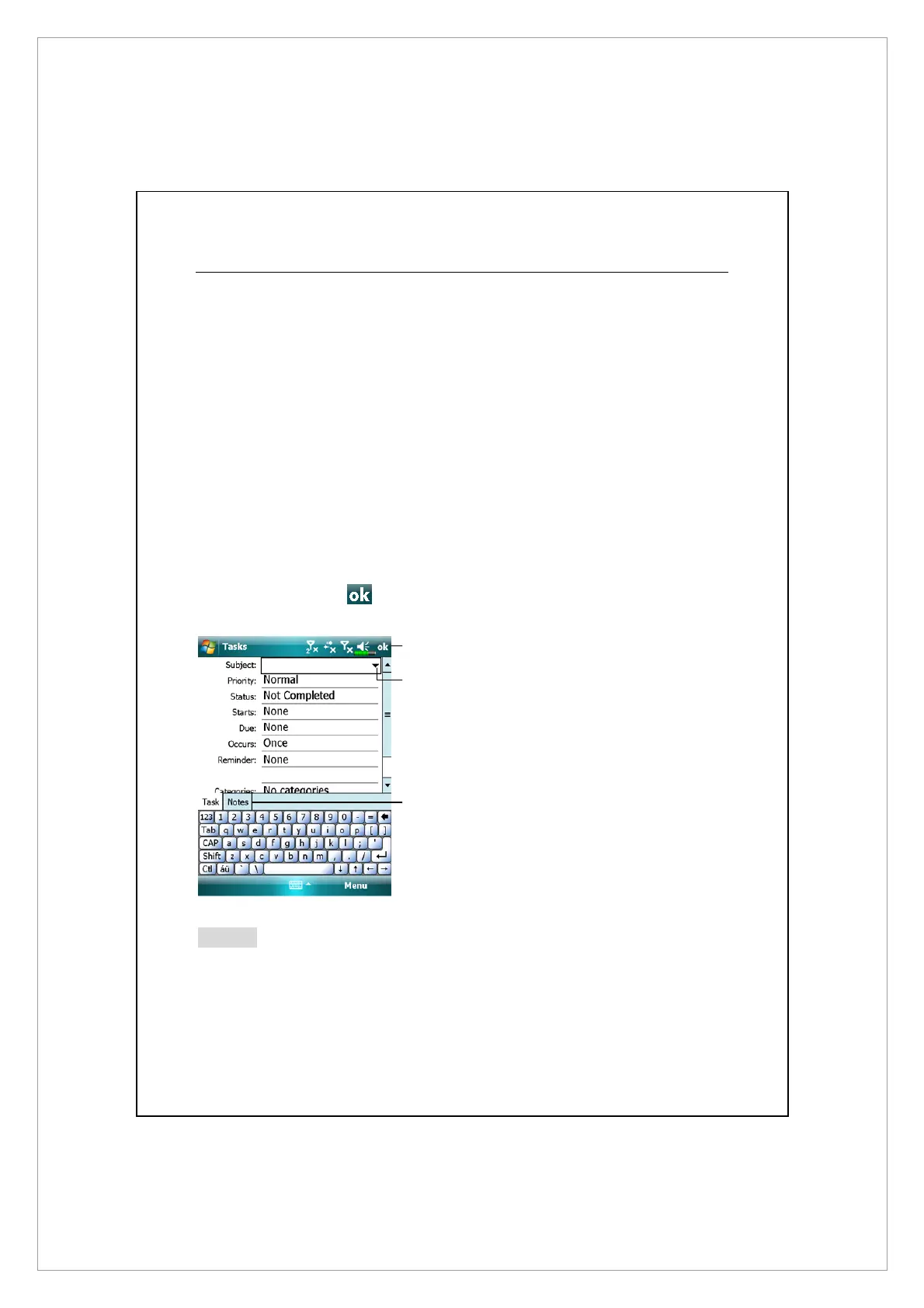
1. Tap Menu and then New Task.
2. Using the input panel, enter a description.
3. You can enter a start date and due date or enter other information by first
tapping the field. If the input panel is open, you will need to hide it to see all
available fields.
4. To assign the task to a category, tap Categories and select a category from
the list. In the task list, you can display tasks by category.
5. To add notes, tap the Notes tab. You can enter text, draw, or create a
recording. For more information on creating notes, see “Notes: Capturing
Thoughts and Ideas” section.
6. When finished, tap
to return to the task list.
n
Tap to return to the task list (the
task is saved automatically).
o
Tap to choose from predefined
subjects.
p
Notes is a good place for maps
and drawings.
Notes
To quickly create a task with only a subject, check Show Tasks entry bar on the
Options menu. Then, tap “Tap here to add a new task” and enter your task
information.
o
p
n



 To Next Page