EasyManua.ls Logo

AGFA SelectSet Avantra - User Manual

AGFA SelectSet Avantra
214 pages
Print Icon
To Next Page IconTo Next Page
Loading...
Part Number
209602-001
Abc
SELECTSET AVANTRA USER GUIDE
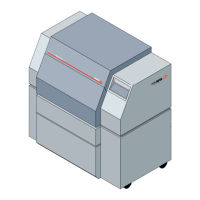
A Guide to Your Drum Laser Imagesetter
#

Table of Contents

Questions and Answers

  • A
    April BellAug 2, 2025
    How to fix media jams in AGFA Digital Imaging Accessories imagesetter?
    • A
      Ashley WardAug 2, 2025
      To address media jams in your AGFA Digital Imaging Accessories imagesetter, first, power off the device. Open both the left and right side doors and remove the front cover. Then, remove the nip drive light shield. Carefully clear any media fragments from the media path. Reinstall the nip drive assembly and the light shield. Replace the front cover, close the side doors, and restart the imagesetter to resume operations.
  • R
    Ricardo JordanAug 9, 2025
    What to do if there is media path obstruction from the input side in AGFA SelectSet Avantra?
    • B
      brian49Aug 10, 2025
      If you're experiencing a media path obstruction from the input side of your AGFA Digital Imaging Accessories imagesetter, begin by turning off the power. Raise the top cover and remove the plastic light shield covering the front of the media supply area. Next, remove the light shield covering the rear of the media supply area, and then the light shield covering the media path. Clear any obstructions in the media path. Replace the media path light shield, followed by the light shields for the rear and front of the media supply area. Finally, restart the imagesetter to continue.
  • T
    Thomas PorterAug 17, 2025
    How to clear media path obstruction through the right drum in AGFA Digital Imaging Accessories?
    • C
      Chase HarveyAug 17, 2025
      To resolve a media path obstruction through the right drum of your AGFA Digital Imaging Accessories imagesetter, turn off the power. Open the right side door and remove the right drum cover. Pull the carriage as far as possible toward the open door. Remove the right inner shield and clear the media path. Replace the right inner shield, put the drum cover back on, and secure the latches. Close the right side door, and then restart the imagesetter.
  • J
    jeremy59Aug 25, 2025
    What to do if media path obstruction through the left drum in AGFA Digital Imaging Accessories?
    • N
      nmorganAug 25, 2025
      To clear a media path obstruction through the left drum of your AGFA Digital Imaging Accessories imagesetter, turn off the device. Open the left side door and remove the left drum cover. Pull the carriage as far as possible toward the open door, then remove the left inner shield. Clear the media path, replace the left inner shield, reattach the drum cover, securing the latches. Close the left side door, and restart the imagesetter.

Summary

Chapter 1: Getting Acquainted

Safety Information

Covers essential safety guidelines and warnings for operating the imagesetter.

Chapter 2: Basic Control Panel Operations

Start Up and Shut Down Procedures

Provides step-by-step instructions for powering the imagesetter on and off.

Basic Controls

Details the fundamental buttons used for operating the imagesetter.

Chapter 3: Using the Control Panel

Load a Media Supply

Explains the procedure for advancing media from a supply cassette.

The Cassette Setup Screen

Details the parameters and options available in Cassette Setup.

Exposure Settings

Guides on how to set exposure values for optimal image quality.

The Feed Amounts Screen

Details settings for media feed, feed/cut, and interpage spacing.

The Utilities Screen

Describes the functions accessible through the Utilities Screen.

To Use Utilities Functions

Explains how to select and execute functions from the Utilities Screen.

The Configuration Screen

Details settings for image mode, autocentering, and units of measurement.

Chapter 4: Media Operations

Loading Media into Supply Cassettes

Step-by-step guide on how to properly load media rolls into supply cassettes.

Installing Loaded Supply Cassettes

Explains how to correctly insert loaded supply cassettes into the imagesetter.

Removing Supply Cassettes

Details the procedure for safely unloading and removing supply cassettes.

Removing Take-up Cassettes

Provides instructions for removing the take-up cassette from the imagesetter.

Inserting Take-up Cassettes

Guides users on correctly inserting the take-up cassette into the imagesetter.

Chapter 5: Exposure Tests

Running Exposure Tests

Explains the procedure for executing exposure tests and quality control.

How to Image an Exposure Test Page

Guides users on selecting a test page and increment value for imaging.

Reading a Test Page

Explains how to interpret the results by reading the bands on a test page.

Evaluating Test Pages

Describes how to evaluate test pages using a densitometer.

Set the Exposure

Guides on applying the determined optimum exposure settings.

Chapter 6: Diagnostics and Error Messages

Error Procedures

Describes general procedures for handling errors on the control panel.

Clearing Errors

Provides steps to identify and correct error messages.

Resetting

Explains how to reset the system to resolve certain errors.

Error Messages

Lists and describes common error codes and their corrective actions.

Special Error Procedures

Provides detailed procedures for clearing specific error conditions.

Chapter 7: Maintenance and Troubleshooting

Clearing Media Jams

Provides detailed procedures for safely removing media jams from the path.

Remove Nip Drive Assembly

Details the steps to remove the nip drive assembly for jam clearing.

Clear Media from Drum: Access from the Left

Explains how to clear media jams accessed from the left side of the drum.

Clear Media from Drum: Access from the Right

Explains how to clear media jams accessed from the right side of the drum.

Clear Media from Input Side

Provides instructions for clearing media jams from the input side.

Chapter 8: Avantra 20;25 OLP Bridge Operation

Set Up the Processor Option

Guides users on configuring the imagesetter to use the on-line processor.

Clearing the Bridge Media Path

Details how to access and clear media jams within the bridge.

Bypassing the Bridge

Describes how to use the standard take-up cassette instead of the bridge.

Chapter 9: Avantra 20;25 OLP Processor Operation

Starting the Processor

Details how to power the processor on manually or automatically.

The Processor Control Panel

Explains the components of the processor's control panel.

Changing the Developer Time

Details the procedure for adjusting the developer time setting.

Changing Temperature

Explains how to change developer, fixer, or dryer temperatures.

Changing Replenishment Rates

Guides on how to adjust developer and fixer replenishment rates.

Offline Operation

Describes how to bypass the bridge and feed media directly to the processor.

Programming

Explains how the processor stores and controls programs.

Processor Maintenance

Covers daily, weekly, and monthly maintenance routines for the processor.

Daily Maintenance

Details essential daily checks and top-off procedures for the processor.

Processor Status and Error Messages

Describes status and error messages displayed on the processor control panel.

Appendix A: Image Quality

Importance of Optimum Exposure

Explains the critical role of exposure and density for image quality.

Exposure

Explains exposure as the amount of light hitting the media.

Appendix B: Tips and Tricks

Processor Replenishment

Explains the two types of automatic replenishment for chemical balance.

AGFA SelectSet Avantra Specifications

General IconGeneral
BrandAGFA
ModelSelectSet Avantra
CategoryDigital Imaging Accessories
LanguageEnglish

Related product manuals