ALIEN MEGA/MAX USER MANUAL
130
6. Check the checkbox to enable the HTTPS function.
7. Click the Save button to save the settings.
9.2.8 Configuring Email
Purpose:
The system can be configured to send an Email notification to all designated users if
an event is detected, e.g. an alarm or motion event is detected, etc.
Before configuring the Email settings, the DVR must be connected to a local area
network (LAN) that maintains an SMTP mail server. The network must also be
connected to either an intranet or the Internet depending on the location of the e-mail
accounts to which you want to send notification. Additionally, the Preferred DNS
server must be configured.
Before you start:
Make sure you have configured the IPv4 Address, IPv4 Subnet Mask, IPv4
Gateway and the Preferred DNS Server in the Network Settings menu. Please
refer to Chapter 99.1 Configuring General Settings for detailed information.
Steps:
1. Enter the Network Settings interface.
Menu > Setup > Network
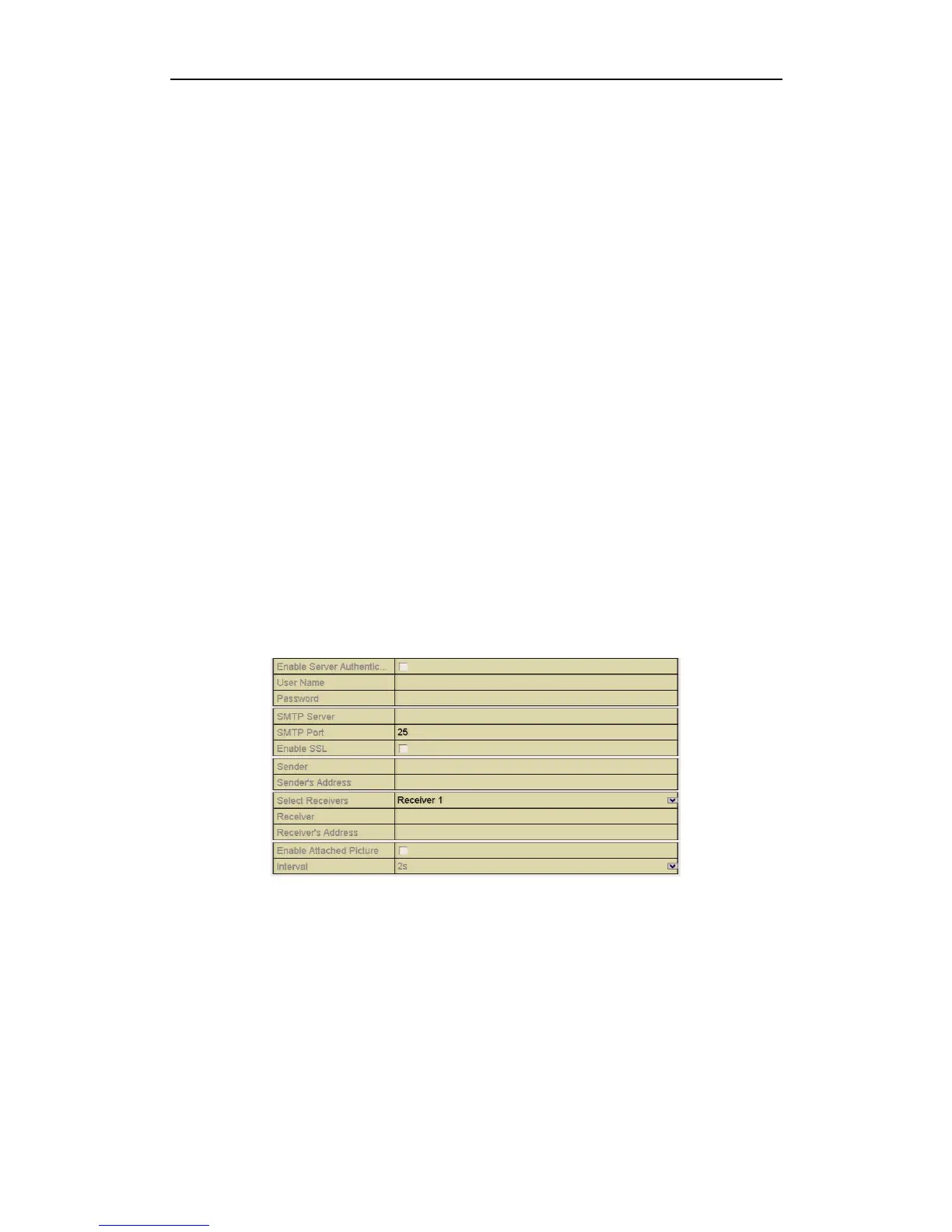
2. Select the Email tab to enter the Email Settings interface
Figure 9.2.8.1 Email Settings Interface
3. Configure the following Email settings:
Enable Server Authentication (optional): Check the checkbox to enable the
server authentication feature.
User Name: The user account of sender’s Email for SMTP server authentication.
Password: The password of sender’s Email for SMTP server authentication.
SMTP Server: The SMTP Server IP address or host name (e.g.,
smtp.263xmail.com).


 To Next Page