ALIEN MEGA/MAX USER MANUAL
158
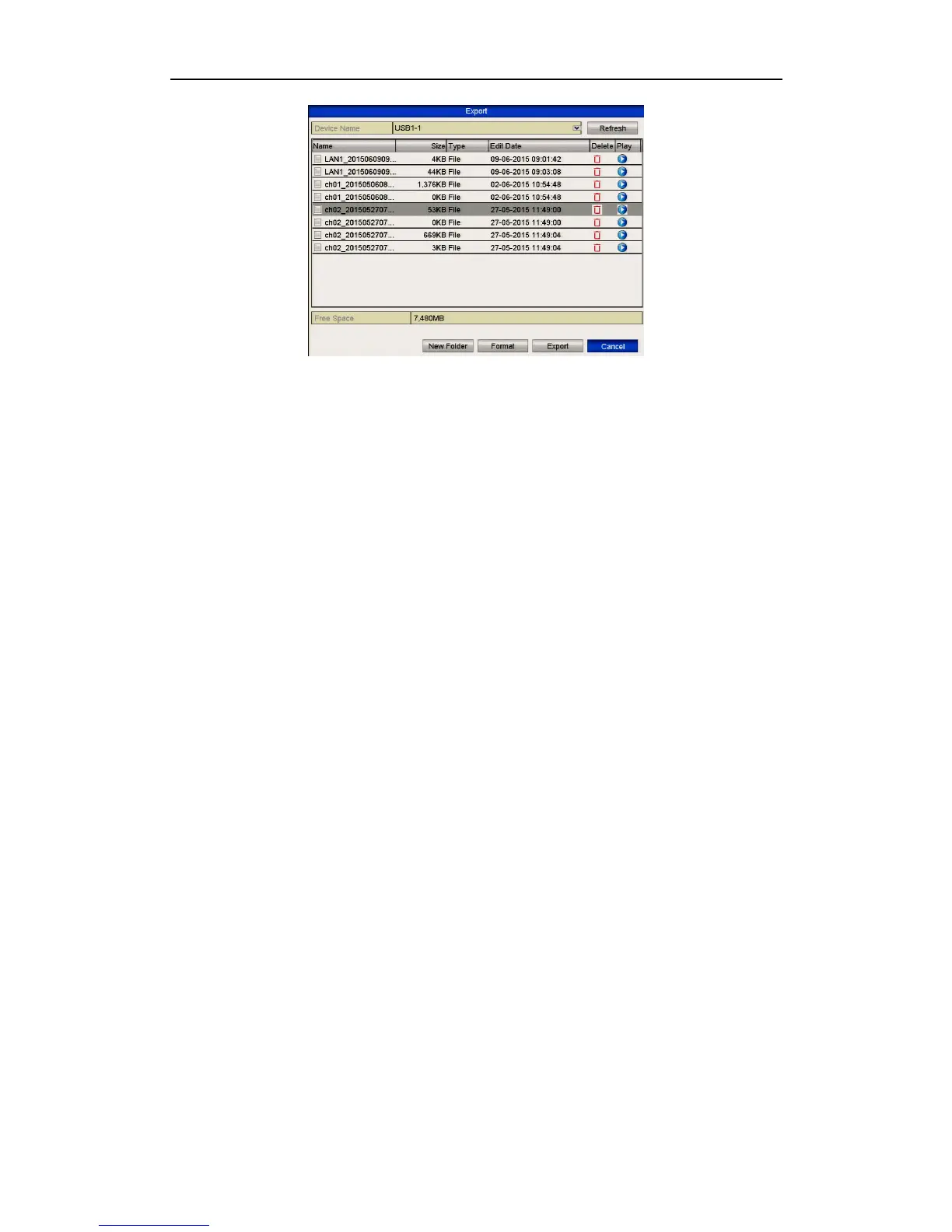
Figure 11.2.4 Export Log Files
7. Select the backup device from the dropdown list in Device Name.
8. Click the Export to export the log files to the selected backup device.
You can click the New Folder button to create a new folder in the backup device,
or click the Format button to format the backup device before exporting the log.
Please connect the backup device to DVR before operating log export.
The log files exported to the backup device are named by exporting time, e.g.,
20110514124841logBack.txt.
11.3 Importing/Exporting IP Camera Info
Purpose:
The setup information regarding an IP camera can copied into an Excel file and
exported to a local backup device, including the IP address, port, admin password, etc.
The exported file can be edited on your PC, by adding or deleting the content; and
copy the settings to other devices by importing the Excel file.
Steps:
1. Enter the camera management interface.
Menu > Video > Camera>IP Camera Import/Export
2. Click the IP Camera Import/Export tab, the content of the detected external
device appears.
3. Click the Export button to export configuration files to the selected local backup
device.
4. To import a configuration file, select the file from the selected backup device and
click the Import button. After the importing process is complete, you must
reboot the DVR.


 To Next Page