ALIEN MEGA/MAX USER MANUAL
88
4. Click and drag the mouse to draw area(s) for Instant Detective search, VCA event
or motion event.
Line Crossing Detection
Click the button , and click on the video display screen to specify the start
point and end point of the line.
Intrusion Detection
Click the button, and specify 4 points to set a quadrilateral region for
intrusion detection. Only one region can be set.
Motion Detection
Click the button and using the mouse set the detection area manually. You can
also click the Full Screen button to set the full screen as the detection area.
5. Click the to search and then the result will be displayed as on the
progress bar in the Instant Detective Playback interface.
Alternatively you can click the button to clear all the set areas.
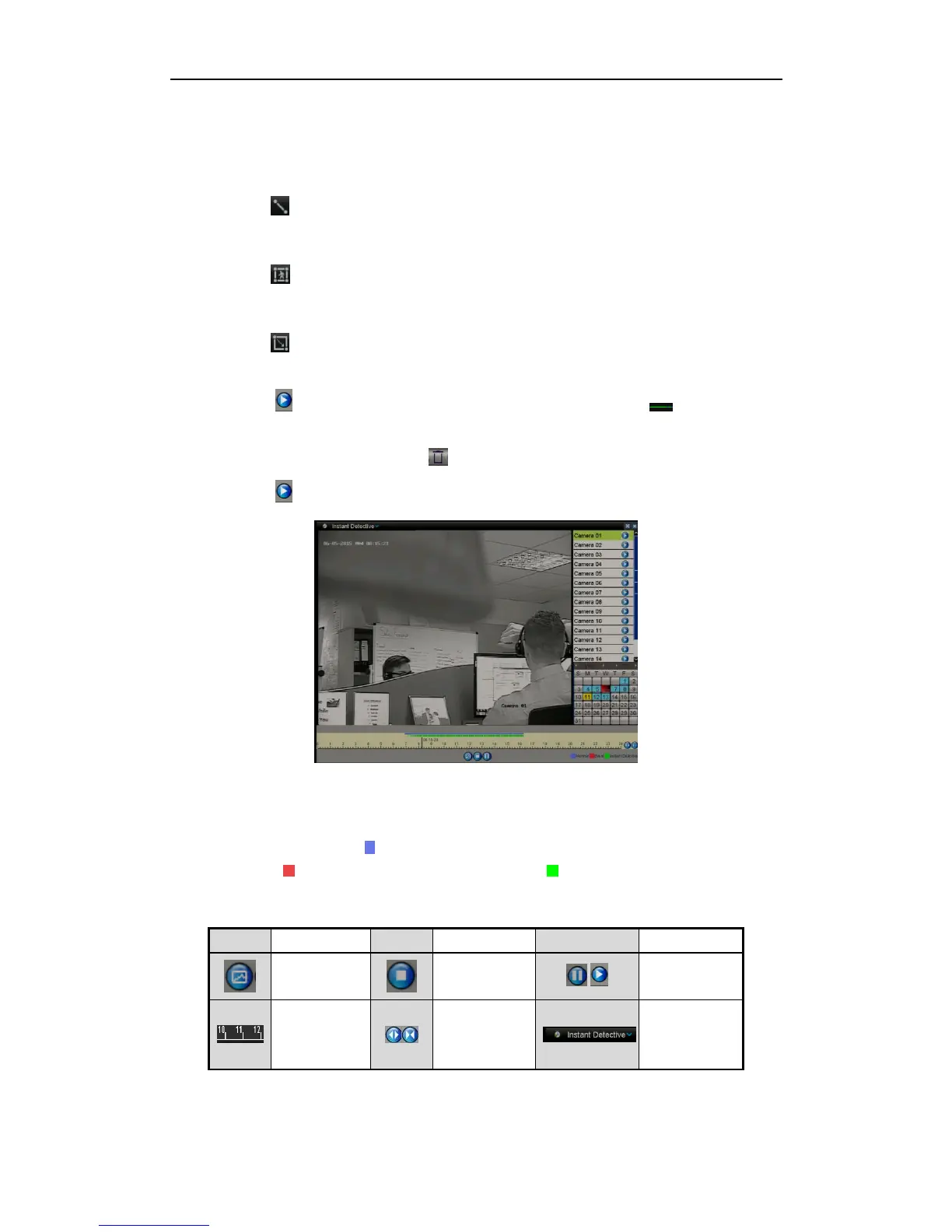
6. Click the button to play
Figure 6.1.5.2 Smart Playback Interface
Playback progress bar: use the mouse to click any point of the progress bar or
drag the progress bar to locate special frames.
About video type bar: (Blue) represents normal recording (manual or
schedule); (Red) represents event recording; (Green) represents Instant
Detective recording.
Detailed Explanation of Instant Detective Playback


 To Next Page