Installation and Operating Instructions 25
Intellex Main Screen
3. Archive — If the Digital Audio Tape (DAT) option is
purchased, this progress bar indicates how much tape
recording space has been used and how much is available.
The bar only appears when archiving in the background (see
Archive Operation on page 151).
4. Image Database — This progress bar indicates how much
recording space in the image database has been used and
how much is available.
5. Mute — Click to mute audio.
6. Volume Slider — Slide the volume slider to adjust the output
level of the playback audio.
On-screen Controls and
Indicators
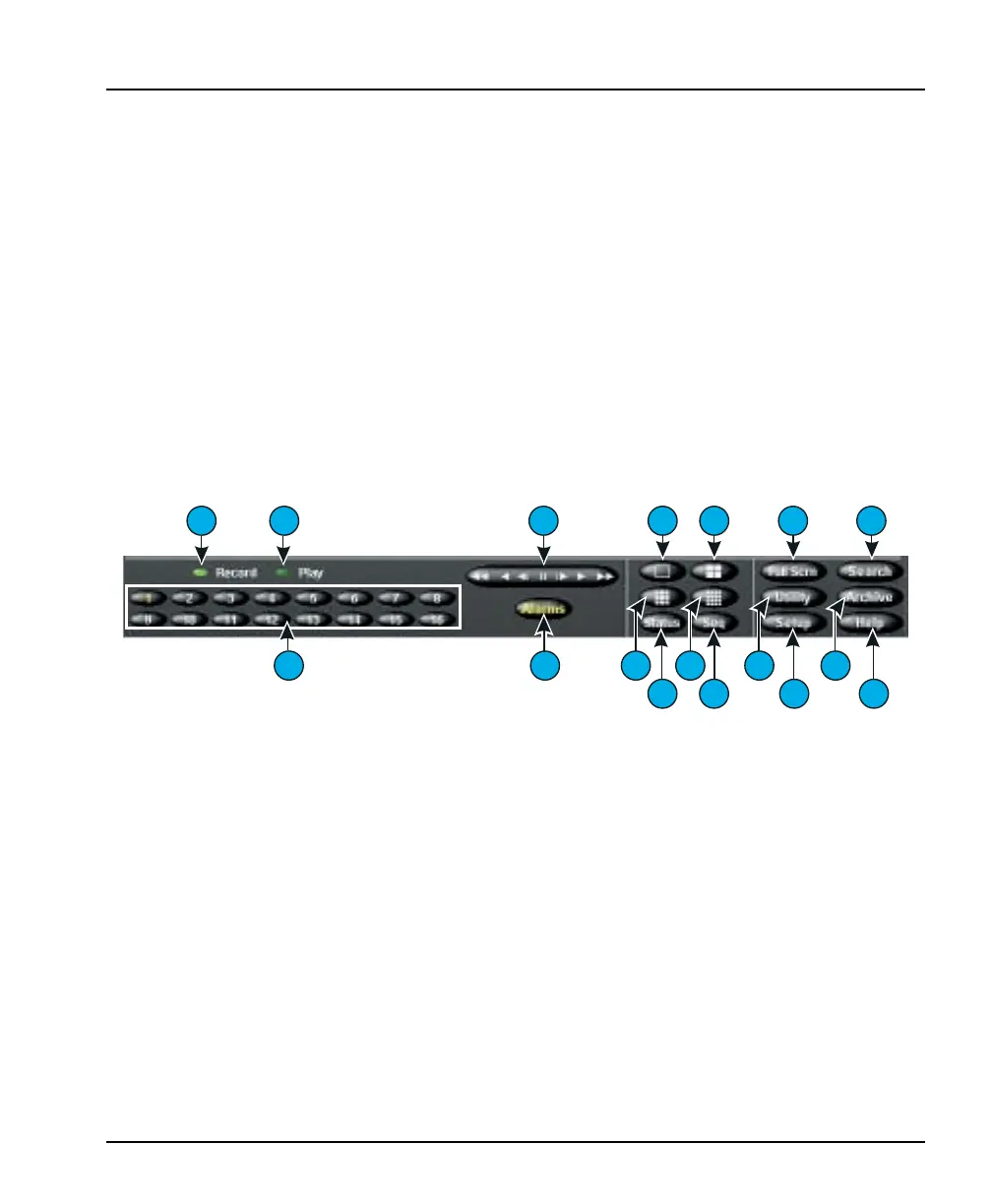
Operate the unit using the mouse pointer and the following on-
screen controls:
7. Record — This indicator is lit when the unit is recording
images. On the front panel, this indicator is labeled REC.
8. Play — This indicator is lit when the unit is playing back
images. Play changes to Pause when playback is paused.
9. 1–16 (Cameras) — Click to display a specific camera in the
1x1 format. The text on the camera button changes from
white to yellow to show that the camera has been selected.
10. Playback Controls — Controls how images are displayed
during image playback. You can choose between the
Jog/Shuttle or VCR type of control during setup by clicking
the Display button on the Setup Options screen.
Jog/Shuttle (Play/Pause button) — You can control
play/pause as well as playback direction and speed by clicking
and dragging the on-screen control. See Playback Operation on
page 111 for more information.
10
9
7 8
12
13 18 19
14
15 20 21
16
17
22
23
11


 To Next Page