9‐12
7. Downloading Designs (Schedule Downloading)
Instructions on downloading scheduled designs registered on the server.
Set the Network server application to Scheduled Download Mode beforehand.
*Refer to the
LEM-Server Instruction Manuals
for its operation.
1. Press the Network key
to open the Network screen.
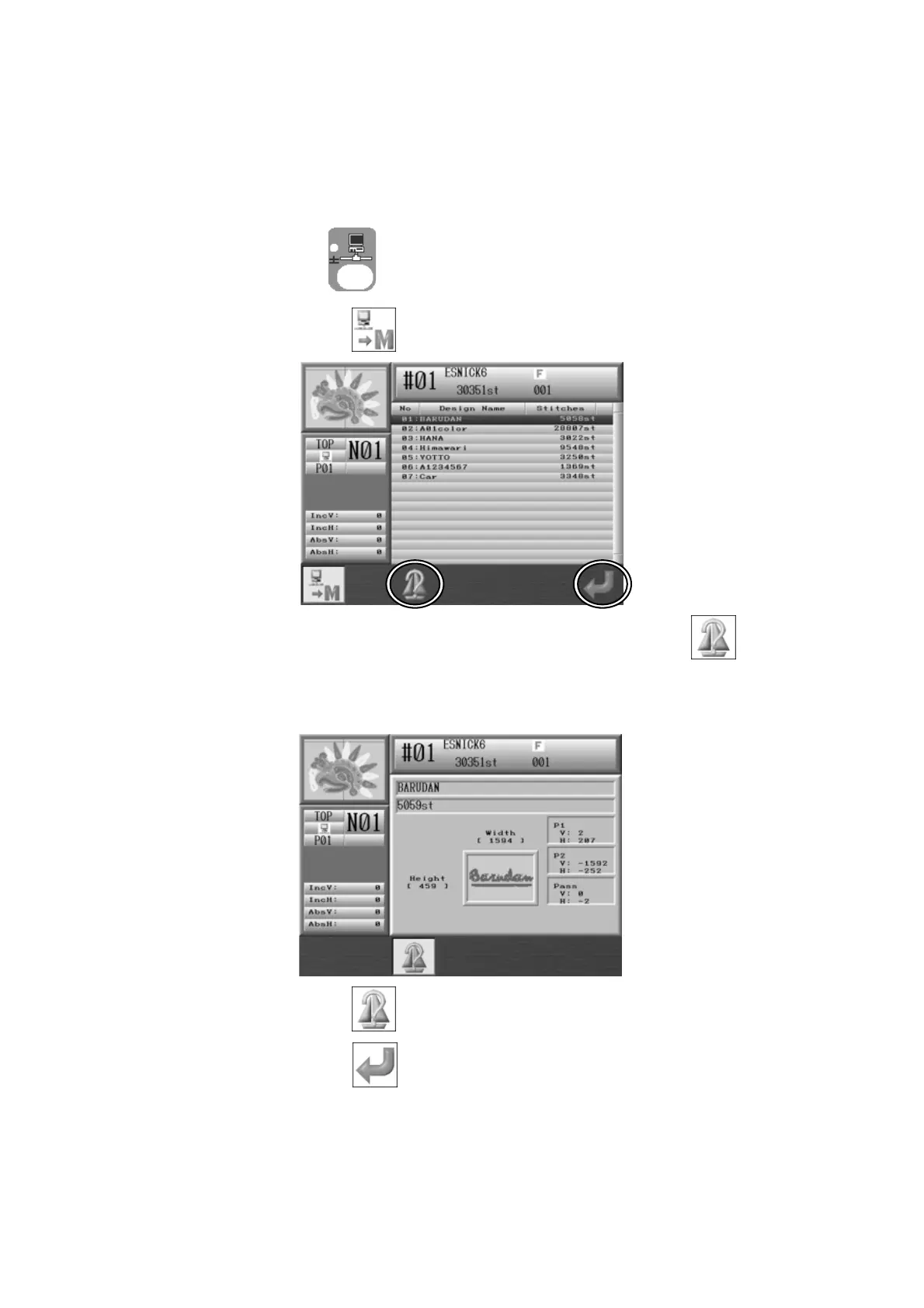
2. Press the A-key below the
icon. Schedule Downloading screen displays.
3. Use the Jog keys and select the design, then press the C-key below the
icon to show
the design data information of the selected design. Refer to
6-1. Searching a Design
by its
Name and Download for details.
4. Press the C-key below the
icon to go back to the Schedule download screen.
5. Press the G-key below the
icon to start downloading.
*You can only download the first design in the list. You cannot download the other numbered
designs in the list.
6. When the downloading finishes, the screen goes back to the Start Menu but the downloaded
design still remains selected.



 To Next Page