5‐24
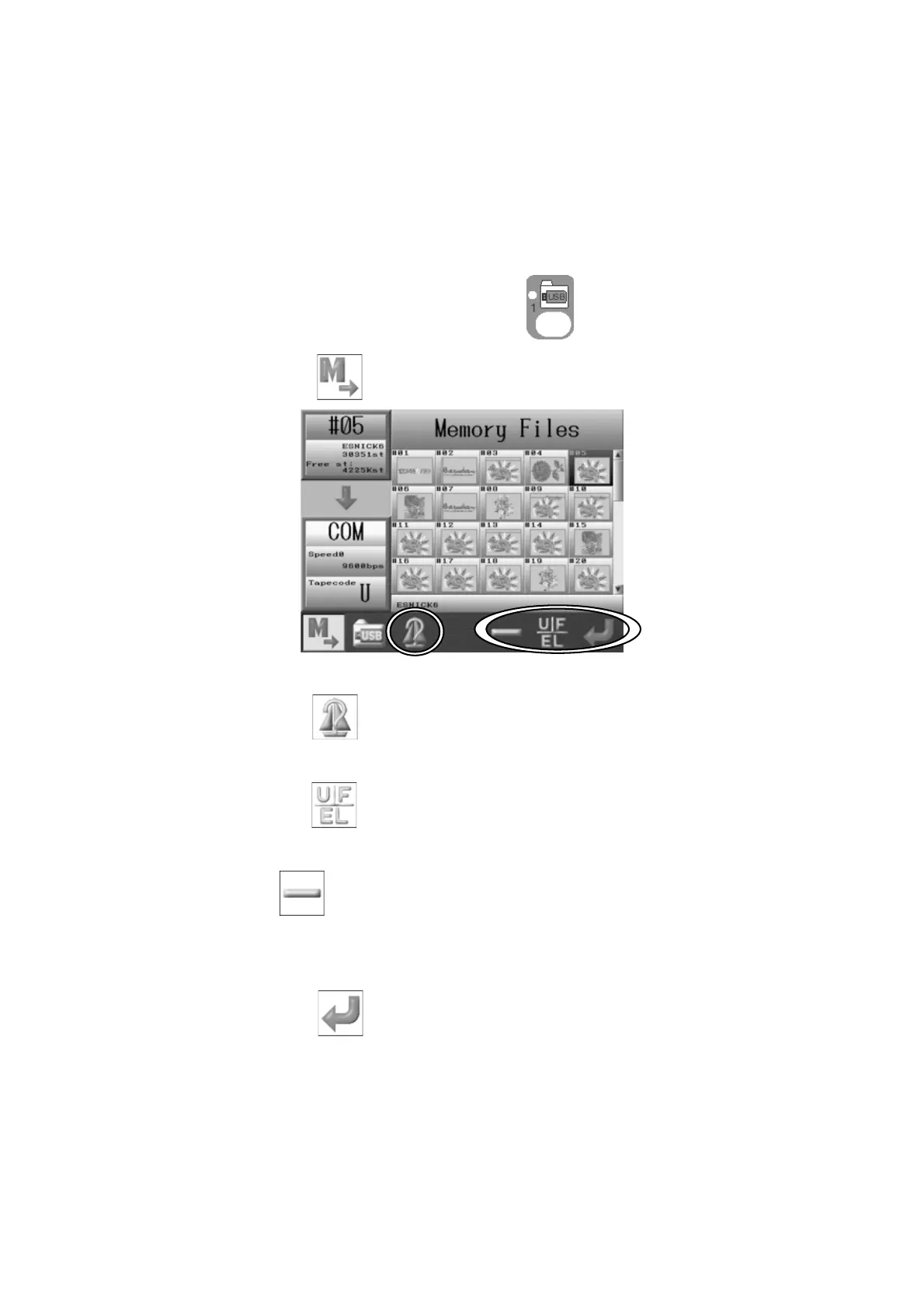
8. Saving a Design through the COM port.
A COM connector is located on the back of the BEXS Automat. Designs can be loaded from
a device connected to the COM port. Devices using RS-232C can be connected and used.
*Note: Please use a (null modem) crossover cable for the connection.
1. Press the Design Loading/Downloading key,
.
2. Press the A-key,
.
3. Use the Jog keys to select a design in memory you want to upload.
Press the C-key
to display the design information.
*Refer to
Chapter6 2. Design Information
for details.
4. Press the F-key
if needed, to change the Tape code.
*Refer to
7-1. Loading a New Design
for details.
The E-key
is for changing the loading speed.
*Refer to
7-1. Loading a New Design
for details on changing speeds.
5. Have the connected device ready to receive the design.
6. Press the G-key,
to start uploading the design to the connected device.



 To Next Page