System Settings 120
14.6.1 Set and Perform a Pass/Fail Test
To set and perform pass/fail test:
1. Press the Utility key on the front panel to enter the UTILITY function menu.
2. Press the Next Page softkey to go to the second page of the UTILITY function menu.
3. Press the Pass/Fail softkey to enter the PASS/FAIL function menu.
4. Press the Enable Test softkey to select On to enable the pass/ fail test.
5. Press the Source softkey to select the desired channel.
6. Press the Mask Setting softkey to enter the MASK function menu.
7. Press the X Mask or Y Mask softkey; and then turn the Universal Knob to select the desired value. The range is
from 0.02div to 4div.
8. Press the Create Mask softkey to create the mask. Whenever the Create Mask softkey is pressed the old mask is
erased and a new mask is created.
9. Press the UP softkey to return to the PASS/FAIL function menu.
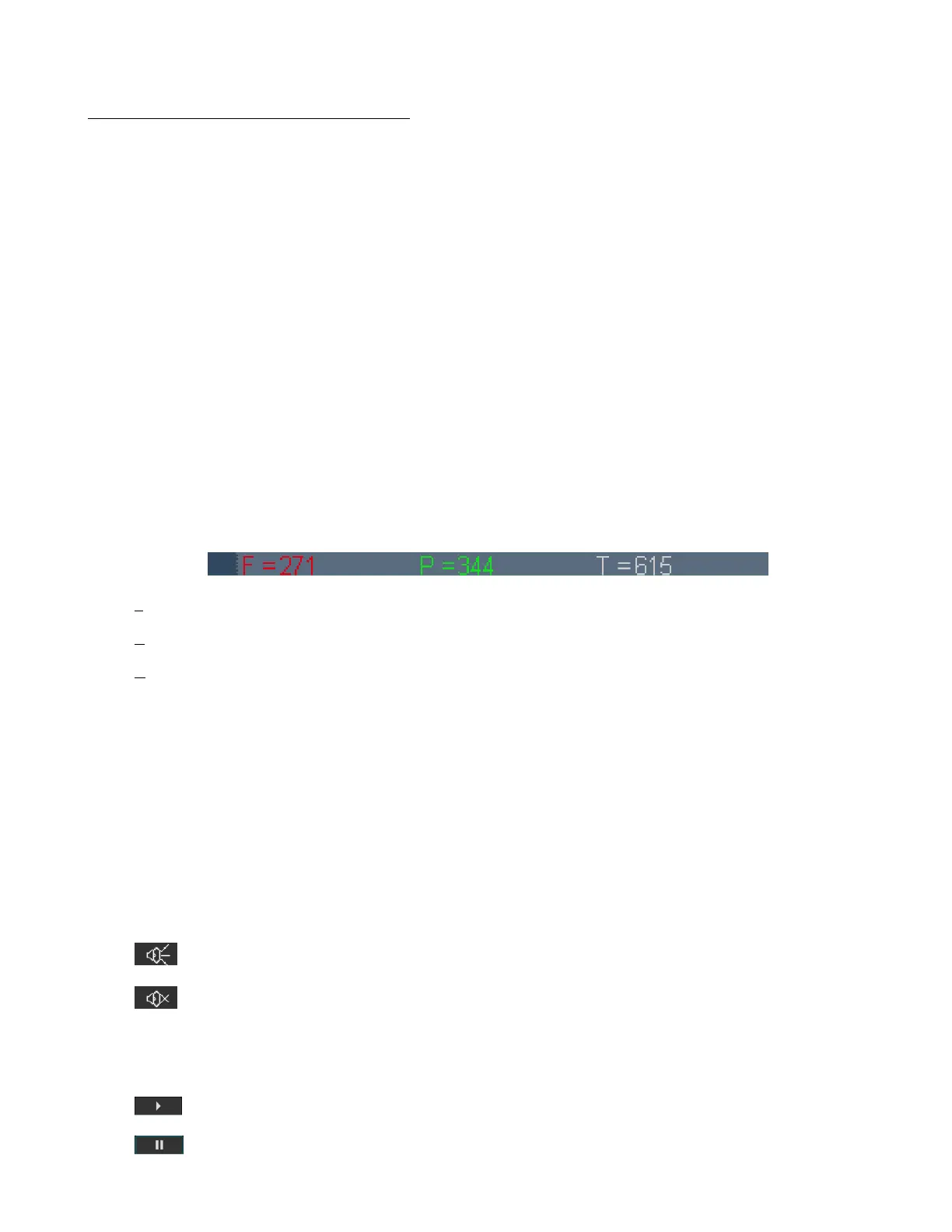
10. Press the Msg Display to select On or O to turn on or o the message display. When On is selected, the test
result will be displayed in the upper-right message box of the screen.
• F: the frame number of the channel waveform that fails to match the mask.
• P: the frame number of the channel waveform that matches the mask.
• T: the frame number of the channel waveform that have been acquired. It is the total of Pass and Fail.
11. Press the Next Page softkey to go to the second page of the PASS/FAIL function menu.
12. Press the Stop On Fail softkey to select On or O to turn on or o the function.
• On: when failed waveforms are detected, the oscilloscope will stop the test and enter the STOP state. At this
point, the results of the test remain the same on the screen (if display is turned on) and only one pulse is output
from the [TRIG OUT] connector (if enabled) at the rear panel.
• O: the oscilloscope will continue with the test even though failed waveforms are detected. The test results on
the screen will update continuously and a pulse will be output from the [Trigger Out] connector at the rear panel
each time a failed waveform is detected.
13. Press the Output softkey to select turn on or o the sound.
• : When the failed waveforms are detected, the beeper sounds.
• : The beeper will not sound even if the failed waveforms are detected,
14. Press the Next Page softkey to return to the rst page of the PASS/FAIL function menu.
15. Press the Operate softkey to perform the test.
• : Current state is stop; press the softkey to start the pass/fail test.
• : Current state is running; press the softkey to stop the pass/fail test.




 To Next Page