Operating your ATEM Switcher
Media Players
Each of the two media player sources have a fill and key (cut) output. Media player fill sources
are called media player 1 or 2, and media player key sources are called media player 1 key and
media player 2 key.
The media player sources are used to play stills from the media pool. The fill sourcesshow the
color channels of the selected still while the key sources show the black and white alpha
channel of the selected still. Media players can be used in manyparts of the production.
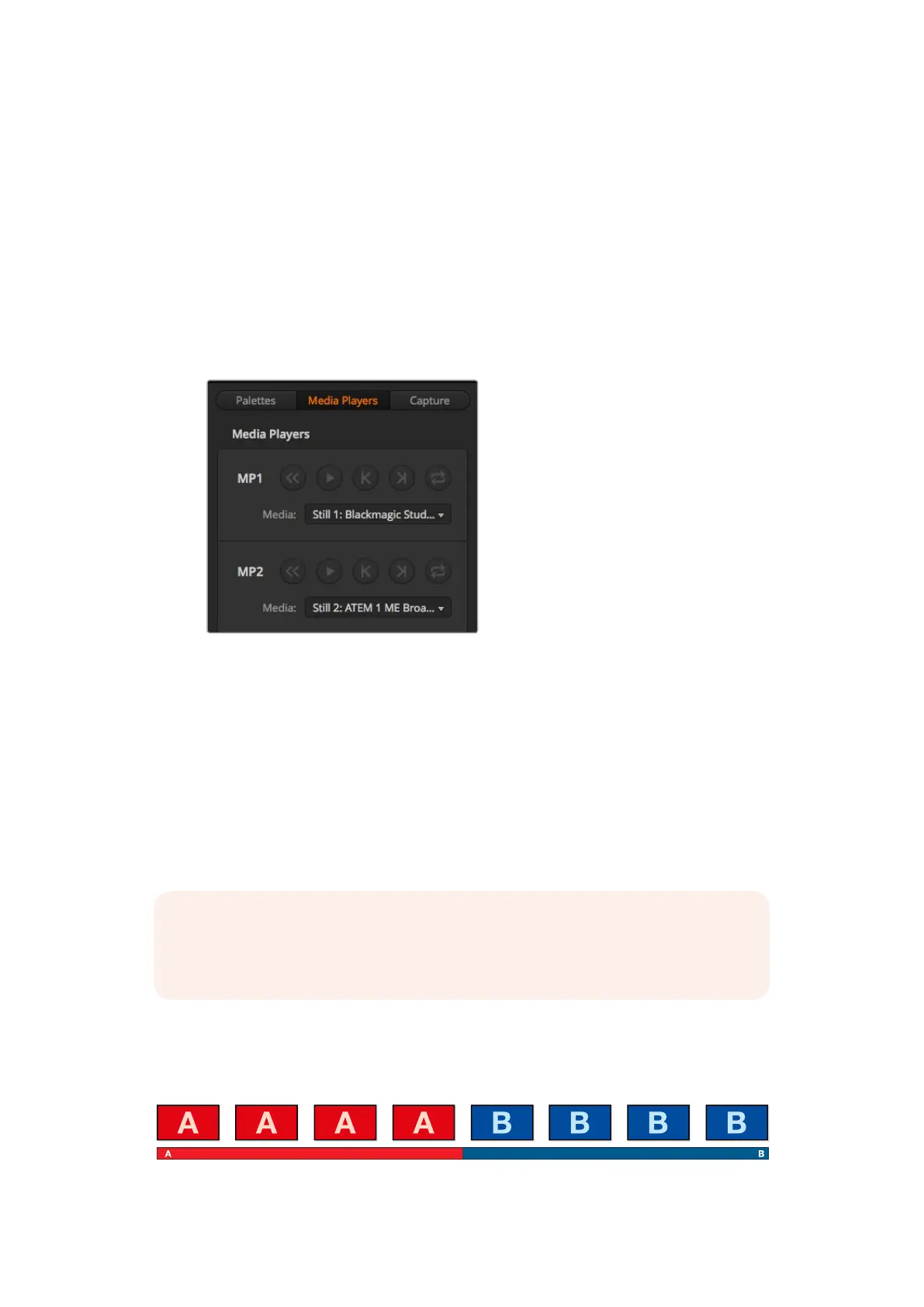
Controlling media players on the software control panel
1 From the switcher window, select the media player palette.
2 Use the select media drop down list to select a still from the media pool.
Media players showing a clip loaded into each.
Performing Transitions
One of the primary functions of a broadcast switcher is performing transitions from one video
source to another. The combinations of transition effects and styles provide endless creative
options that can enhance your production in just the right way for the right moment.
You can perform transitions using the control panel on your switcher, or with ATEM Software
Control, or you may even be using an additional ATEM hardware panel. This section shows you
how to perform the various transitions available on your switcher using the built in control panel
on your switcher and ATEM Software Control.
Cut Transitions
The cut is the most basic transition that can be performed on the switcher. In a cut transition the
program output is immediately changed from one source to another.
Program output for a cut transition.
NOTE For information on how to perform transitions using an ATEM hardware panel,
such as ATEM broadcast panels and ATEM 1 M/E Advanced Panel, refer to the section
titled 'performing transitions using ATEM hardware panels’.
108










 To Next Page