Using ATEM Software Control
Browsing and loading files
Loading a still is as easy as dragging it from the browse window and dropping it into an empty
slot in the media pool.
When dropping a still into a slot, a progress indicator will show the loading status. You can drop
multiple files into the media pool, even if the first images have not yet completed loading, as
they will continue to load one after the other. If a still is dropped into a window which already
has content loaded, the existing content will be replaced.
The ATEM media pool supports PNG, TGA, BMP, GIF, JPEG and TIFF still image formats.
ATEM Television Studio Pro 4K supports image sequences which you can load as clips.
Themedia page has two clip player slots.
When loading an image sequence, all you need to do is drop the first still into a clip window
andthe media page will know it is an image sequence. Using clips is great for animated
stingers, graphics and special effects. The audio slot next to each clip slot is for loading audio
that is associated with your clip. This is helpful for adding accompanying sound effects.
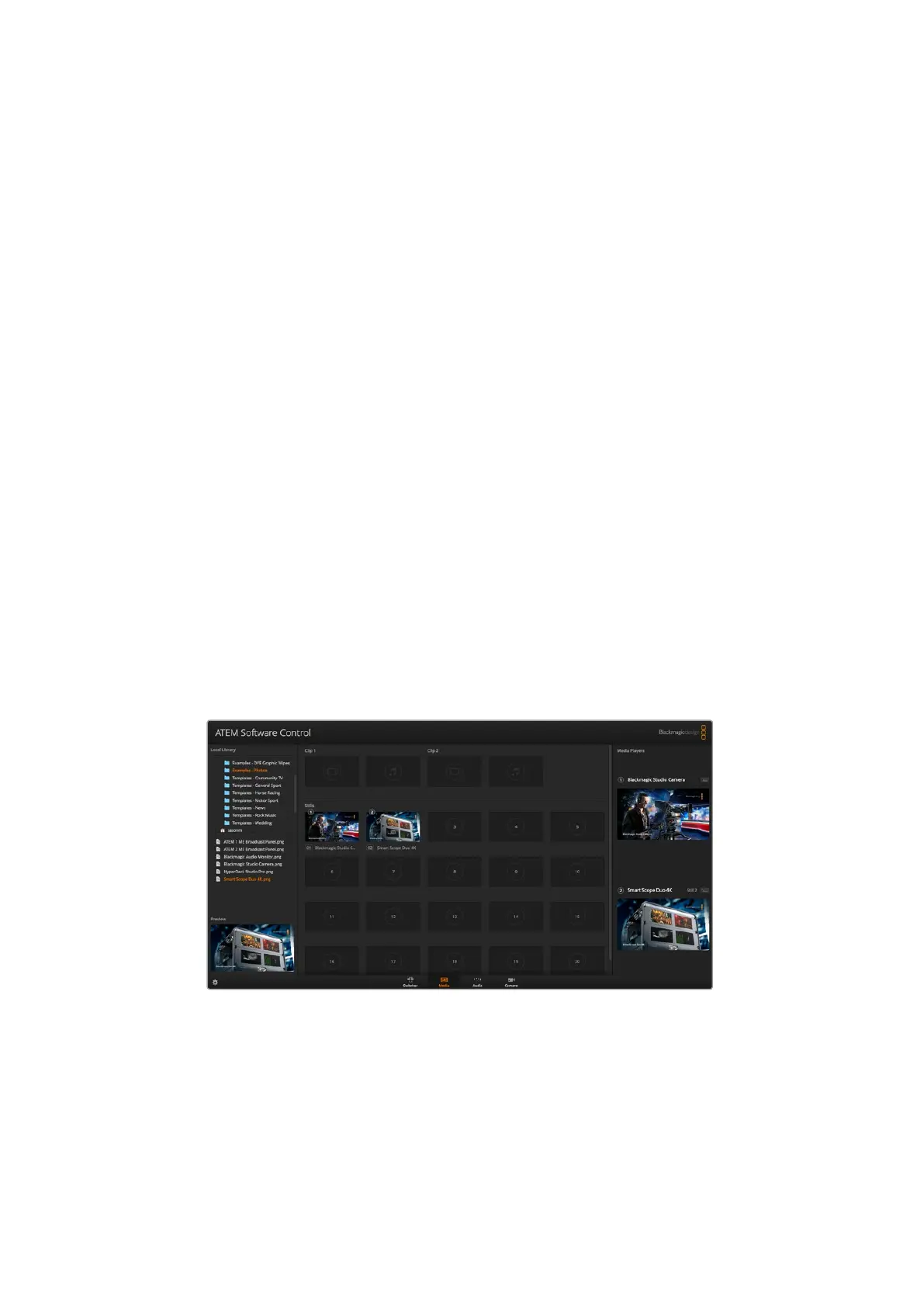
ATEM Media Pool
When files have been loaded into the media pool, the slots will show a thumbnail image. Stills
and clips are marked with a slot number so you can identify them when assigning clip or still
image to the media player if you are using an additional ATEM hardware panel.
The file name for each loaded file is displayed underneath the slot so you can easily keep track
of files you have loaded. This is very useful as you will see a list of media pool still and clip
numbers and their file names in the media player palette on the switcher page.
Numbers are displayed on slots in the media pool to clearly show which slots are assigned to
the relevant media players. When a media player slot is switched to the program output, the
media player number on the slot changes to red to indicate the slot is on air. When a slot is on
the preview output, the media player number changes to green.
ATEM Media Pool
On the switcher page, you can change the media player assignment from the media tab by
selecting your desired still from the ‘media’ dropdown list. Simply click on the arrow in the
player ‘media’ list to select from a list of media pool slots.
You can also assign stills to media players from ATEM hardware panels, or in some cases from
the Photoshop plug-in when downloading stills.
52










 To Next Page