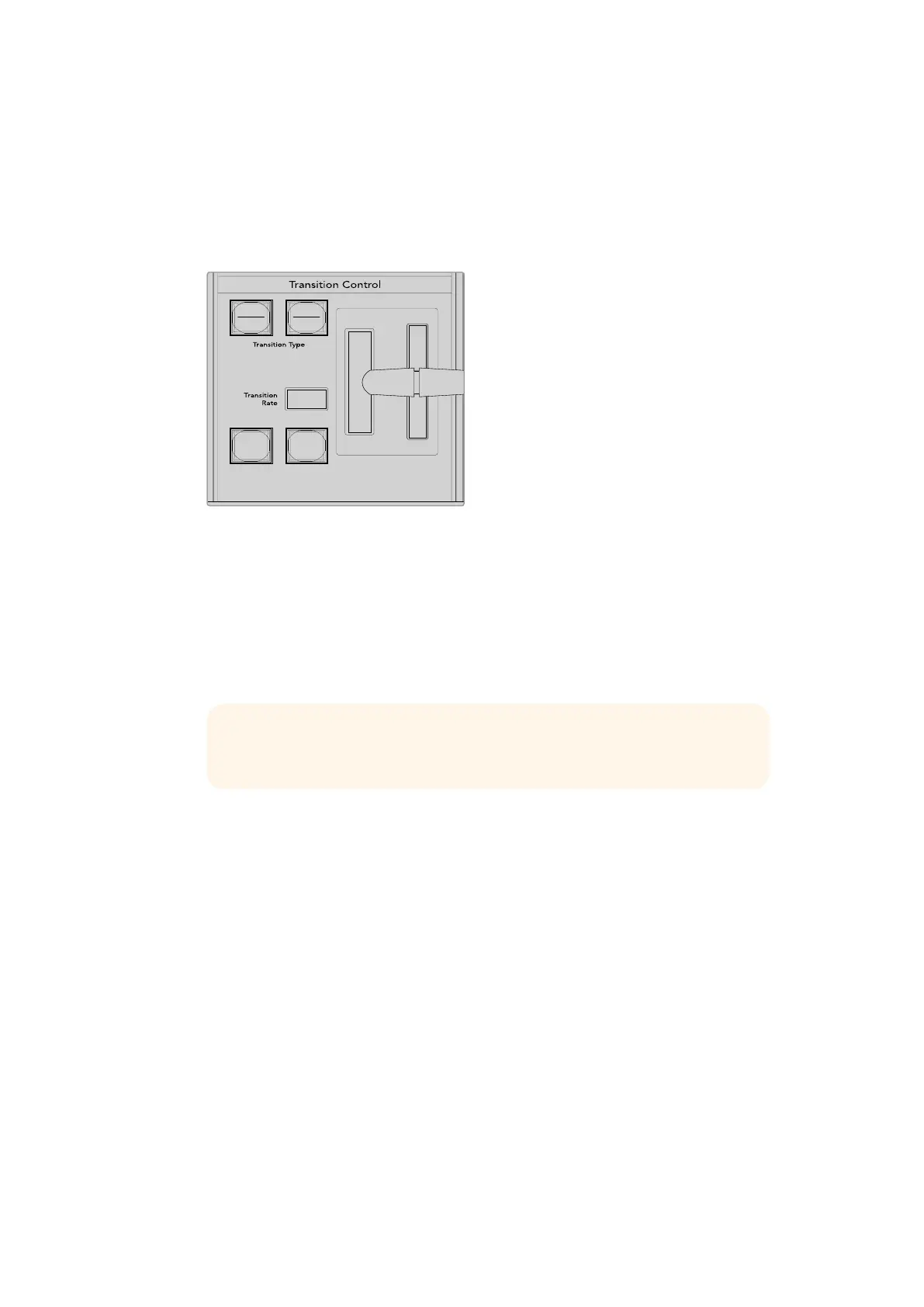
Performing Transitions using ExternalHardwarePanels
Auto Transitions
An auto transition allows you to automatically transition between program and preview sources
at a predetermined rate. Any upstream keys that were selected in the next transition and any
downstream keys that were tied to the transition control will also change state. Auto transitions
are performed using the auto button in the transition control block. Mix, dip, wipe, DVE and
stinger transitions can all be performed as an AUTO transition.
The auto transition button is part of the transition control block
To perform an auto transition
1 On the preview bus, select the video source that you want on the program output.
2 Select the transition type using the transition type buttons in the transition
control block.
3 In the system control, set the transition rate and adjust any other parameter for the
transition as needed.
4 Press the AUTO button in the transition control block to initiate the transition.
5 During the transition, the red and green buttons on the program and preview buses
both turn red to indicate that you are in the middle of a transition. The fader bar or
transition slider indicator displays the position and progress of the transition and the
transition rate display updates to indicate the number of frames remaining as the
transition progresses.
6 At the end of the transition, sources selected on the program and preview buses are
exchanged to indicate that the video source that was on preview is now on program
and vice versa.
Each transition type has its own independent transition rate allowing you to perform faster
transitions by simply selecting the transition type and pressing the AUTO button. The previously
used transition rate is remembered for that transition type until it is changed.
A production switcher provides multiple methods of transitioning from one shot to another.
Generally, you use a simple cut transition to move from one background source to another.
Mix,dip, wipe and DVE transitions allow you to transition between two background sources
bygradually phasing out one and phasing in another.
CUT
SHIFT
ON
KEY 1
CAM
1
CAM
2
CAM
3
SETUP
HOME
BKGD
CUT AUTO
KEY 2 KEY 3 KEY 4
ON ON ON
1 2 3
4 5 6
7 8 9
CAM 0 CLR
PREV
TRANS
FILL
DIP
MIX
DSK 1
TIE
DSK 2
Control Panel
Switcher
Main
Backup
Main
Backup
TIE
DSK 1
CUT
DSK 2
CUT
DSK 1
AUTO
DSK 2
AUTO
FTB
TIP On the ATEM 1 M/E Advanced Panel, all transition settings are accessed
via the LCD menu.
199










 To Next Page