Using the ATEM Television Studio HD Front Panel
Thats all there is to it! If you would like to change the transition type, then you can do this in the
LCD menus. To change the transition type, use the following steps.
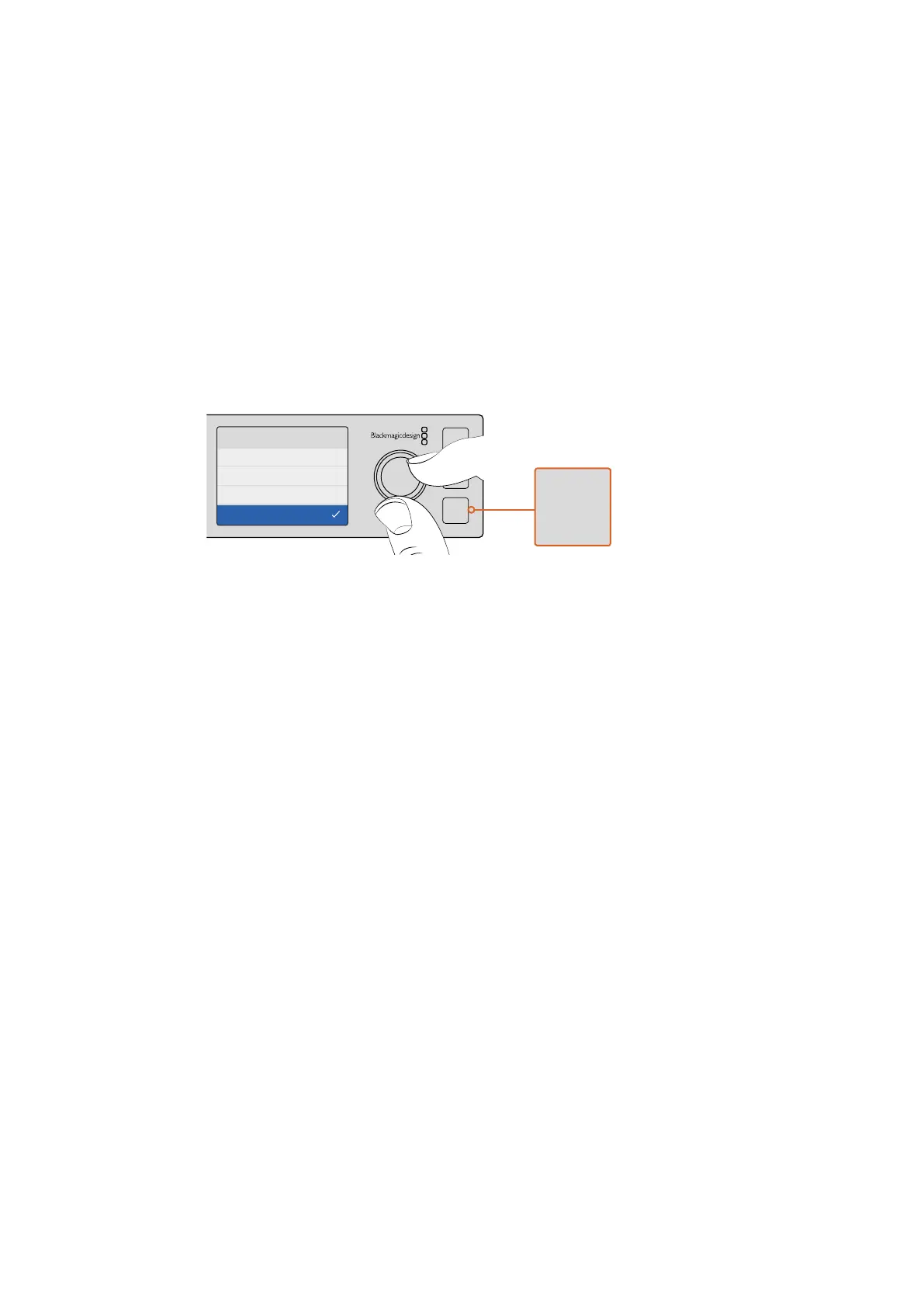
1 Press the menu button to display the menus.
2 Scroll with the knob through the menus to the “Transition” menu.
3 Press the set button and you will see the transition menu page will be selected.
4 Now scroll down the list of items in the transition menu until you get to the
transition item.
5 Press the set button and scroll through the list of options. Let’s select the
DVEtransition.
6 Press set to select it. You can press the menu button to back out of the menus back
to the main video preview screen.
Use the LCD menu to select the transition type and you can
also set the transition duration in the transition settings.
While in the menu, you can press the auto button to see the different types of transitions
available to you. Each one of the transition types listed in the LCD menus can also be selected
on the software control panel or a hardware control panel if you have one.
As well as the 8 main input buttons, there is also some other sources on the front panel and
they are labeled MP 1 and MP 2. These are media player 1 and media player 2. If you have
graphics in your switcher, such as a graphic or title slide, then you can select the media players
as sources and then cut or transition to them.
Selecting Other Sources
You can select other sources in the switcher that are not on the front panel from the LCD menus.
To select an alternative program source, use the following steps.
1 Press the menu button to display the menus.
2 Scroll with the knob through the menus to the “Program” menu.
3 Press the set button and you will see the program menu page will be selected.
4 Now scroll down the list of sources in the program menu until you get to the one you
want. In this example, let’s select color bars.
5 Press set to select it.
6 Press the menu button to back out of the menus back to the video preview screen.
You will see color bars appear on the program output and you will notice that none of the
buttons on the front panel will be illuminated red any longer and that’s because none of the
sources that use the front panel buttons are on air. If you have a source on the front panel
selected on preview, you will still see that button illuminated green. You can press cut or auto
to transition between the color bars and the preview source.
AUX
MENU
SET
FTB
MP 2
AUTO
DSK 1
MIX
MP 1
CUT
ON ON ON ON ON ON ON ON
AFV AFV AFV AFV AFV AFV AFV AFV
1 2 876543
Transition
Dip
Wipe
Mix
DVE
PUSH PUSH
ANALOG AUDIO INPGMREF IN
MULTI-VIEWAUX
MULTI-VIEW
CH 1 CH 2
SDI INPUTS
SDI OUTPUTS
HDMI INPUTS
1 2 3 4
REMOTE
5 6 7 8
5 6 7 8
USB 2.0
CONTROL
Studio Cam 1
90%
AUX
MENU
SET
FTB
MP 2
AUTO
DSK 1
MIX
MP 1
CUT
ON ON ON ON ON ON ON ON
AFV AFV AFV AFV AFV AFV AFV AFV
1 2 876543
86










 To Next Page