Using ATEM Software Control
Program/Preview and A/B Direct Transition Control
When you first receive your ATEM switcher, it will be set to program/preview switching which is
the current standard for an M/E switcher. You can change this preference to A/B Direct if you
are using an ATEM Television Studio Pro HD and wish to use older style A/B switching. You’ll
find the 'transition control' options in the preferences window of ATEM Software Control.
Saving and Restoring Switcher Settings
ATEM Software Control lets you save and restore specific settings, or all of the switcher settings
you have created. This powerful feature is incredibly time saving on live productions where
regular settings are used. For example, you can immediately restore saved camera settings,
lower third graphics and detailed key setups from a laptop or USB drive.
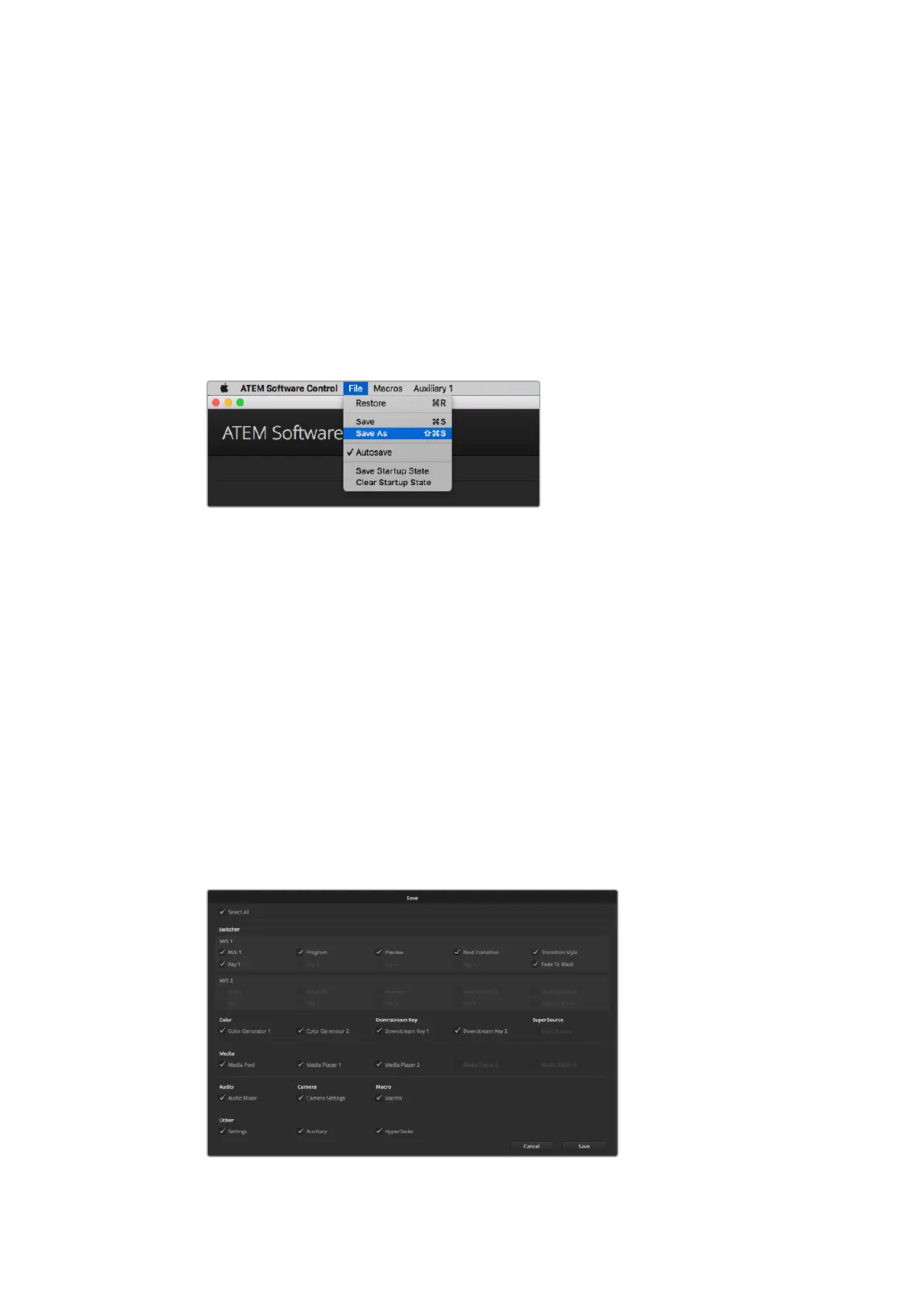
Saving settings menu.
Saving your Settings
1 Go to the menu bar in ATEM Software Control and select File>Save As.
2 A window will open asking for a file name and destination folder. After you have made
your selection, click Save.
3 You’ll now see the Save Switcher State panel containing checkboxes for all the
available settings on each block of your ATEM switcher. The Select All checkbox is
enabled by default. If you save with Select All enabled, ATEM Software Control saves
your entire switcher settings. If you want to choose specific settings to save, you can
deselect settings individually, or to remove all settings click Select All once to deselect
them. Now you can select specific settings you want to save.
4 Click Save.
ATEM Software Control saves your settings as an XML file together with a folder for ATEM
Media Pool contents.
With ATEM Software Control you can save and restore all your switcher settings for your
liveproduction, including key settings, transition styles, media pool contents and more
60










 To Next Page