Using ATEM Software Control
Fade to Black
The fade to black palette is where you can set the fade to black transition rate.
An 'Audio Follow Video' checkbox is also provided as a shortcut for the audio mixer’s
master fader AFV button. Selecting this feature lets you fade your audio with your
fade to black.
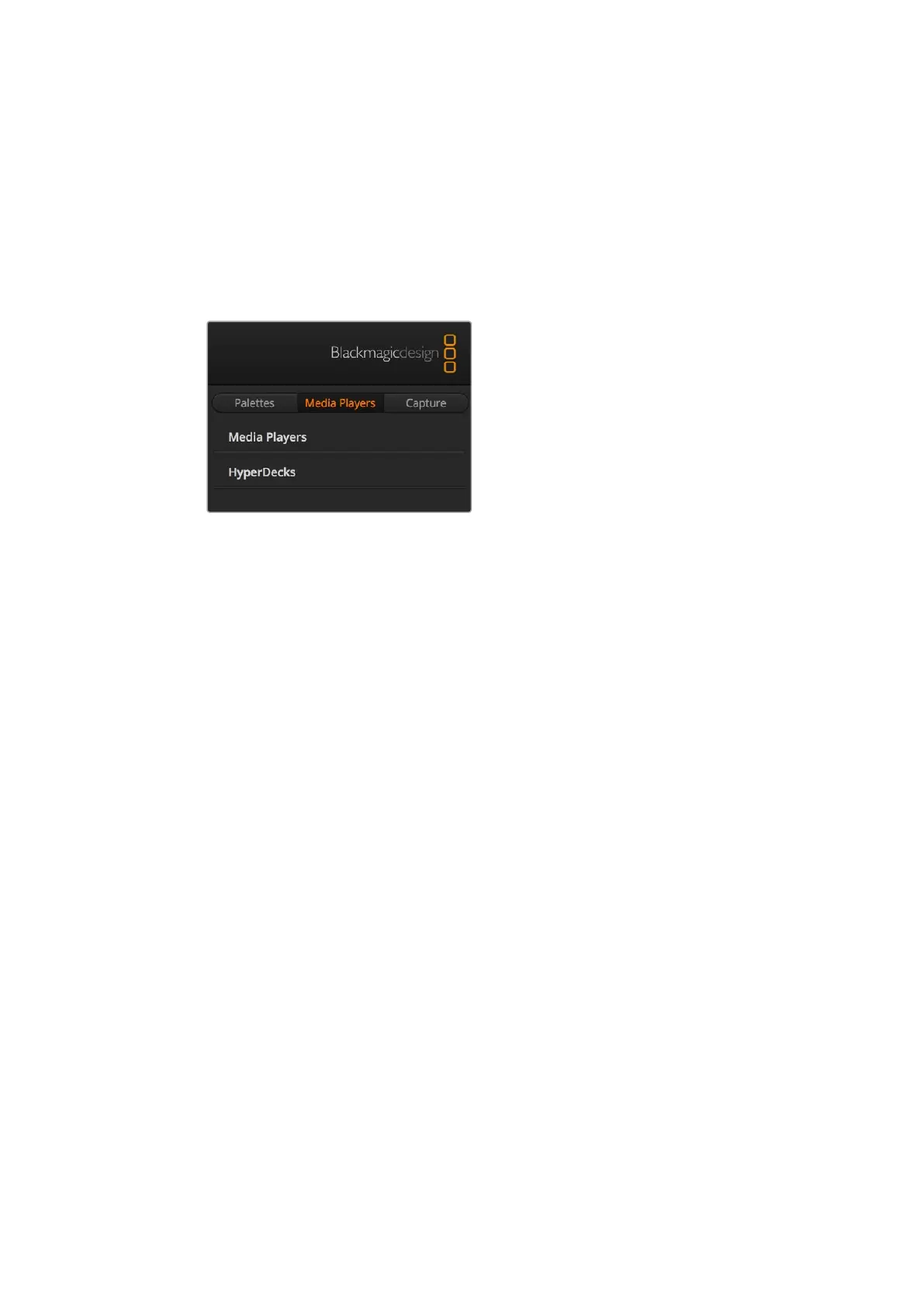
Media Players Tab
The 'media players' tab contains controls for your ATEM Switcher’s media players and
connected HyperDecks.
Media Players
Your ATEM switcher has media players which play back the stills that are stored in the
media pool memory built into the switcher. The drop down list is used to select the still
that will be played or made available on the media player input to the switcher.
Hyperdecks
You can connect up to 4 Blackmagic HyperDeck Studio model disk recorders and
control them using ATEM Software Control’s HyperDecks palette. For more information
refer to the ‘HyperDeck Control’ section of this manual.
Capture Tab
The capture tab supports the original ATEM production switchers that feature USB output recording.
Using the Audio Mixer
The audio tab is used to mix audio sources connected to any ATEM switcher via HDMI, SDI,
andexternal audio.
Cameras, media players and external audio sources are listed along the top of the audio mixer
along with the master audio output for the program outputs of the switcher.
Below each audio source is an audio level meter, a fader for setting the maximum audio level,
and a knob for setting the left/right audio channel balance. The master fader on the right side of
the audio mixer is used to set the gain on the audio level on the SDI program output and has its
own audio level meter. Next to the master fader are mic and XLR faders which let you control
the audio level for a microphone connected to the headset input, or external audio connected
to the XLR inputs.
Underneath the master fader are sliders to adjust the mix of each monitor setting. For example,
you can control the level of the master, talkback and sidetone levels, plus adjust the
headphones level knob to increase or decrease the volume of the monitor audio mix.
The buttons below each audio level meter determine whether audio is always available for
mixing or only when the source is on air.
39










 To Next Page