Using Macros
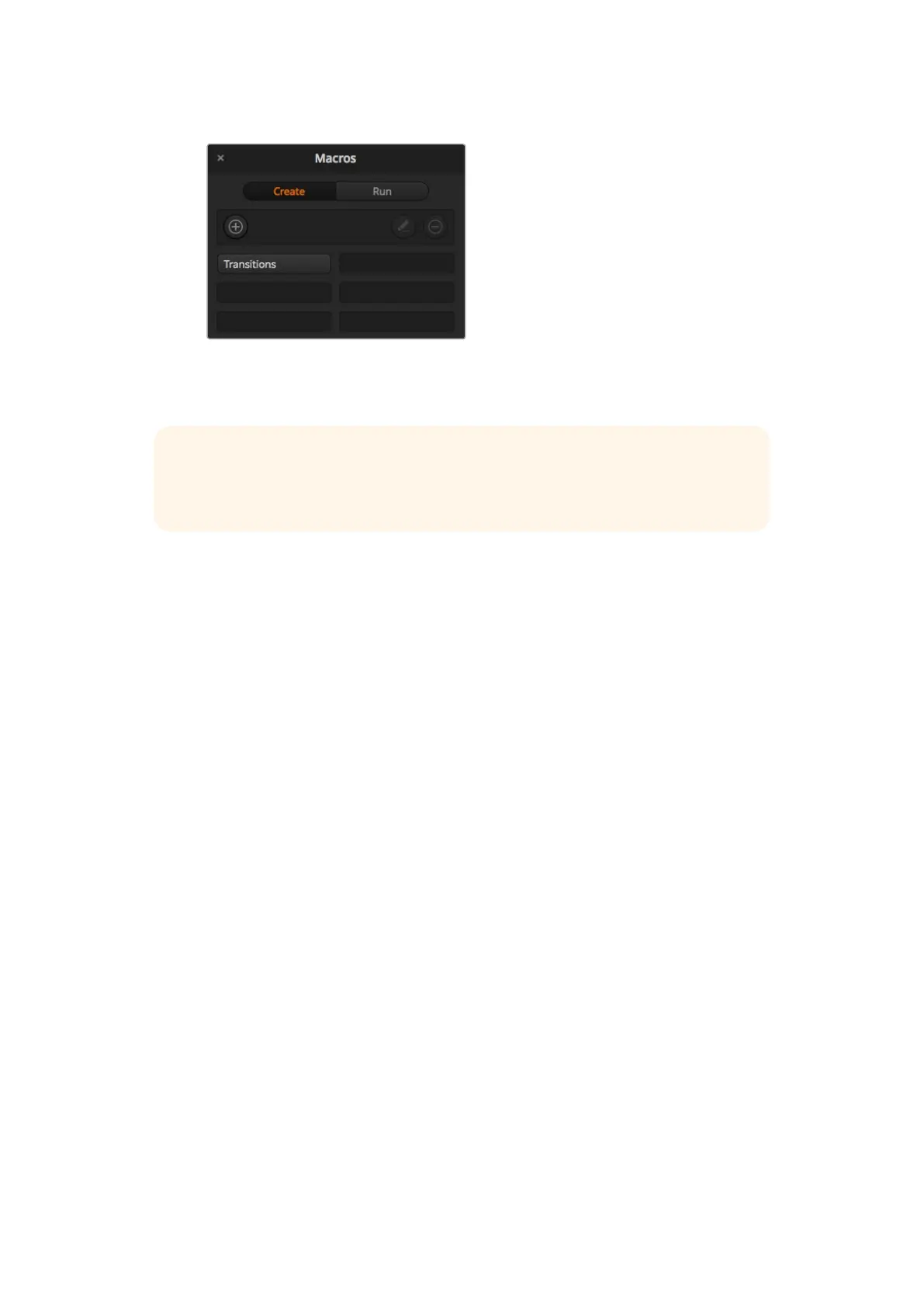
The image above shows how a macro button appears in the macros window after
it has been recorded. To run a macro, click on the ‘run’ button to enter the run
page. Now you can load and/or run the macro by clicking on the macro button.
Building Large Macros
Macros can even include triggering other macros as part of recording a macro. This lets you
easily build larger macros from multiple smaller macros, i.e., recording macros with limited
actions, then compiling them into a large macro. This is because if there are any mistakes while
recording a large macro in one complete sequence, you’ll need to go back to the start of your
sequence and rerecord it. It’s a lot easier to work with segments containing a small number
of actions.
By recording a large macro using small macros, you can also edit your large macro by
rerecording only the small macros you want to change, then compiling your small macros back
into your large macro.
To compile small macros into a large macro:
1 Start recording a new macro, then while the macro is recording, click on the ‘run’
button to enter the run page.
2 Select ‘recall and run’ to automatically run macros at the push or click of a button,
or deselect to load a macro and play it manually.
3 Run your sequence of small macros, with pauses between each one to cover the
duration of each small macro, until you’ve completed the large macro.
4 Stop recording. You now have a complex, powerful large macro built from small macros
you can easily change later if you need to.
There is no limit to the amount of actions you can perform. You can easily build complex
transitions, create unique repeatable effects using keyers, or set up frequently used Blackmagic
Studio Camera settings, graphic overlays and DVEs so you don’t have to reconstruct them
every time you start a new program. Macros are fun and will save you a lot of time!
TIP When recording a macro using an ATEM Television Studio Pro HD switcher, you
can use the ATEM software panel to start and stop recording, but perform all the macro
actions using the built in hardware control panel.
157










 To Next Page