Operating your ATEM Switcher
Sharing DVE Resources
The one DVE channel available in the switcher can be used to perform DVE transitions or it can
be used in an upstream keyer. When you select a DVE transition, if the DVE is used elsewhere
in the system, the DVE transition type will not be available. In order to use the graphic wipe
transition you must free the DVE from where it is currently used. Verify that the upstream key
currently on program or preview is not a DVE key. To free DVE from the upstream keyer, change
the key type to anything other than DVE. The DVE will be released and therefore available for
use as a graphic wipe.
Graphic wipe images
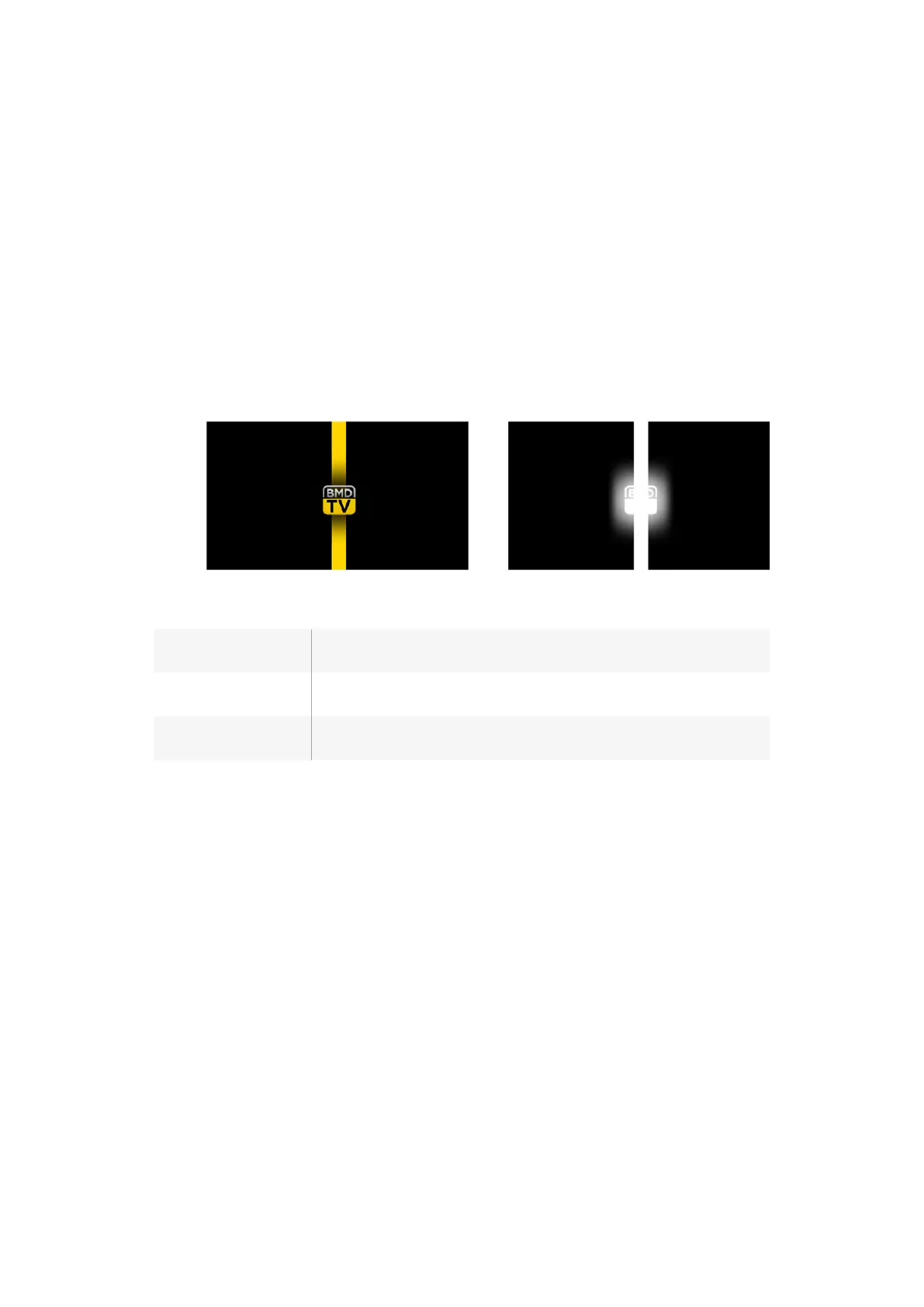
The graphic wipe feature requires a static graphic that is used as a moving border for a
horizontal wipe. This graphic should be a vertical ‘banner’ type graphic that is no more than
25% of the total screen width.
Graphic wipe screen width requirements
1080i and 1080p
If the switcher is operating at 1080i or 1080p then the graphic should be no
wider than 480 pixels.
720p
If the switcher is operating at 720p than the graphic should be no wider than
320 pixels.
SD
If the switcher is operating in Standard Definition then the graphic then the
graphic should be no wider then 180 pixels.
Manual Transitions
Manual transitions let you manually transition between program and preview sources using
the fader bar in the software control panel, or using the transition slider on ATEM Television
Studio Pro HD’s control panel. Mix, dip, wipe and DVE transitions can all be performed as a
manual transition.
To perform a manual transition:
1 On the preview bus, select the video source that you want on the program output.
2 Select the transition type using the transition type buttons.
3 Manually move the fader bar or transition slider from one end to the other to execute
the transition. The next move will begin a new transition.
4 During the transition, the red and green buttons on the program and preview buses
both turn red to indicate that you are in the middle of a transition. The transition slider
also indicates the position and progress of the transition. On the software control panel,
the virtual fader bar displays the position and progress of the transition.
5 At the end of the transition, sources selected on the program and preview buses are
exchanged to indicate that the video source that was on preview is now on program
and vice versa.
122










 To Next Page