Using Macros
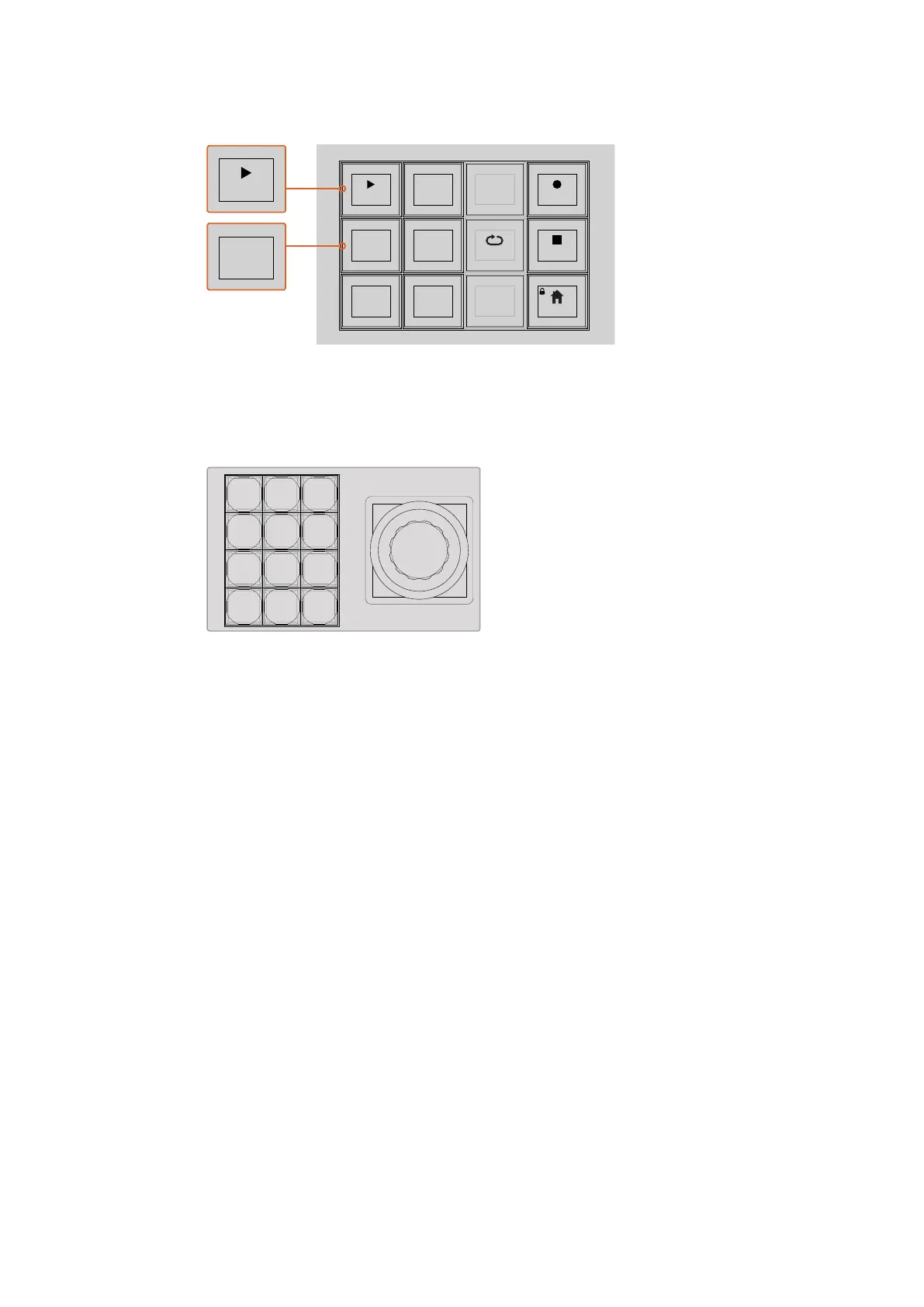
To load a macro so it is cued and ready to run, make sure the recall soft
button is selected. Select the macro you want to run by pressing the
desired macro button, or using the numeric keypad. Now you can run your
macro at any time by pressing the play soft button. When ‘recall and run’
is selected, your macro will automatically run as soon as you select it.
Use the joystick control keypad to select up to 100 macros to
record and run. Simply type in the desired macro number and
press‘cam’ to select your macro to run, or macro slot to record.
Recording Macros using an ATEM 2 M/E Broadcast Panel
You can record and run macros using your ATEM 2 M/E Broadcast Panel independently of
ATEM Software Control. All actions on the ATEM Software Control switcher page can be
performed using your hardware panel. If you need to mix audio, arrange graphics in the media
pool, or adjust camera settings, simply access those settings using ATEM Software Control.
Dedicated macros buttons are used to record and run macros on the ATEM 2 M/E Broadcast
Panel, or you can use the system control M/E 1 or M/E 2 soft menu buttons, which also provide
additional macros functions. The names of your macro buttons are displayed in the source
names display by pressing the show names soft button. Macro names longer than can be
shown in the source names display are shown in their entirety in the system control M/E 1 or
M/E 2 LED displays.
The M/E 1 and M/E 2 system control blocks are used depending on how many ATEM switchers
are connected to your panel. For example, if you have two ATEM switchers connected, you can
access up to 100 macros for each M/E block. The macros menus for each block are
exactly the same.
Recording a macro is easy. Select a macro slot by pressing any of the 20 macro buttons in the
source select bus. Shift select if you want a macro slot up to 40. To select macro slots above
40use the numeric keypad under the joystick control block. Simply type in a number between
1to 100 and press the cam button to confirm your selection. Another method is by turning the
knob under the system control LED display. The same methods are used to recall and run
macros during your live production.
PLAY RECORD
SHOW
NAMES
RECALL
DELETE
HOME
STOP
BKGD
CUT AUTO
KEY 2 KEY 3 KEY 4
ON ON ON
1 2 3
4 5 6
7 8 9
CAM 0 CLR
PREV
TRANS
FILL
DIP
MIX
DSK 1
TIE
DSK 2
Control Panel
Switcher
Main
Backup
Main
Backup
TIE
DSK 1
CUT
DSK 2
CUT
DSK 1
AUTO
DSK 2
AUTO
FTB
LOOP
CUT
SHIFT
ON
KEY 1
PLAY RECORD
SHOW
NAMES
RECALL
DELETE
HOME
STOP
BKGD
CUT AUTO
KEY 2 KEY 3 KEY 4
ON ON ON
1 2 3
4 5 6
7 8 9
CAM 0 CLR
PREV
TRANS
FILL
DIP
MIX
DSK 1
TIE
DSK 2
Control Panel
Switcher
Main
Backup
Main
Backup
TIE
DSK 1
CUT
DSK 2
CUT
DSK 1
AUTO
DSK 2
AUTO
FTB
LOOP
DVE
WIPE
CUT
SHIFT
ON
KEY 1
PLAY RECORD
SHOW
NAMES
RECALL
DELETE
HOME
STOP
BKGD
CUT AUTO
KEY 2 KEY 3 KEY 4
ON ON ON
1 2 3
4 5 6
7 8 9
CAM 0 CLR
PREV
TRANS
FILL
DIP
MIX
DSK 1
TIE
DSK 2
Control Panel
Switcher
Main
Backup
Main
Backup
TIE
DSK 1
CUT
DSK 2
CUT
DSK 1
AUTO
DSK 2
AUTO
FTB
LOOP
DVE
WIPE
CUT
SHIFT
ON
KEY 1
KEY
1
KEY
2
KEY
3
KEY
4
PATTRN
KEY
CHROMA
KEY
LUMA
KEY
MASK
MENU
HOME
DVE
BKGD
CUT AUTO
KEY 2 KEY 3 KEY 4
ON ON ON
1 2 3
4 5 6
7 8 9
CAM 0 CLR
PREV
TRANS
FILL
DIP
MIX
DVE
WIPE
DSK 1
TIE
DSK 2
Control Panel
Switcher
Main
Backup
Main
Backup
TIE
DSK 1
CUT
DSK 2
CUT
DSK 1
AUTO
DSK 2
AUTO
FTB
164










 To Next Page