Keying using ATEM Switchers
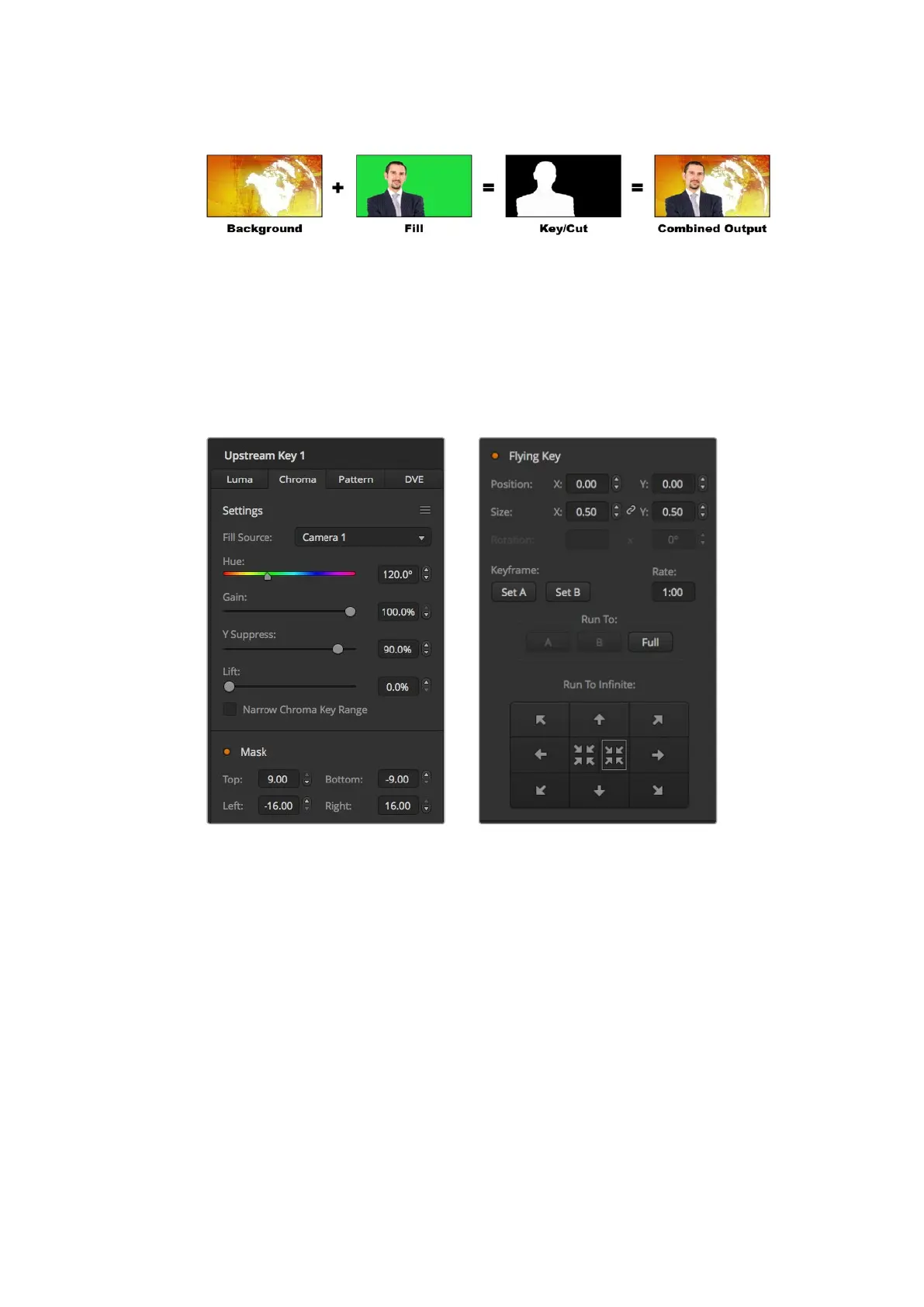
Combining a background with a fill and chroma key/cut
Background – a full screen image; in the case of a chroma key it is often a
weather map.
Fill – the image you plan to display on top of your background video. In the case of a
chroma key, this is video of the meteorologist in front of the green screen.
Key/Cut – In the case of a chroma key the key/cut signal is generated from the
fill signal.
Chroma key settings in ATEM Software Control
Performing an Upstream Chroma Key
Use the following steps to perform a chroma key on your ATEM switcher.
To set up a chroma key on the upstream keyer on ATEM Television Studio HD:
1 The first step is to navigate to the upstream key settings in the LCD menu and set
‘next transition’ to ON. This enables the upstream keyer on the preview output so you
can see the key during the setup stage and ties the key to the next transition so it will
transition to air when the next transition is performed.
2 In the LCD menu upstream key settings, set the key type setting to ‘chroma’.
3 Return to the upstream key menu and scroll down to the fill source setting. Select the
image you want to key as the fill source.
4 Adjust the chroma key settings while watching the preview output to refine the key.
When you are happy with your settings for the chroma key, press the 'menu' button to
step back through the menu until you return to the master program output.
130










 To Next Page