Keying using ATEM Switchers
Performing an Advanced Chroma Key
ATEM Television Studio Pro 4K features an advanced chroma keyer with more detailed chroma
sampling and adjustment options. These controls help you achieve the best key, improving the
blend of foreground and background so you can create a more convincing visual effect.
To set up a convincing chroma key using the advanced keyer:
1 Expand the upstream key palette and select ‘chroma’ from the key types bar.
2 Select the fill source. Typically, this source would be from a camera facing a presenter
in front of a green screen, or a graphic loaded in a media player.
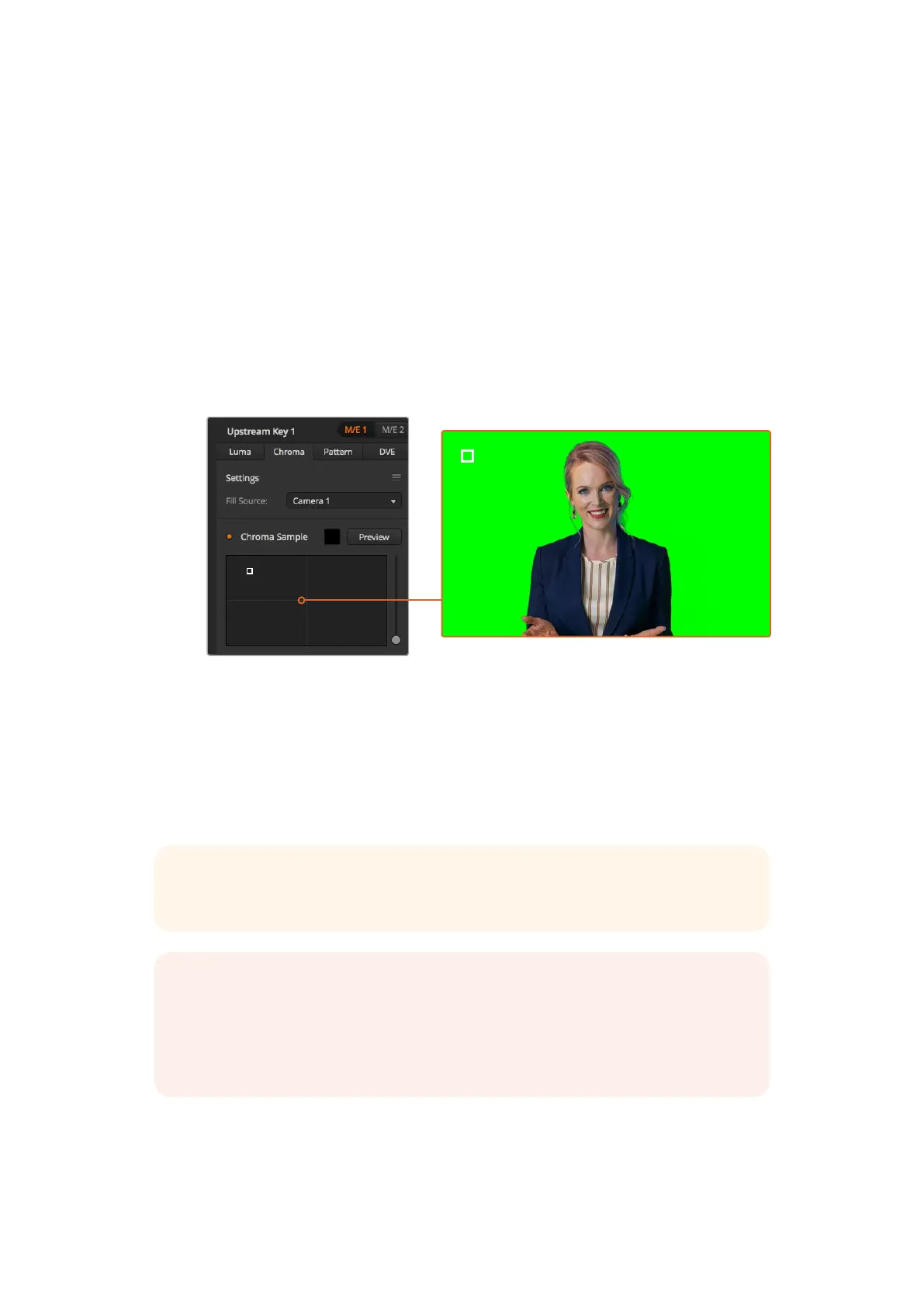
3 Click the ‘chroma sample’ button. With the chroma sample selected, you’ll see a
new panel appear with a box cursor. This cursor is also visible on the multi view’s
preview window.
The chroma sample setting lets you position a cursor over the screen area you want to sample
4 Click and drag on the box cursor to move it to the position you want to sample.
Choose a representative area of your green screen that covers as much of the luminance range
of the screen as possible. The default size of the box cursor is well suited to most green
screens that are relatively evenly lit, however if there is a lot of variance in your green screen,
you can adjust the size of the box by clicking on the slider to the right of the sample window
and dragging it up or down.
TIP When sampling uneven green screens, we recommend sampling the darkest area
first before increasing the size of the sample box. This can give you a more accurate key.
NOTE You can preview your key in the multi view at any time by clicking the ‘preview’
button above the chroma sample panel. This shows you the final composited version
of your chroma key effect on the preview. You can also route the preview window to
your switcher’s auxiliary output if you want to monitor the preview output on an
external screen.
133










 To Next Page