Using ATEM Software Control
Media Manager
The media manager allows you to upload graphics to the media pool in the ATEM switcher.
YourATEM switcher has memory for graphics that’s called the media pool and holds up to
20still graphics with alpha channel that can be assigned to a media player for use in
yourproduction.
So, for example, you could have the maximum 20 still graphics loaded that will be used on your
live production and then assign each of the media players to various stills as you work. As you
take a graphic off air, you can change the media player graphic to the next graphic you want,
and then you can put that media player back on air with the new graphic.
When a still is loaded into the media pool, the alpha channel is loaded automatically if one is
included in the image. When a still is loaded into a media player, the output of the media player
will include both key and fill outputs. If you select a media player as a key source, for example
Media Player 1, both the fill and the key are automatically selected so you don’t have to select
them separately. However the key can still be routed separately so you can use a different key
source if you wish.
Audio Mixer
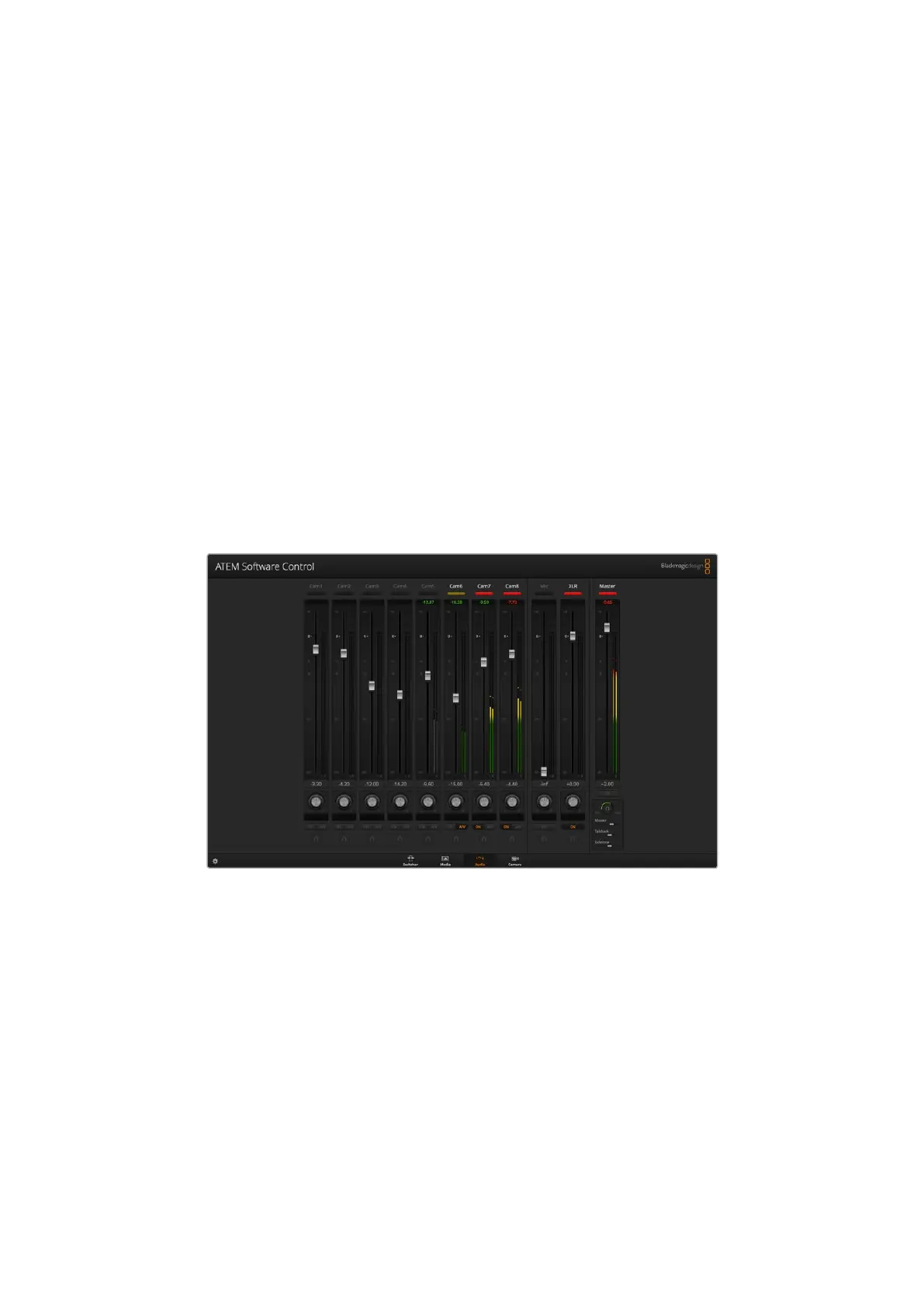
The audio tab in ATEM Software Control contains a powerful audio mixer interface which
becomes active when controlling your ATEM switcher.
ATEM switchers include a built-in audio mixer that lets you use the embedded HDMI and SDI
audio from your cameras, media servers and other inputs without the need for an external
audio mixer. This is perfect when using your ATEM switcher on location or in small spaces within
modern OB vehicles as you don’t have to find room for an external audio mixer. The audio is
mixed in the audio tab of ATEM Software Control and output via the SDI program output.
Your ATEM switcher also features built in XLR inputs for mixing external audio.
If you prefer to use an external audio mixer, it’s easy to disable the audio for all inputs and you
only need to leave the external audio active in the audio mixer interface. More information on
how to use the audio mixer is included in the next sections.
Camera Control
The 'camera' tab in the software is where you can control cameras remotely, in a similar way to
how traditional external camera control units can control cameras, however with
32










 To Next Page