Using Macros
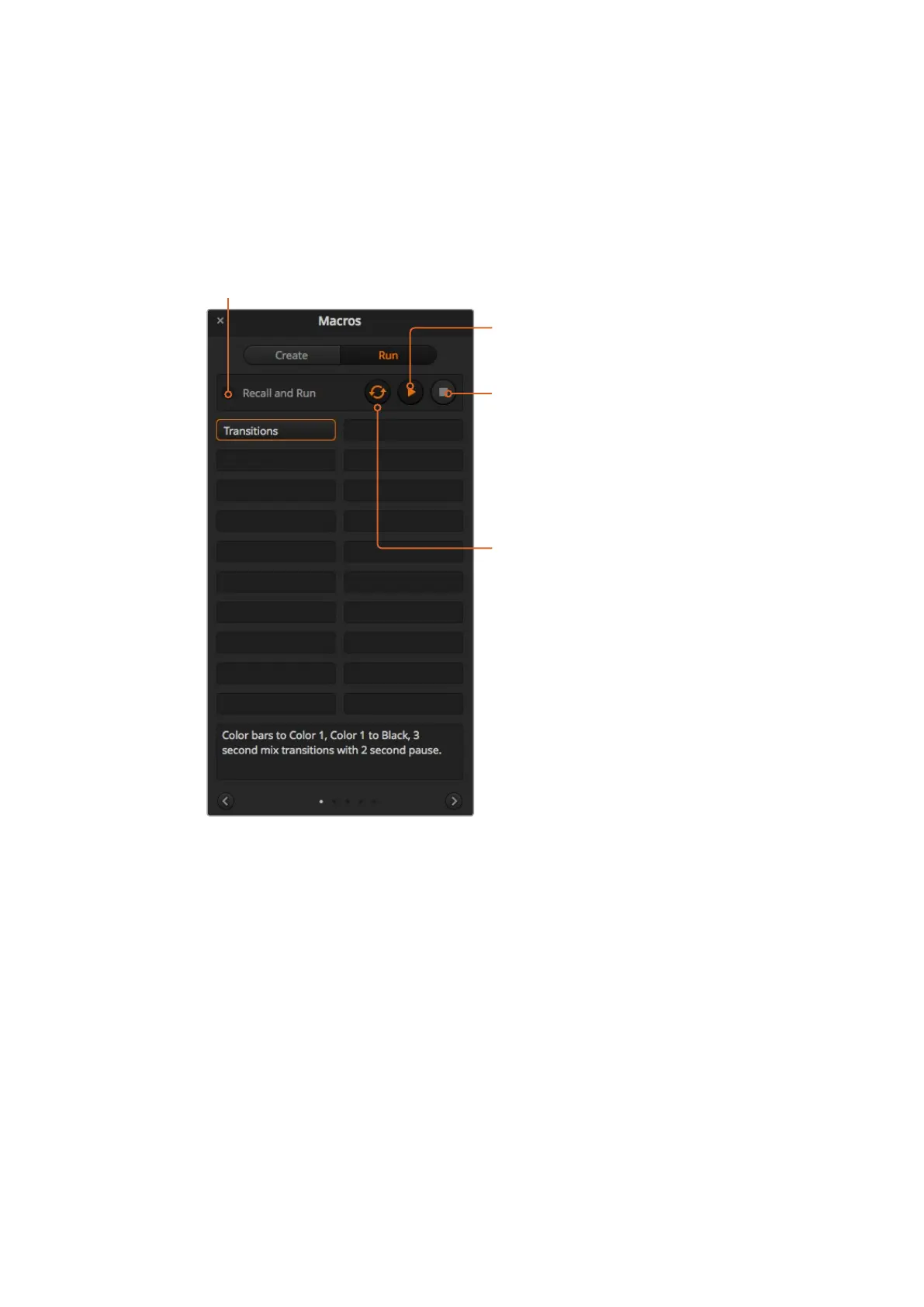
Macros Window Run Page
Recording Macros using ATEM 1 M/E Advanced Panel
You can record and run macros using an ATEM 1 M/E Advanced Panel independently of
ATEMSoftware Control. All actions on the ATEM Software Control switcher page can be
performed using your hardware panel. If you need to arrange graphics in the media pool,
oradjust camera settings, simply access those settings using ATEM Software Control.
The buttons used to record and run macros on the ATEM 1 M/E Advanced Panel are located in
the system control buttons. The names of your macro buttons are displayed in the source select
names display.
Follow the steps below to create the ‘transitions’ macro demonstrated earlier using
ATEMSoftware Control. This time you will create a macro in macro slot 2.
1 Press the ‘macro’ soft button to open the macros LCD menu.
2 Using the ‘macro’ knob under the LCD, select the macro slot you want to record to.
Forthis example, select slot 2.
Recall and Run:
Selecting the Recall and Run feature
lets you instantly run a macro by
clicking a macro button. Deselecting
the Recall and Run feature lets you
load a macro by clicking on your macro
button. Run the macro by clicking the
play button.
Play:
When Recall and Run is
deselected and you have
loaded a macro by clicking
on a macro button, click the
play icon to start playing
the macro.
Stop:
Clicking the stop button will
stop the playback of a macro,
but will complete the current
action first. For example, if
you press stop half way into
a transition, the switcher
will finish the transition and
then stop.
Loop:
When the loop button is
selected and you run a
macro, your macro will run
continuously until you click
the stop button. When loop is
deselected, your macro will
run until it is completed.
159










 To Next Page