Using Macros
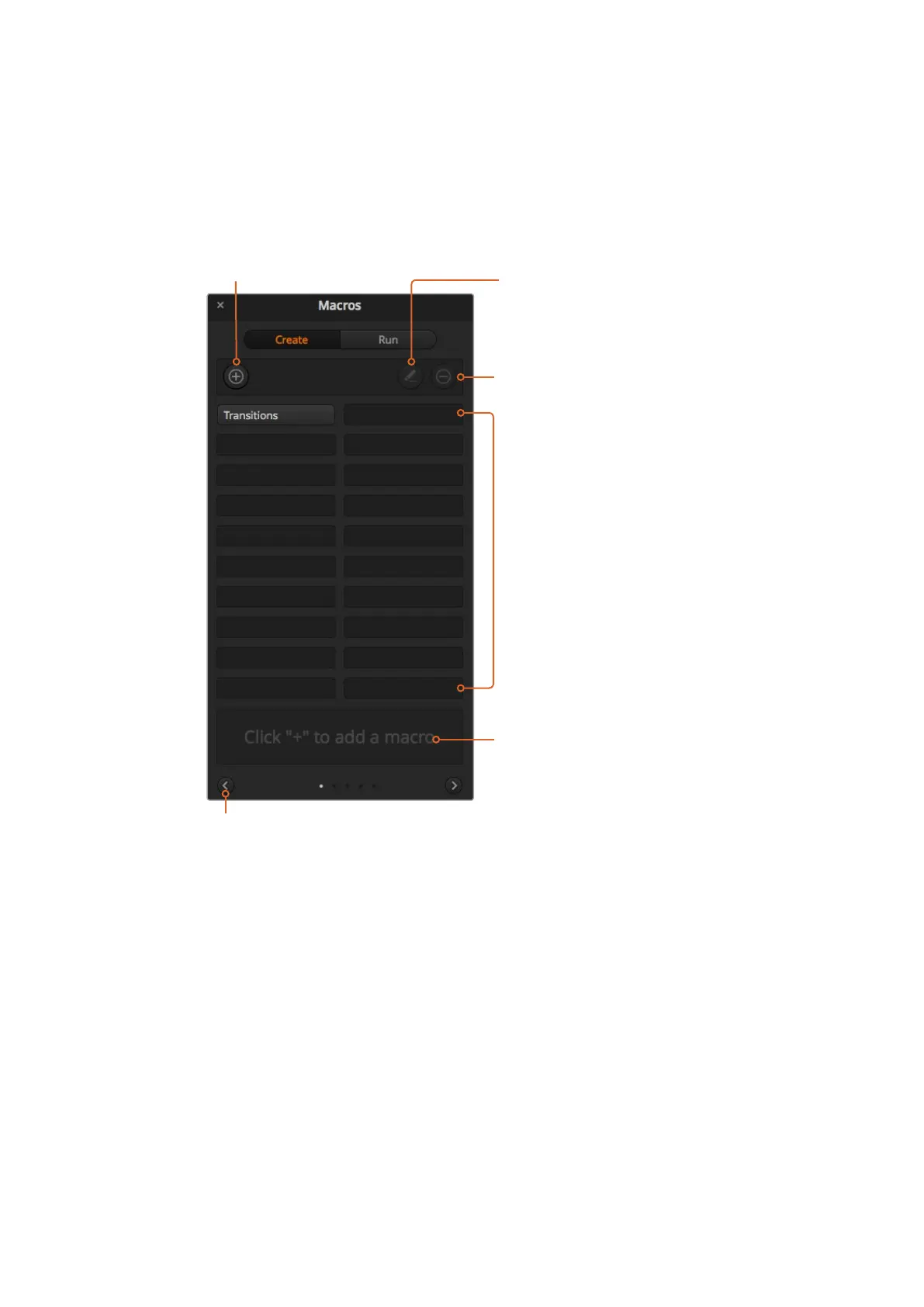
Macros Window Create Page
Create macro button:
Click this button to open the create
macro popup window. From here
you can name a new macro tobe
recorded, write a description of your
macro in the notes section, and click
record to start recording your macro.
Arrow buttons and page Icons:
To access or record more than 20macros, simply
click on the right arrow at the bottom corner of the
macros window to open a new page of macros.
Tomove to the previous page of macros, click on
the left arrow. You can see which page of macros
you are viewing by observing the page icons
between the arrows.
Edit macro button:
First select the macro you want
to edit, then click on the edit
macro button to edit the name
and description of the macro.
Delete macro button: Select the
macro you want to delete, then
click on the delete macro button
to delete the selected macro.
Status window:
This window provides helpful prompts
and status messages to help you
getstarted recording and running
your macros. When a macro is
selected, it also displays any notes you
have included.
Macro buttons:
After recording a macro to a selected
macro slot, your macro will appear
as a macro button. 20macro buttons
can be displayed on one page. If a
macro is unnamed when recording,
the number of the selected macro slot
will be used.
158










 To Next Page