Using Audio
Using Embedded SDI and HDMI Audio Sources
Your ATEM switcher includes a built-in audio mixer that lets you use the embedded HDMI and
SDI audio from your cameras, media servers and other inputs without the need for an external
audio mixer.
Once you’ve connected your SDI and HDMI cameras to the switcher for vision mixing, there are
no other connections to make as the audio mixer uses the embedded audio in the video signal.
This saves space and makes setup very fast and low cost as you don’t need separate audio
connections for every video source, and you don’t need an external audio mixer unless you
prefer to use one.
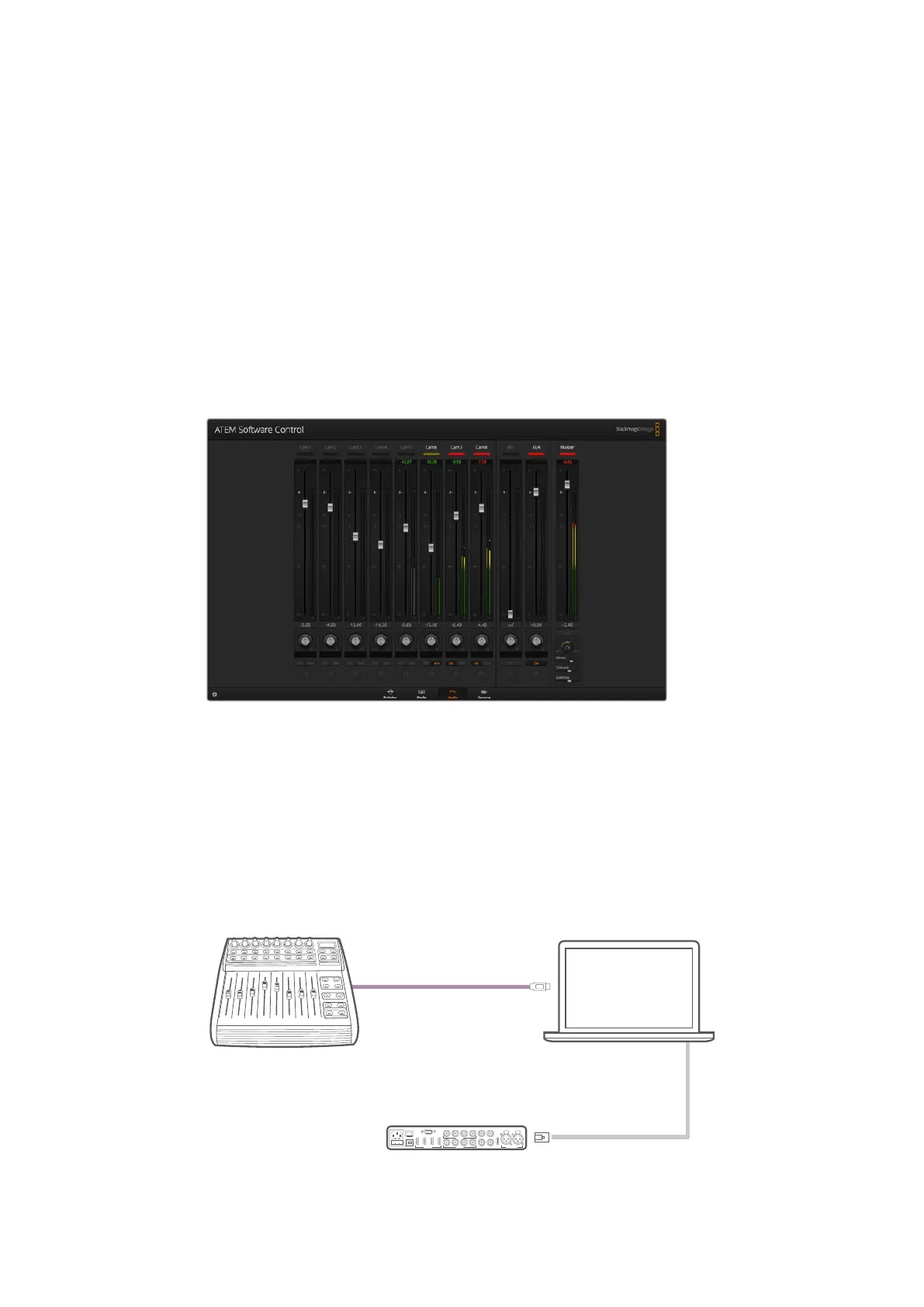
The audio is mixed using the control buttons and knobs on your switcher, or via the Audio tab
of ATEM Software Control and output over the SDI and HDMI program outputs as embedded
digital audio.
Using a Third Party Audio Mixer Control Surface
Using an Audio Mixer Control Surface
Connecting a hardware audio mixer control surface to your ATEM switcher provides you with
the ability to use both hands and adjust multiple audio levels at the same time.
An audio mixer control surface can be connected to your Mac or PC as a MIDI device using
Mackie Control commands to communicate with the ATEM switcher.
Many third party MIDI control surfaces are compatible with your ATEM switcher but please
check with the manufacturer of your control surface if in doubt.
You can adjust multiple audio levels at the same time by connecting a hardware
audio mixer to the computer which is running ATEM Software Control
Audio Mixing Console
USB Computer
USB
Ethernet
ATEM Television Studio HD
PUSH PUSH
ANALOG AUDIO INPGMREF IN
MULTI-VIEWAUX
MULTI-VIEW
CH 1 CH 2
SDI INPUTS
SDI OUTPUTS
HDMI INPUTS
1 2 3 4
REMOTE
5 6 7 8
5 6 7 8
USB 2.0
CONTROL
212










 To Next Page