Operating your ATEM Switcher
3 To set the transition rate, press the menu button and navigate to the ‘transitions’
settings menu on the LCD. Set the duration of the dip by changing the rate setting.
You can also set the dip source. You can use any of the switcher sources, including
cameras, Media players or background colors.
4 Press ‘set’ to confirm the changes, then press the ‘menu’ button to step back to the
master output screen.
5 Perform the transition as an auto transition or manual transition using the auto button
or the transition slider.
To perform a dip transition on the software control panel:
1 On the preview bus, select the video source that you want on the program output.
2 Select the DIP transition style in the transition control block.
3 Expand the transition palette and select dip from the transition types bar.
4 Adjust the dip rate by entering a number in the rate window. The rate display in the
transition control block will update.
5 Select the dip source.
6 Perform the transition as an auto transition or manual transition from the transition
control block.
Dip transition parameters
Rate The dip transition rate in seconds and frames.
Dip Source The dip source is any video signal in the switcher that will be used as the intermediate
picture for the dip transition, usually a color generator or media player.
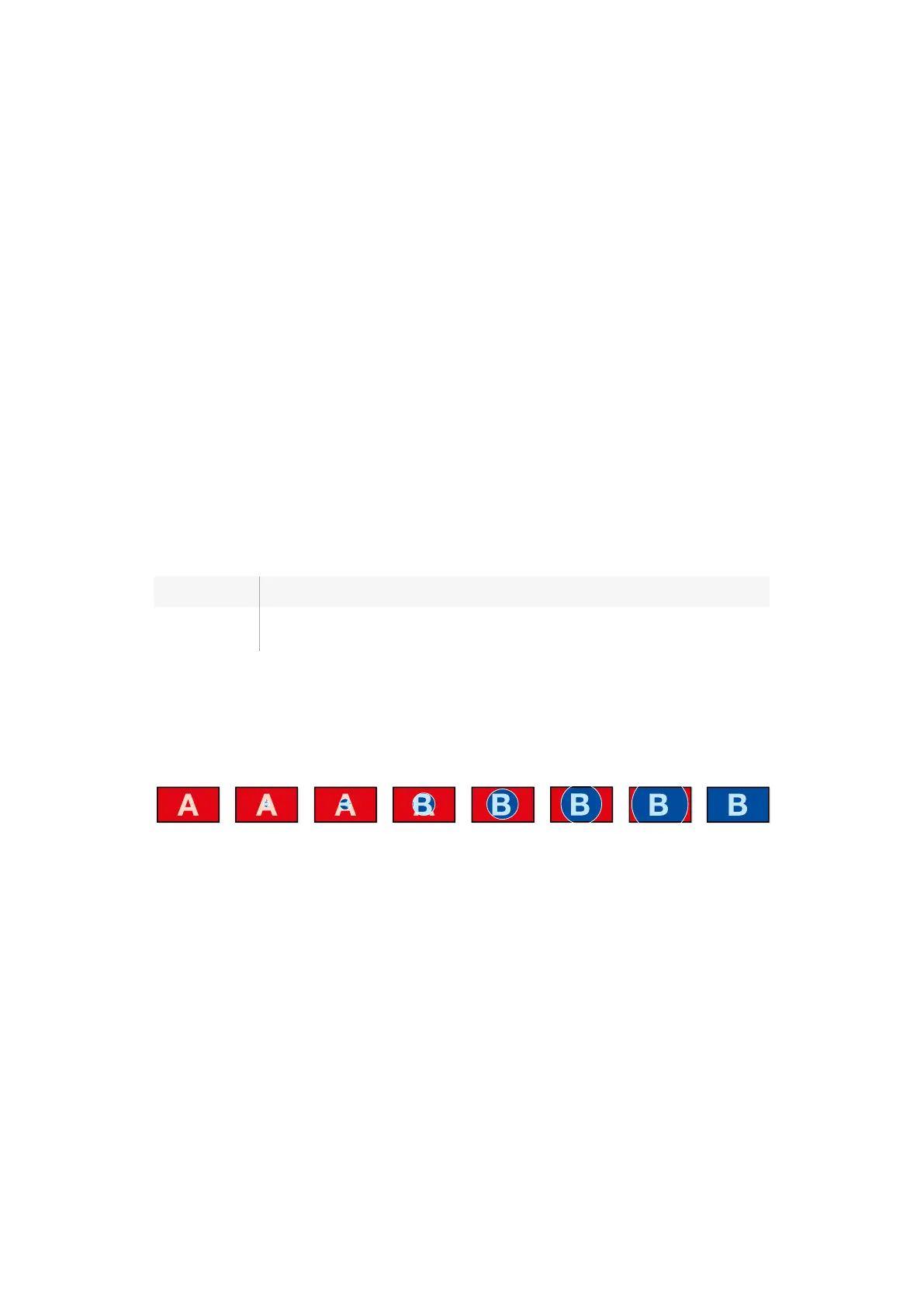
Wipe Transitions
A wipe is a transition from one source to another and is achieved by replacing the current
source by another source with a pattern that forms a shape. For example an expanding circle
or diamond.
Program output for a wipe transition.
To perform a wipe transition on ATEM Television Studio HD:
1 Press a source button on the control panel for the video source that you want on the
program output. The button will illuminate green.
2 In the LCD transitions settings, select ‘wipe’. Press the ‘menu’ button to return to the
transitions settings and change the transition rate if you want to.
3 Press the menu button to step back through the menus to the master output screen.
4 Perform the transition as an auto transition by pressing the auto button on the
front panel.
115










 To Next Page