Using Macros
Recording Macros using an ATEM 1 M/E Broadcast Panel
You can record and run macros using an ATEM 1 M/E Broadcast Panel independently of
ATEMSoftware Control. All actions on the ATEM Software Control switcher page can be
performed using your hardware panel. If you need to mix audio, arrange graphics in the media
pool, or adjust camera settings, simply access those settings using ATEM Software Control.
The buttons used to record and run macros on the ATEM 1 M/E Broadcast Panel are located in the
system control soft buttons. The names of your macro buttons are displayed in short form in the
source names display, and you can view them by pressing the show names soft button. Macro
names longer than 4 characters are shown in their entirety in the system control LED display.
Recording a macro is easy. After pressing the ‘macro’ soft button to enter the macro menu,
select a macro slot by pressing any of the 10 macro buttons in the select bus. Shift select if you
want a macro slot up to 20. To select macro slots above 20 use the numeric keypad. Simply
type in a number between 1 to 100 and press the cam button to confirm your selection. Another
method is by turning the knob under the system control LED display. The same methods are
used to recall and run macros during your live production.
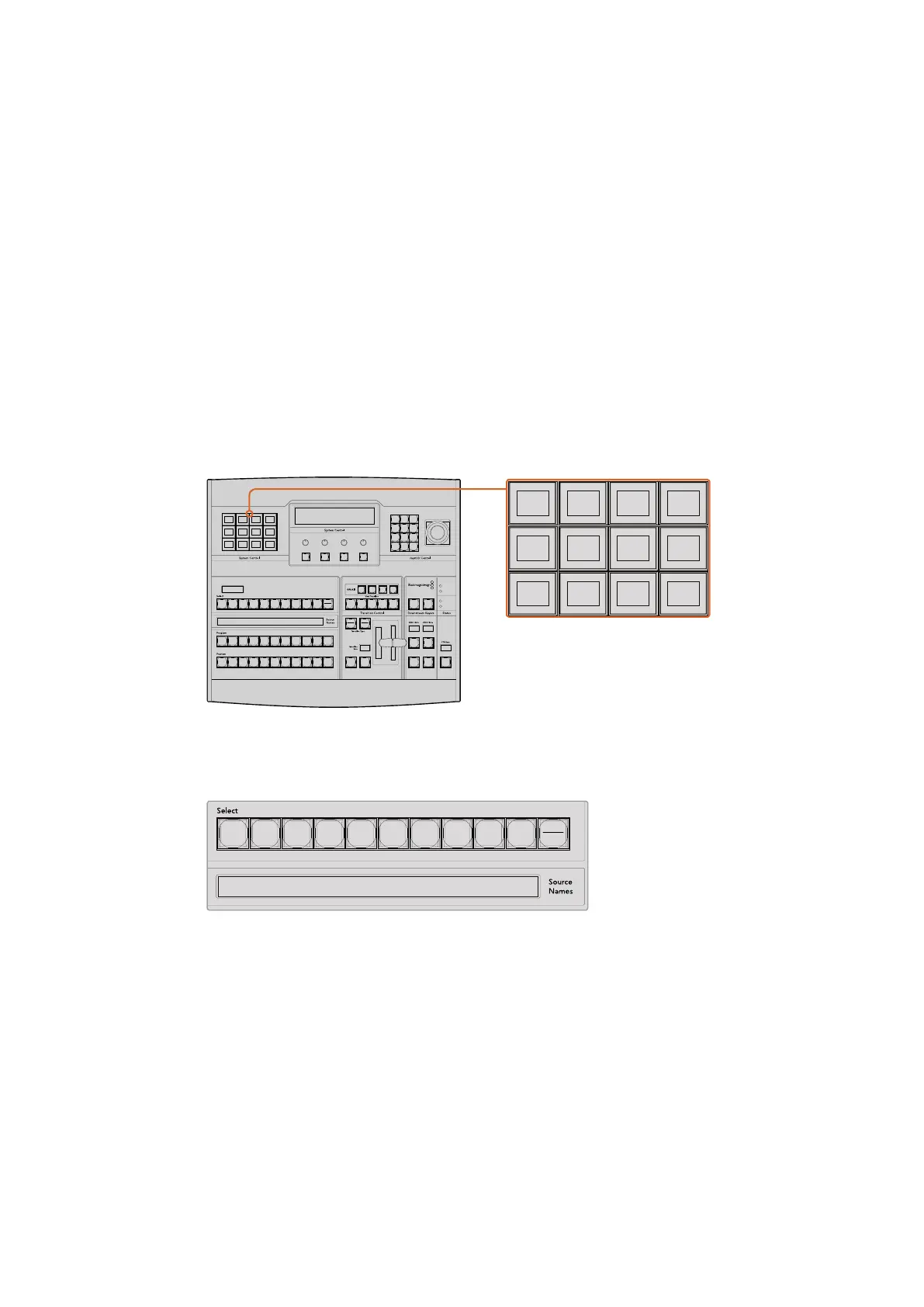
The system control soft buttons on your ATEM 1 M/E Broadcast Panel lets you
record and run macros from the panel itself. Press the ‘macro’ button in the
system control ‘home’ menu to enter the macros soft button menu.
Macro buttons for the first 20 macro slots are located in the
select bus. Shift select to select a macro above slot 10, or use
the numeric keypad. Recorded macros up to 20 will display their
respective names in short form on the source names display.
Follow the steps below to create the same ‘Transitions’ macro demonstrated earlier using
ATEMSoftware Control. This time you’ll create a macro in macro slot 2.
1 Press the macro soft button in the system control ‘home’ menu.
2 Press macro slot button 2 located above the program bus, or by using the
numeric keypad.
3 Press the record soft button. The button will begin flashing indicating you are
now recording a macro. You can also see the red border displayed around the
ATEMSoftware Control panel.
CUT
SHIFT
ON
KEY 1BKGD
CUT AUTO
KEY 2 KEY 3 KEY 4
ON ON ON
1 2 3
4 5 6
7 8 9
CAM 0 CLR
PREV
TRANS
FILL
DIP
MIX
DSK 1
TIE
DSK 2
Control Panel
Switcher
Main
Backup
Main
Backup
TIE
DSK 1
CUT
DSK 2
CUT
DSK 1
AUTO
DSK 2
AUTO
FTB
TRANS
EFFECTS
KEYS
DSK COLOR
MEDIA
PLAYER
AUX
SETUP
MACRO
SUPER
SOURCE
PTZ
TRANS
EFFECTS
KEYS
DSK COLOR
MEDIA
PLAYER
SUPER
SOURCE
HYPER
DECK
AUX
SETUP PTZ
MACRO
CUT
SHIFT
ON
KEY 1
KEY
1
KEY
2
KEY
3
KEY
4
PATTRN
KEY
CHROMA
KEY
LUMA
KEY
MASK
MENU
HOME
DVE
BKGD
CUT AUTO
KEY 2 KEY 3 KEY 4
ON ON ON
1 2 3
4 5 6
7 8 9
CAM 0 CLR
PREV
TRANS
FILL
DIP
MIX
DVE
WIPE
DSK 1
TIE
DSK 2
Control Panel
Switcher
Main
Backup
Main
Backup
TIE
DSK 1
CUT
DSK 2
CUT
DSK 1
AUTO
DSK 2
AUTO
FTB
162










 To Next Page